
Overview
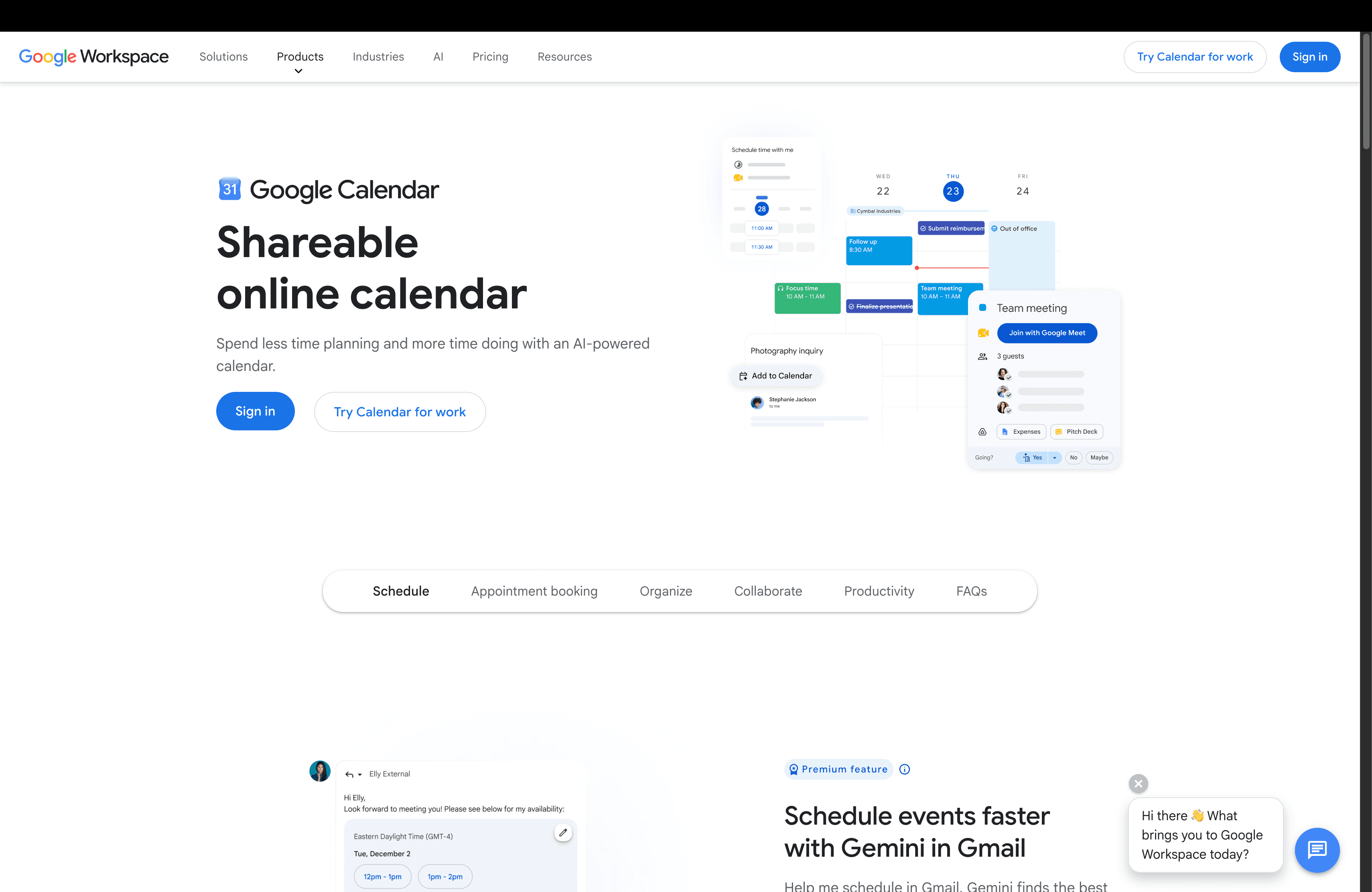
What is Google Calendar: Google Calendar is the scheduling and shared calendar application within Google Workspace. It manages single and recurring events, team calendars, appointment booking pages, and free/busy availability across organizations.
How to integrate Google Calendar with Datagrid
This setup is for operators and project teams who need Google Calendar data inside Datagrid for execution, logging, and follow-up workflows. The process follows three steps in order: connect Google Calendar, authenticate access, and configure data sync.
Connect Google Calendar
Click + Create on the top left of the screen.
Select Connect Apps.
Search for the Google Calendar integration.
Log in with a Google account and authorize Datagrid's access.
Grant the required permissions, then click Next.
Select the Google Calendar data objects to include (Events, Calendars, Attendees, Reminders, Settings, Colors, Free/Busy Times).
Click Start First Import to begin syncing.
Additional endpoints beyond the default seven can be requested by contacting support@datagrid.com.
Authenticate access
The integration uses OAuth 2.0. You need the following:
An active Google account with access to Google Calendar and the appropriate permissions.
A Google Cloud project with the Google Calendar API enabled.
An OAuth 2.0 client ID and secret generated from that Google Cloud project.
Google's OAuth consent screen presents granular permission checkboxes per scope. Request the narrowest scope that matches your use case. For read-only data import, calendar.readonly and calendar.events.readonly are sufficient. Full read/write access requires the calendar scope.
Configure data sync
The integration syncs Google Calendar Events and Calendars, extracts event sub-objects such as attendees and reminders, and pulls settings, colors, and free/busy availability data into Datagrid. Once connected, AI agents can read and act on calendar data alongside information from other integrated platforms.
Events: Calendar events with full metadata (summary, description, location, attendees, recurrence rules, conference data) flow into Datagrid.
Calendars: Calendar-level metadata (title, description, timezone) flows into Datagrid.
Attendees: Event sub-object containing attendee fields such as email, response status, and optional flag flows into Datagrid.
Reminders: Event sub-object containing reminder fields such as method and minutes before start flows into Datagrid.
Settings: User preferences from the Calendar UI (read-only in the API) flow into Datagrid.
Colors: Color definitions for calendars and events flow into Datagrid.
Free/Busy Times: Availability data returned from FreeBusy queries across calendars flows into Datagrid.
Datagrid supports scheduled syncs to keep datasets current. Configure the sync frequency in the Set Up a Schedule section of the integration to pull the latest calendar data at regular intervals.
Why use Google Calendar with Datagrid
Datagrid turns Google Calendar scheduling data into executed workflows across the CRM, project, and analytics systems operators and leading teams already run. Here are some reasons to use the integration:
Automated activity logging: Datagrid AI agents detect completed meetings, match attendees to contact records, classify meeting intent from event descriptions, and write activity logs to connected systems for sales operators who would otherwise log meetings by hand.
Pre-meeting briefing generation: Agents read upcoming events, identify attendees, pull account history and open action items from connected systems, and deliver a synthesized briefing to account leads before the meeting starts.
Calendar-driven workflow triggers: Events matching specific patterns (title keywords, attendee domains, extendedProperties metadata) trigger downstream workflows automatically (document extraction, team chat notifications, project creation, and system updates) for operators standardizing how each meeting type is handled.
Meeting analytics across teams: Datagrid agents analyze event data across organizational calendars, surfacing meeting load, focus time fragmentation, attendance patterns, and recurring meetings with low participation, then write the results to connected spreadsheet tools or BI tools used by operations leaders.
Intelligent conflict resolution: AI agents query the FreeBusy API across multiple participant calendars, apply priority rules (client-facing events outweigh internal syncs), and propose or trigger rescheduling workflows when conflicts arise, removing the back-and-forth coordination work from executive assistants and project managers.
What you can build with Google Calendar Datagrid integration
Teams that already run on calendars, CRM records, chat tools, and spreadsheets can use Datagrid to turn event data into reliable execution. The examples below show how Datagrid agents read Google Calendar context, cross-reference connected systems, and complete the follow-up work around each event.
Sales meeting-to-record pipeline: When a sales rep completes a client meeting, a Datagrid AI agent reads the event metadata, cross-references attendee emails against contact records, classifies the meeting type from the description text, and creates or updates the appropriate activity record and deal stage.
Cross-platform project schedule coordination: A Datagrid agent uses imported Google Calendar milestones and project tasks from connected work tools to coordinate schedule changes across systems.
Organizational time intelligence dashboard: Datagrid agents pull event data across department calendars on a recurring schedule, extract structured metrics, and write the results to a dashboard.
Contract review event orchestration: When a "Contract Review" event appears on the calendar with specific extendedProperties metadata a Datagrid agent extracts the full event payload, parses business entities from the description, pulls the associated opportunity from connected records, generates a document from a template, and posts a structured notification to the relevant team chat channel.
Resources and documentation
Google Calendar API v3 reference: Complete index of API resources including Events, Calendars, CalendarList, ACL, FreeBusy, Settings, and Colors.
Google Calendar API overview: Foundational overview of the REST API architecture and core resource types.
Google Calendar API auth guide: OAuth consent screen configuration, scope definitions, and scope selection best practices.
Google Calendar API sync guide: Sync token pattern for incremental data retrieval.
Frequently asked questions
What authentication method does the Datagrid Google Calendar integration use?
The integration uses OAuth 2.0. You need a Google Cloud project with the Calendar API enabled and an OAuth 2.0 client ID and secret. During setup, you log in with your Google account and authorize Datagrid's access through the OAuth consent screen. Google presents granular permission checkboxes per scope. The Datagrid integration setup guide lists the full prerequisites.
What data objects does Datagrid sync from Google Calendar?
Datagrid syncs Google Calendar Events and Calendars, along with event sub-objects such as Attendees and Reminders, plus Settings, Colors, and Free/Busy Times availability data. Events are the primary data object, containing fields like summary, description, attendees, start/end datetime, recurrence rules, conference data, and extendedProperties for custom metadata. The full list of supported objects is documented on the Datagrid Google Calendar integration page. Additional endpoints can be requested through Datagrid support.
How does the integration handle recurring events?
The Google Calendar API uses a two-level structure for recurring events: a master event and individual instances. By default, events.list returns the master event as a single object. To retrieve individual occurrences, the API call uses singleEvents=true to expand all instances. Modifying a single instance creates an exception with its own event ID, linked to the master via recurringEventId.
Can Datagrid keep calendar data updated automatically?
Yes. The integration supports scheduled syncs through the Set Up a Schedule configuration in Datagrid, which triggers regular data pulls to keep datasets current. For production-grade real-time sync, the Google Calendar API supports push notifications via Events.watch webhook channels that signal when changes occur, followed by incremental retrieval using sync tokens.
Similar integrations
Exchange: Sync calendar events, emails, and contacts between Google Calendar and Exchange for cross-platform scheduling and unified availability checks.
Salesforce: Log calendar meetings as CRM activities in Salesforce and update opportunities using event metadata and attendee information.
HubSpot: Link Google Calendar events to HubSpot contacts and deals to automate activity tracking and follow-up task creation.
Slack: Deliver meeting notifications, briefing summaries, and scheduling prompts from Google Calendar into Slack channels and direct messages.
Google Sheets: Export calendar metrics and meeting analytics to Google Sheets for reporting, BI pipelines, and recurring dashboards.
Asana: Keep project milestones and tasks synchronized with Google Calendar events to reflect schedule changes and due date adjustments.