
Overview
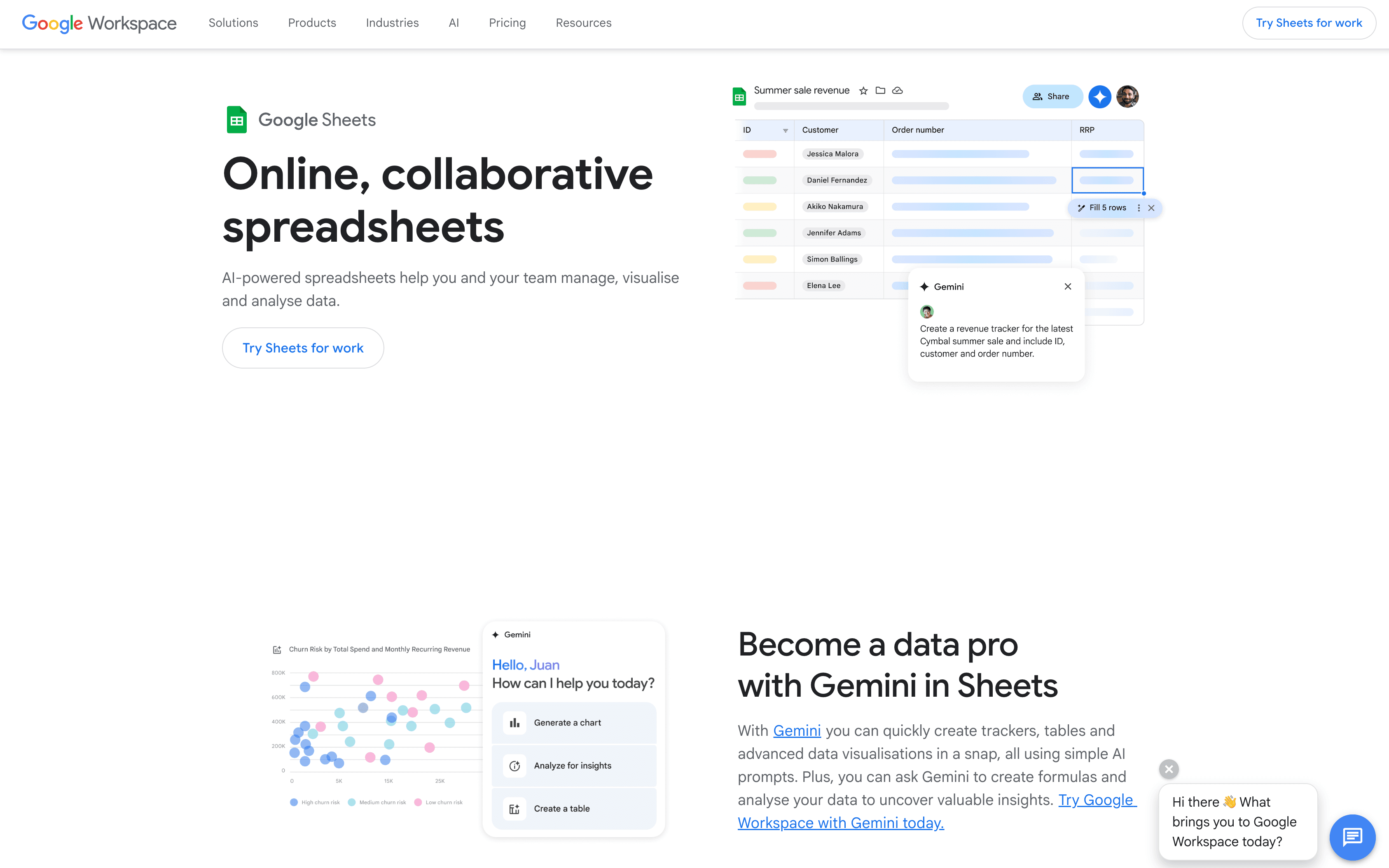
What is Google Sheets: Google Sheets is an online collaborative spreadsheet application and a core component of the Google Workspace productivity suite. Teams use it for real-time co-editing, data analysis, project tracking, and reporting. It supports native .xlsx compatibility, Connected Sheets for warehouse and BI access, and Gemini-powered features for formula generation and pattern detection.
How to integrate Google Sheets with Datagrid
Setting up the Google Sheets integration takes three steps for project teams that need spreadsheet workflows running on Datagrid: choose your spreadsheet source, authenticate Google access, and define sync behavior. The current integration page confirms the supported data types, while environment-specific setup details depend on your Datagrid configuration and Google authentication model.
Choose your spreadsheet source
Start in the Datagrid Google Sheets integration documentation and confirm which spreadsheet data source Datagrid should access. The current documentation confirms support for Google Sheet data and XLSX stored in Google Drive.
Authenticate Google access
Google Sheets integrations commonly use OAuth 2.0, the standard authorization protocol for Google Workspace applications. For enterprise deployments with Google Workspace, administrators can also configure service account authentication with Domain-Wide Delegation for server-to-server access without per-user authorization prompts.
The Google Sheets API uses the spreadsheets OAuth scope, which grants read and write access to Google Sheets data. For read-only workflows, the spreadsheets.readonly scope can be used instead.
Define sync behavior
The list below summarizes the documented data model, sync direction, and format coverage for the integration:
Documented integration data objects: Google Sheet data, XLSX stored in Google Drive
Google Sheets API data model: Cell values, formulas, sheet metadata, named ranges
Sync direction: Read from and write to Google Sheets via the Google Sheets API
Sync method: REST API (Google Sheets API v4)
Supported formats: Google Sheets native format, XLSX
The Google Sheets API does not support native webhooks. Change detection patterns for Google Sheets generally rely on scheduled polling via the Sheets API v4 and, for file-level change signals, the Google Drive API push notification system.
Why use Google Sheets with Datagrid
Google Sheets often serves as the working layer between source systems, reporting, and exception handling. Connecting Google Sheets with Datagrid gives project teams a direct way to move data into and out of spreadsheets without manual copy-paste.
Automated document-to-spreadsheet extraction: Datagrid's AI agents read invoices, forms, contracts, and PDFs, then write structured data directly into Google Sheets rows without manual data entry.
Bidirectional record sync: Google Sheets can act as both a source and destination in workflows that move data between spreadsheets and business systems.
Cross-platform data blending: Datagrid's AI agents pull data from 100+ connected platforms, combine it with spreadsheet data, and write consolidated results back to Sheets for analysis and reporting.
AI-powered data enrichment: New rows added to Google Sheets can be processed by Datagrid's AI agents that research company data, score leads, and write enrichment results into adjacent columns.
Scheduled pipeline reporting: Datagrid's AI agents connect to business systems on a defined schedule, calculate metrics, generate summaries, and update Google Sheets dashboards without manual preparation.
What you can build with Google Sheets Datagrid integration
Google Sheets often becomes the operational surface where teams review inputs, validate outputs, and track exceptions. Datagrid turns that spreadsheet layer into an execution point for recurring workflows across documents, records, and connected systems. The examples below show how project teams can use Google Sheets as both a source and a destination inside Datagrid workflows:
Lead enrichment pipeline: When a new row lands in a Google Sheets lead tracker from a web form, Datagrid's AI agents research the company, score the lead, and write enriched fields back to the same row so sales teams work from a fully qualified record.
Document extraction to spreadsheet: When invoices, purchase orders, or spec sheets arrive as PDF attachments, Datagrid's AI agents parse the line items and write structured data into Google Sheets rows so finance and operations teams skip manual transcription.
Multi-source marketing dashboard: Datagrid's AI agents pull campaign performance data from marketing and communication platforms on a nightly schedule, calculate cross-channel metrics, and update a Google Sheets dashboard so marketing leads start each day with current numbers.
Bidirectional sales pipeline sync: Datagrid's AI agents update deal records in the system of record from changes made in Google Sheets, then refresh spreadsheet views from source records on the next sync, so revenue operators run forecasts in Sheets without breaking CRM data.
Resources and documentation
Google Sheets API v4 overview and concepts. Core concepts for the Sheets API data model and behavior.
Google Sheets API authentication and scopes. Scope requirements for read and write access.
Google OAuth 2.0 for web server applications. OAuth implementation guidance for user-authorized integrations.
Google Sheets API Python quickstart. A language-specific quickstart for testing Sheets API access.
Google Sheets API values guide (read/write operations). Examples of value reads, updates, and append operations.
Frequently asked questions
What authentication method does the Datagrid Google Sheets integration use?
Google Sheets integrations typically use OAuth 2.0. During setup, users authorize access through Google's consent screen, which grants permission to read and write spreadsheet data. For automated server-to-server workflows, Google also supports service account authentication, where a JSON key file replaces the interactive consent flow. Enterprise teams in Google Workspace can configure Domain-Wide Delegation so that the service account acts on behalf of individual users without requiring separate authorization from each person.
Does the Google Sheets integration support real-time sync?
The Google Sheets API is REST-only and does not include native webhook or push notification endpoints. Real-time cell-level change detection is not available through the API itself. Integrations typically use scheduled polling via the Google Sheets API to detect updates. For file-level change signals, the Google Drive API push notification system can notify a connected system when a spreadsheet file has been modified, though a follow-up API call is required to determine the specific changes.
What data can Datagrid read from and write to Google Sheets?
The Google Sheets API v4 supports bidirectional access to cell values, formulas, formatting, named ranges, charts, pivot tables, protected ranges, filters, conditional formatting, and developer metadata. Connected workflows can read cell data using the spreadsheets.values.get endpoint and write data back using spreadsheets.values.update or spreadsheets.values.append. Structural operations use the spreadsheets.batchUpdate endpoint.
Can Datagrid process XLSX files stored in Google Drive alongside native Google Sheets?
Yes. The Datagrid Google Sheets integration supports both Google Sheet data and XLSX stored in Google Drive, as documented on the integration page. Google Sheets can also open and edit .xlsx files natively without format conversion. For export, the Google Drive API supports conversion to XLSX, CSV, PDF, ODS, and TSV formats via the files.export endpoint. Note that CSV and TSV exports cover only the first sheet of a workbook.
What OAuth scopes does the integration require?
The integration uses Google Sheets API scopes to define its access level. For full read/write access, the https://www.googleapis.com/auth/spreadsheets scope is required. For read-only workflows, https://www.googleapis.com/auth/spreadsheets.readonly is sufficient. These scopes apply at the spreadsheet file level and cannot be restricted to a specific sheet or tab within a workbook. To prevent modification of specific tabs, use Protected Ranges within the spreadsheet itself.
Similar integrations
Google Drive: Hosts Google Sheets files, provides export and sharing, and supports Drive push notifications used for file-level change detection and ingestion workflows.
BigQuery: Serves as a cloud data warehouse source for Connected Sheets, supporting large-scale analytics and bidirectional data sync between Sheets and warehouse tables.
Microsoft Excel: Alternative spreadsheet source with a distinct API, useful when syncing legacy Excel workbooks alongside Google Sheets.
Snowflake: Analytic warehouse complement for Sheets reporting that populates Sheets dashboards from warehouse tables through ETL workflows.
PostgreSQL: Relational data source for syncing records into Sheets, supporting joins, enrichment, and scheduled exports into spreadsheet tables.
Google Cloud Storage: Object storage for CSV/XLSX exports and bulk data ingestion into Sheets-connected pipelines.
Browse by category
Data
Collaboration