
Overview
What is Asana: Asana is a work management platform used by project teams to track tasks, manage projects, and coordinate workflows across departments. It organizes work into tasks, projects, sections, portfolios, and goals, with custom fields, dependencies, and multiple views including list, board, timeline, calendar, and Gantt.
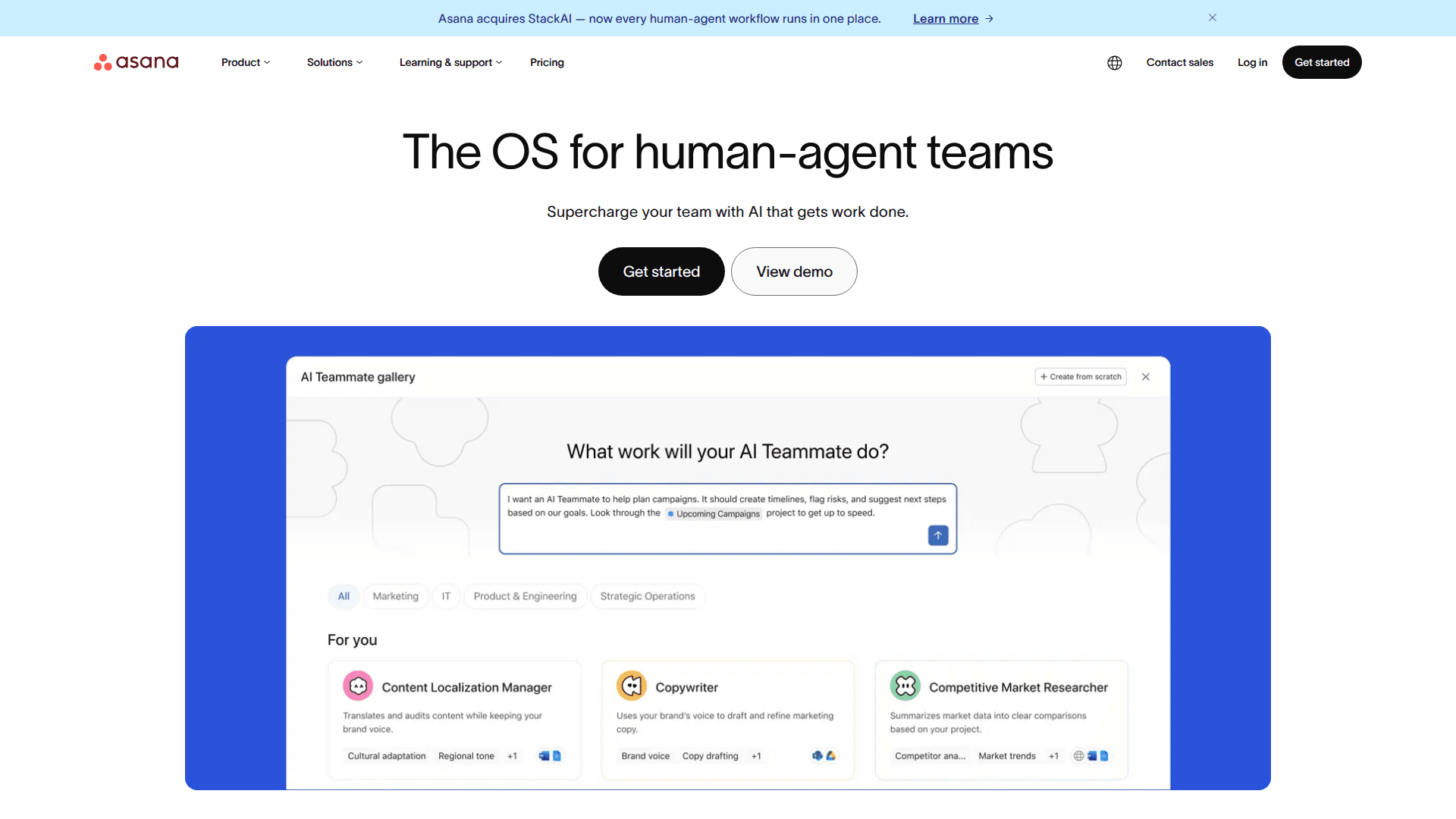
How to integrate Asana with Datagrid
Connect Asana, confirm prerequisites, authenticate access, and configure data sync. The Asana integration pulls task, project, and team data from your Asana workspace into Datagrid datasets. Once connected, Datagrid's AI agents analyze project performance, detect bottlenecks, and cross-reference Asana records with data from other integrated platforms.
Connect Asana
Follow these steps to create the connection and start the first import.
Click + Create in the top left of the Datagrid interface.
Select Connect Apps from the menu.
Search for and select the Asana integration from the list.
Log in with your Asana account and authorize Datagrid's access when prompted.
Click Next.
Select the Asana data objects to include in your dataset.
Click Start First Import to begin syncing.
Configure a recurring schedule during setup to keep your Datagrid datasets current with the latest Asana data.
Confirm prerequisites
Before you begin, make sure the account and access requirements are in place.
An active Asana account with permissions to access the target projects and data.
Selection of the data objects to import during setup.
For the standard in-app setup flow, log in with your Asana account and authorize Datagrid.
For single-user or manual setups, Asana offers a Personal Access Token (PAT), generated from Settings > Apps in your Asana account, or via the Developer App Management page.
Authenticate access
During integration setup, you log in with your Asana credentials and authorize Datagrid. Asana provides Service Accounts for organization-wide automation on Enterprise plans. For production integrations that use a PAT, create a dedicated Asana service account, add it to all required projects, and generate the PAT from that account. This prevents access disruption when individual team members leave or change roles.
Configure data sync
Use the sync settings below to understand how data moves from Asana into Datagrid.
Sync direction: One-way (Asana → Datagrid).
Synced objects: Tasks, Projects, Users, Workspaces, Tags, Stories, Attachments.
Sync frequency: Scheduled, configured during setup.
Additional objects: Contact support@datagrid.com to request Sections, Portfolios, Goals, Custom Fields, Status Updates, Time Tracking Entries, or other Asana API resources.
Select only the fields you need during the Pick Your Data step. Asana's API applies cost-based limits tied to the number of fields requested per object. Requesting fewer fields reduces API cost per request and speeds up imports.
This setup gives operators running mission-critical programs a repeatable path for pulling current Asana data into Datagrid.
Why use Asana with Datagrid
Asana holds the work. Datagrid's AI agents execute the reporting, triage, and cross-system analysis around that work.
Automated project reporting: Datagrid's AI agents pull task completion rates, overdue counts, and resource allocation data from Asana on schedule, then generate cross-project reports without manual exports.
Cross-system data analysis: Datagrid's AI agents join Asana project data with records from financial systems, CRMs, and document storage to surface insights that live across tool boundaries.
Intelligent task triage: Agents read open tasks, evaluate urgency against deadlines and workload data, and flag priority conflicts or assignment gaps automatically.
Attachment data extraction: Datagrid's AI agents access files attached to Asana tasks, extract structured data from those documents, and write values back into Datagrid datasets for downstream analysis.
Scheduled sync with zero manual effort: Configure recurring data pulls so Datagrid datasets always reflect the latest Asana state. This removes copy-paste cycles between your work management and analytics tools.
What you can build with Asana Datagrid integration
Project teams can use this integration to standardize reporting, surface exceptions earlier, and connect work management data to the rest of the operating stack. Here are some examples:
Cross-project performance dashboards: Pull tasks, projects, custom fields, and status updates from multiple Asana workspaces into Datagrid. Datagrid's AI agents calculate completion rates, identify overdue clusters, and compare timelines across teams.
Automated client onboarding analysis: When a deal closes in your CRM, Datagrid's AI agents combine imported Asana project data with client records, analyze onboarding progress against templates and deadlines, and route updates to downstream tools.
Document extraction from task attachments: Finance and operations teams attach invoices, expense reports, and contracts to Asana tasks.
Resource allocation analysis across portfolios: Combine Asana user and project data in Datagrid to identify which team members carry the heaviest workload. Datagrid's AI agents flag over-allocated individuals and under-staffed projects.
These workflows turn Asana data into completed reporting, triage, and analysis tasks.
Resources and documentation
Asana REST API reference for available resources, fields, and endpoint behavior.
Asana authentication overview (PAT, OAuth, Service Accounts) for authentication models and access patterns.
Asana OAuth 2.0 implementation guide for OAuth authorization flow behavior.
Asana webhooks implementation guide for event-driven integration patterns.
Asana developer quick start for a concise implementation walkthrough.
Asana API FAQ for common API limitations and usage questions.
Frequently asked questions
What authentication method does the Datagrid Asana integration use?
During setup, you log into Asana and authorize Datagrid's access directly. For single-user or script-based setups, Asana also offers Personal Access Tokens (PATs) generated from the Developer App Management page. If you share a single PAT across multiple integrations and need to revoke one, you must revoke all of them. Create a separate PAT per integration to avoid this problem, as noted in the Asana developer forum thread on PAT scope.
What Asana data objects can I sync into Datagrid?
The integration currently supports Tasks, Projects, Users, Workspaces, Tags, Stories, and Attachments. The Asana API exposes many resource types, including Sections, Portfolios, Goals, Custom Fields, and Time Tracking Entries. To request additional data objects not currently listed, contact support@datagrid.com through the integration page.
Do I need a paid Asana plan for the integration?
The integration works with any active Asana account. Some Asana API features have plan restrictions. For example, the Search API endpoint returns an HTTP 402 error on free workspaces and requires a Premium or higher plan, as documented in the Asana forum post on Search API plan limits. Service Accounts, which provide organization-wide access, are available only on Enterprise plans per the OAuth scopes reference.
How often does Datagrid sync data from Asana?
Datagrid runs scheduled imports at intervals you configure during setup. After the initial import, each subsequent sync pulls the latest data from your selected Asana objects.
Should I use my personal Asana account or a service account for the integration?
Use a dedicated service account for production setups that rely on a PAT. A PAT inherits exactly the access level of the generating user. If that user leaves the organization or loses project access, the integration breaks. Create a dedicated Asana account, add it to all required projects and teams, and generate the PAT from that account. This keeps integration access independent of personnel changes. The Asana forum thread on PAT security and limits confirms this best practice.
Similar integrations
Monday: Project teams pair Monday with Asana for cross-team project imports, reporting, and migration workflows.
Jira: Engineering and product teams sync Jira with Asana to flow task and issue updates between developer and project tracking systems.
Smartsheet: Project teams pair Smartsheet with Asana for financial tracking, sheet-based plans, and data-driven reporting.
Notion: Teams use Notion alongside Asana to store briefs and requirements that link back to Asana tasks.
Slack: Teams connect Slack with Asana for task notifications, intake triage, and multi-system onboarding workflows.
Browse by category
Work management and productivity
CRM
ERP, finance, and accounting
Document management and file storage
Communication and collaboration