
Overview
What is SharePoint: Microsoft SharePoint is a cloud-based document management and collaboration platform within Microsoft 365 that project teams use to store, organize, and share project files, lists, and metadata across an organization. Excel workbooks, CSVs, and other file types can be published and managed through SharePoint document libraries.
How to integrate SharePoint with Datagrid
Project teams and operations managers who store project files, SOPs, and compliance documents in SharePoint use this integration to pull document libraries and list data into Datagrid for automated analysis and workflow execution. Once that data is in Datagrid, AI agents cross-check submittals against specifications, compile audit evidence from multiple repositories, and compare drawing revisions to flag changes before they reach the field.
Connect SharePoint in Datagrid
Creating a dataset from the SharePoint connector involves selecting the sites and data you want Datagrid to access:
Click on the "+ Create" button on the top left of the screen.
Select the "Connect Apps" item.
Search for the SharePoint connector from the list.
Choose your authentication method: OAuth or Service Account.
For OAuth, accept the Datagrid application installation into your Microsoft tenant.
For Service Account, complete the Azure application provisioning steps in your tenant.
Grant the required Microsoft Graph permissions.
Click "Next" to proceed.
Select your data:
Select the SharePoint sites, document libraries, or lists that Datagrid agents should access.
Click the "Start First Import" button to begin syncing your SharePoint data.
Verify prerequisites
To configure the SharePoint integration, you need:
An active SharePoint Online account (Microsoft 365 subscription) with the necessary permissions to access the sites and data you want to import into Datagrid
Microsoft 365 tenant administrator access to approve the Datagrid application or provision an Azure application
Microsoft Graph permissions granted by a tenant administrator, including
Sites.Read.All,User.Read, andFiles.Read.All
For production integrations, Microsoft recommends restricting app access to specific named sites using Sites.Selected rather than granting access to all site collections in the tenant. Application permissions require admin consent from a tenant administrator before the integration will work.
Authenticate with Microsoft Entra ID
Datagrid uses two authentication methods for SharePoint, both of which authenticate through Microsoft Entra ID.
OAuth uses the OAuth 2.0 Authorization Code flow with delegated permissions. When you connect, Datagrid redirects to Microsoft's identity service. You log in once, and Datagrid manages token refresh automatically.
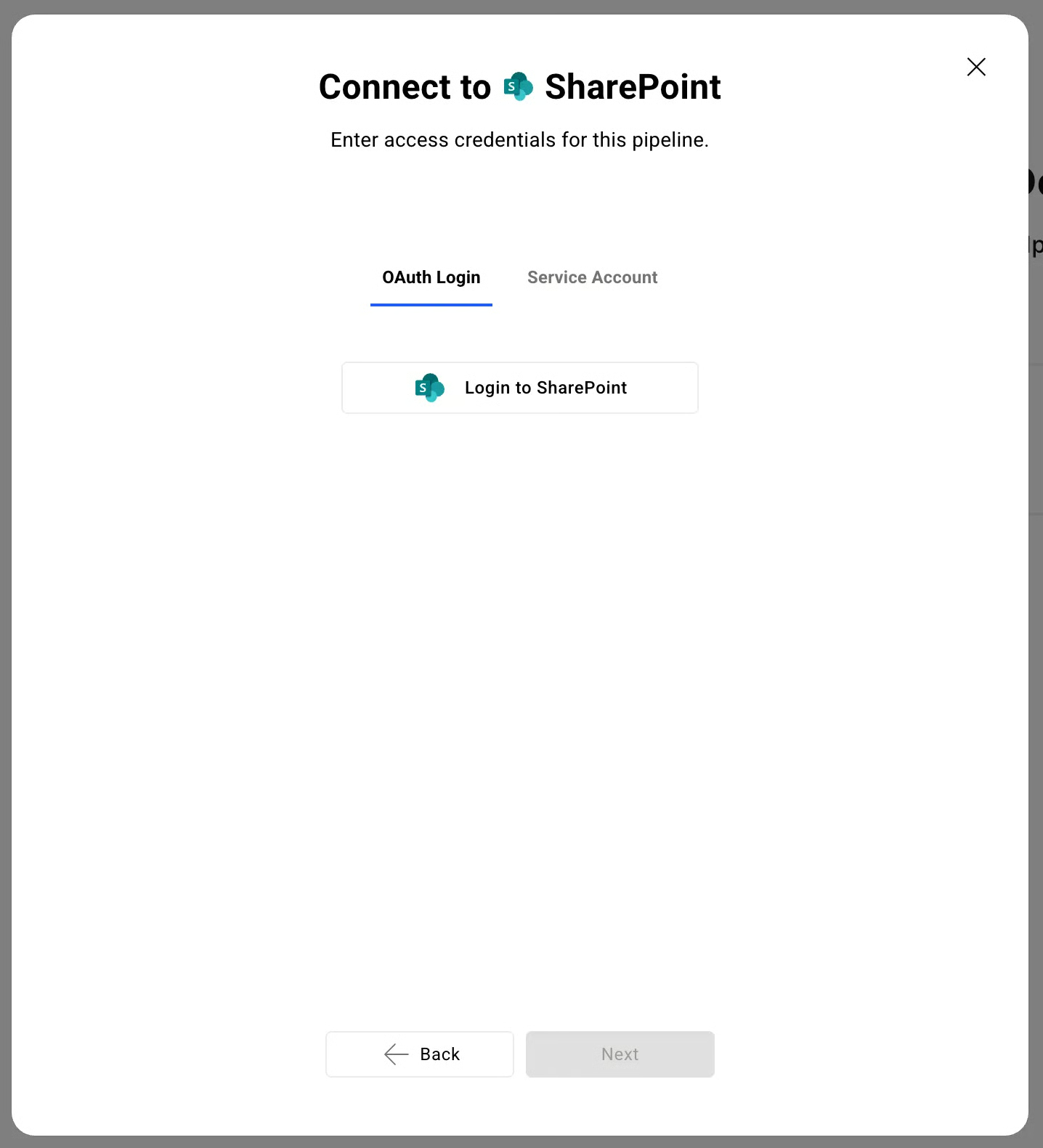
Service Account provisions an Azure application specifically for the integration. This method uses the OAuth 2.0 client credentials flow for unattended background access, making it the preferred option for scheduled or automated sync.
A service account allows you to provision an Azure application specifically to support this connection.
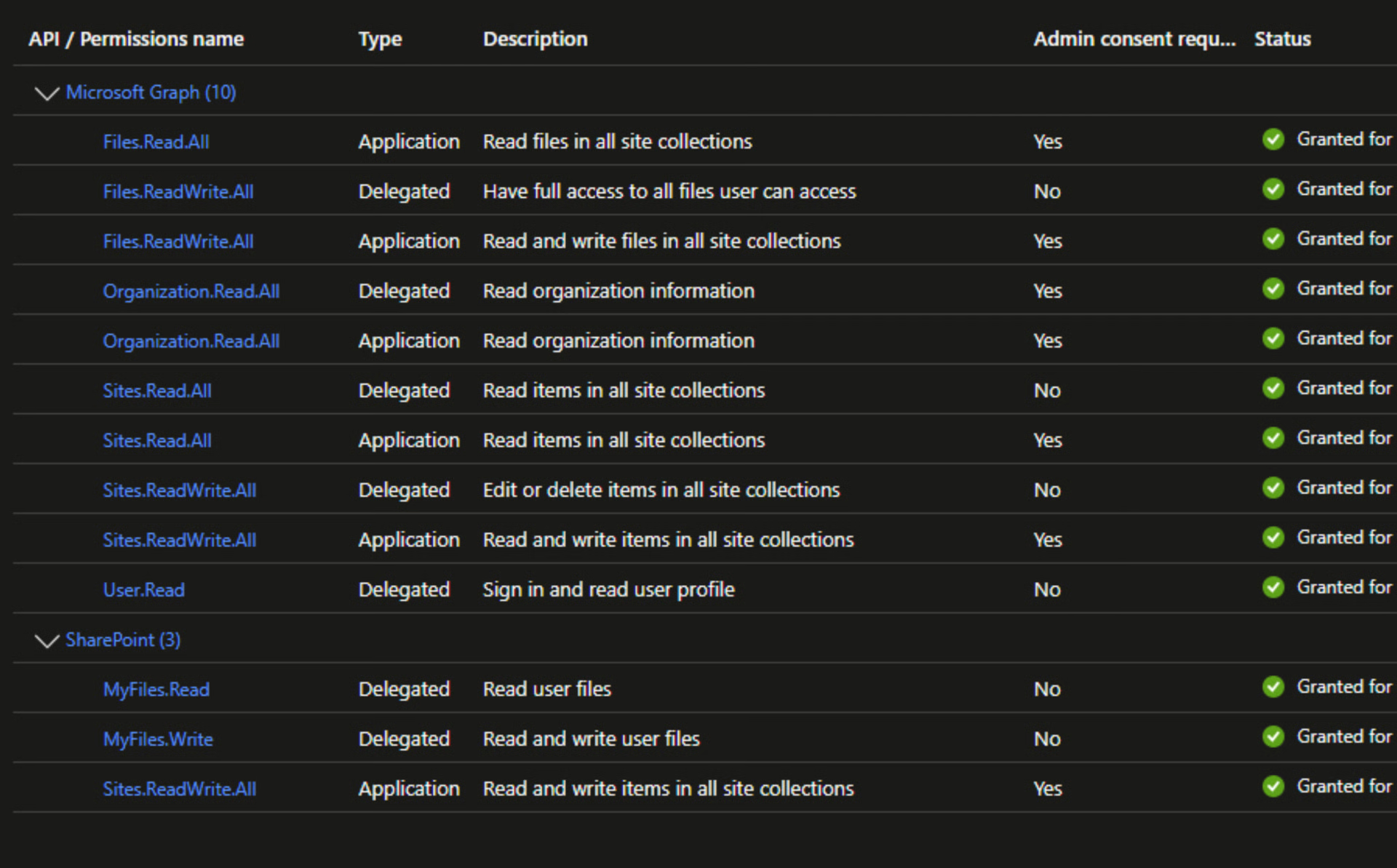
When provisioning the application, these are the needed permissions:
Data Access
Datagrid can access the following data points:
API |
Documents |
Lists |
Forms |
Security and Permissions
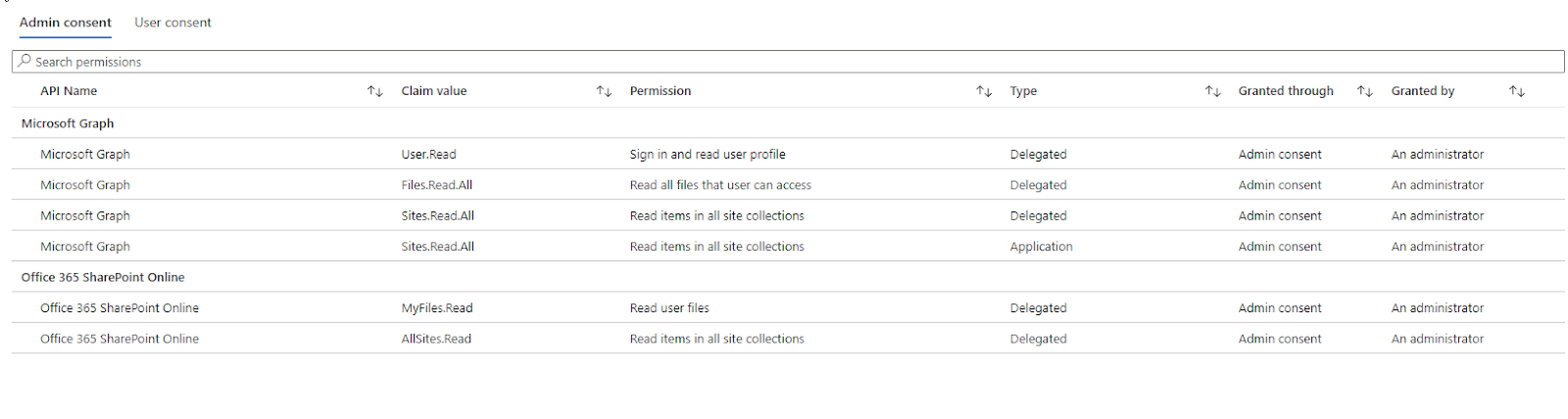
Microsoft Graph permission:
Permission | Consent Required |
Sites.Read.All | Delegated and Application |
User.Read | Delegated |
Files.Read.All | Delegated |
Sharepoint permissions:
Permission | Consent Required |
AllSites.Read | Delegated |
MyFiles.Read | Delegated |
See the example below
Configure your data sync settings
Datagrid imports documents, lists, and forms through Microsoft's Graph API. The integration is optimized for inbound processing, with the ability to embed dashboards and reports generated by Datagrid back into SharePoint. The sync behavior is summarized below.
Supported endpoints: Documents, Lists, Forms
Supported file types: CSV, XLS
Sync direction: One-way (SharePoint to Datagrid), with the ability to embed outputs back into SharePoint
Sync frequency: On-demand, scheduled intervals, or triggered on source update
Incremental sync: Supported where the Microsoft Graph API exposes delta queries (e.g., delta queries for driveItems and listItems)
Why use SharePoint with Datagrid
SharePoint already holds the project files, lists, and metadata that operators running mission-critical programs depend on. Connecting that content to Datagrid turns stored information into executed workflows:
Automated document ingestion: Datagrid AI agents continuously pull Excel files and CSVs from SharePoint document libraries, so project teams do not need to download or upload files manually.
Structured list data processing: Agents read SharePoint list items and custom metadata columns, then act on structured data such as SOP registers, contract trackers, and compliance inventories.
Scheduled and event-driven workflows: Teams can ingest data on a fixed schedule or when source files update, keeping agents aligned with current information.
Cross-system data assembly: Datagrid agents connect SharePoint data with information from other platforms to cross-reference project files across systems.
Embedded output delivery: Teams can turn SharePoint data into interactive dashboards and reports, then embed those outputs back into SharePoint for stakeholders who work there every day.
Granular access control: OAuth and Service Account authentication with Microsoft Graph permissions give administrators control over which sites and libraries Datagrid agents can access.
What you can build with SharePoint Datagrid integration
The SharePoint Datagrid integration supports a range of automated workflows across document compliance, audit preparation, revision tracking, and field operations. Here are practical builds that project teams and compliance operators can deploy using documents and structured data already stored in SharePoint:
Submittal compliance checking against specification documents: Datagrid AI agents compare submittal packages stored in SharePoint document libraries against spec PDFs, flagging non-compliant items before they reach reviewers.
Automated audit evidence compilation: Compliance teams point Datagrid agents at policy documents, configuration snapshots, and logs spread across multiple SharePoint sites, and agents assemble organized evidence packages for auditors.
Drawing revision comparison and change impact detection: Project managers store multiple drawing revision sets (IFT, IFC, addenda) in SharePoint libraries, and Datagrid agents compare versions to surface scope changes and notify downstream teams.
SOP quality control and field knowledge delivery: Operations teams store SOPs, safety plans, and training materials in SharePoint, and agents validate document currency, detect conflicting procedures, and deliver answers to field crews through SMS or Microsoft Teams.
Resources and documentation
Microsoft Graph API: drive and driveItem resources - file and library object details used in document sync
Microsoft Graph delta queries - incremental sync behavior across driveItems and listItems
Microsoft Graph: OAuth 2.0 client credentials flow - service account authentication patterns
Microsoft Graph vs. SharePoint REST API decision guide - API selection guidance
SharePoint developer documentation hub - broader SharePoint platform documentation
Datagrid AI agents overview - the Datagrid agents referenced throughout this article
For Datagrid support, contact: support@datagrid.com
Website: https://www.datagrid.ai
Request an endpoint here: Don't see the endpoints you're looking for? Datagrid is always adding new endpoints on request.
Frequently asked questions
What authentication method should I use for background data sync with Datagrid?
For unattended background sync, use Application permissions with the OAuth 2.0 client credentials flow through Microsoft Entra ID. Datagrid's Service Account authentication method uses this pattern. For interactive scenarios where a user initiates the connection, Datagrid's OAuth method uses the Authorization Code flow with delegated permissions.
What SharePoint data objects can Datagrid agents access?
The Datagrid SharePoint integration currently supports three endpoint categories: Documents, Lists, and Forms, with CSV and XLS file ingestion. For data objects beyond the currently supported endpoints, contact support@datagrid.com.
Does Datagrid support incremental sync from SharePoint, or does it re-pull all data each time?
Datagrid supports scheduled and event-driven sync from SharePoint. Where the Microsoft Graph API exposes delta queries for driveItems and listItems, agents can work with incremental changes instead of full re-pulls.
What Microsoft Graph permissions are required for the Datagrid integration?
The Datagrid integration requires Sites.Read.All (Delegated and Application), User.Read (Delegated), and Files.Read.All (Delegated) at minimum. For production deployments, Microsoft recommends using Sites.Selected to restrict access to specific named sites. Application permissions require admin consent from a tenant administrator.
Can I embed the Datagrid outputs back into SharePoint for team access?
Yes. Datagrid can embed dashboards and reports within SharePoint so stakeholders and project teams access outputs without leaving that environment. Teams create reusable data flows that turn raw SharePoint data into interactive visuals published directly into SharePoint.
Similar integrations
OneDrive: Microsoft's personal cloud file storage in Microsoft 365, complementary to SharePoint's team and organizational document management.
Microsoft Teams: A communication and collaboration hub where files are stored in SharePoint document libraries, giving agents access to conversation context alongside project files.
Google Drive: Cloud file storage for teams that split project files across Google Workspace and Microsoft 365, letting Datagrid agents unify document access across both ecosystems.
Dropbox: Cloud storage frequently used by subcontractors and external partners who share project files outside the Microsoft 365 tenant.
Box: Enterprise content management platform used by compliance and legal teams to store controlled documents alongside SharePoint-hosted project files.
Browse by category
Document management and file storage
Communication and collaboration
Work management and productivity