
Overview
What is Procore: Procore is a cloud-based construction management platform that streamlines collaboration among project stakeholders, including owners and contractors. Offering tools for document management, RFIs, submittals, scheduling, and quality control.

How to integrate Procore with Datagrid
Enhance decision-making, project management and efficiency by connecting your Procore account into Datagrid. With over 200 data connections, Datagrid can enhance your processes by leveraging AI, making you more efficient in managing and delivering projects on time.
The setup includes the following steps:
Pre-Requisites
For a smooth setup of your Procore Integration, please make sure you have the following ready:
Access to a Procore account with administrator permissions.
Ensure you set up a Datagrid Service Account in Procore or set up Procore via Developer Managed Service Account in the Datagrid App.
Configure Procore in Datagrid
Log in to Datagrid and follow these steps to set up a Service Account Integration:
Step 1: Log in to Datagrid
Log in to your DataGrid account
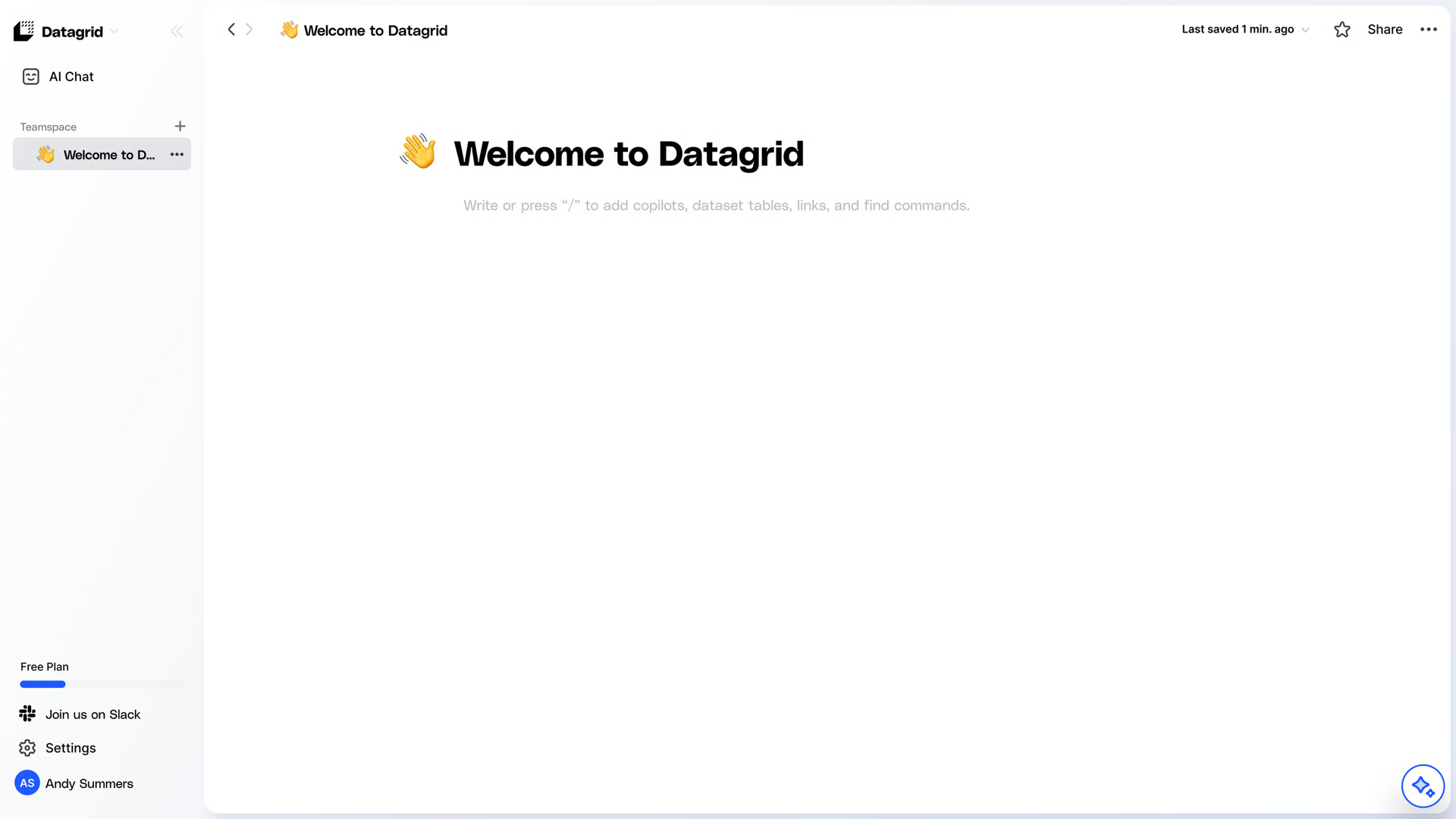
Search for the Procore Integration
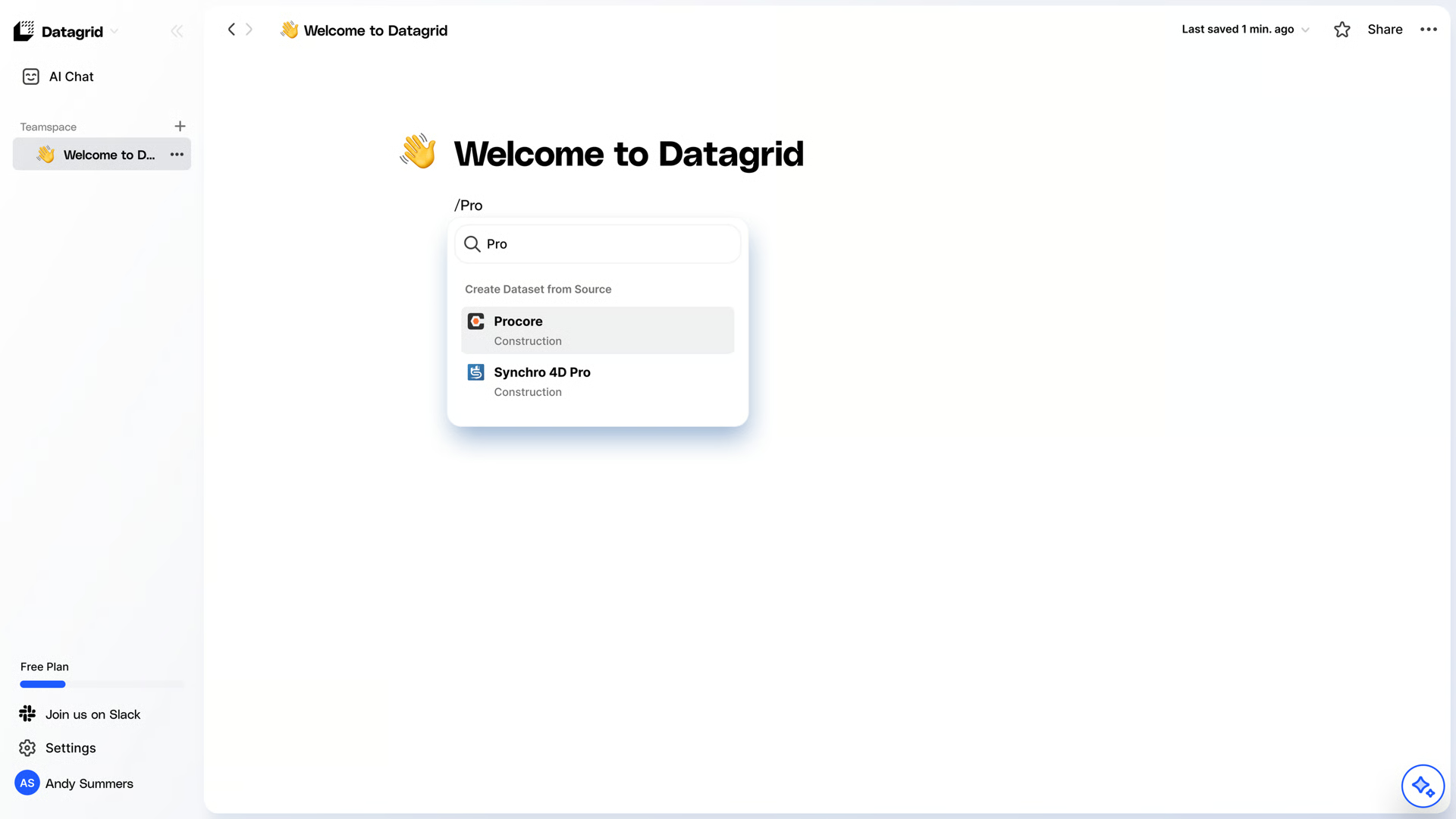
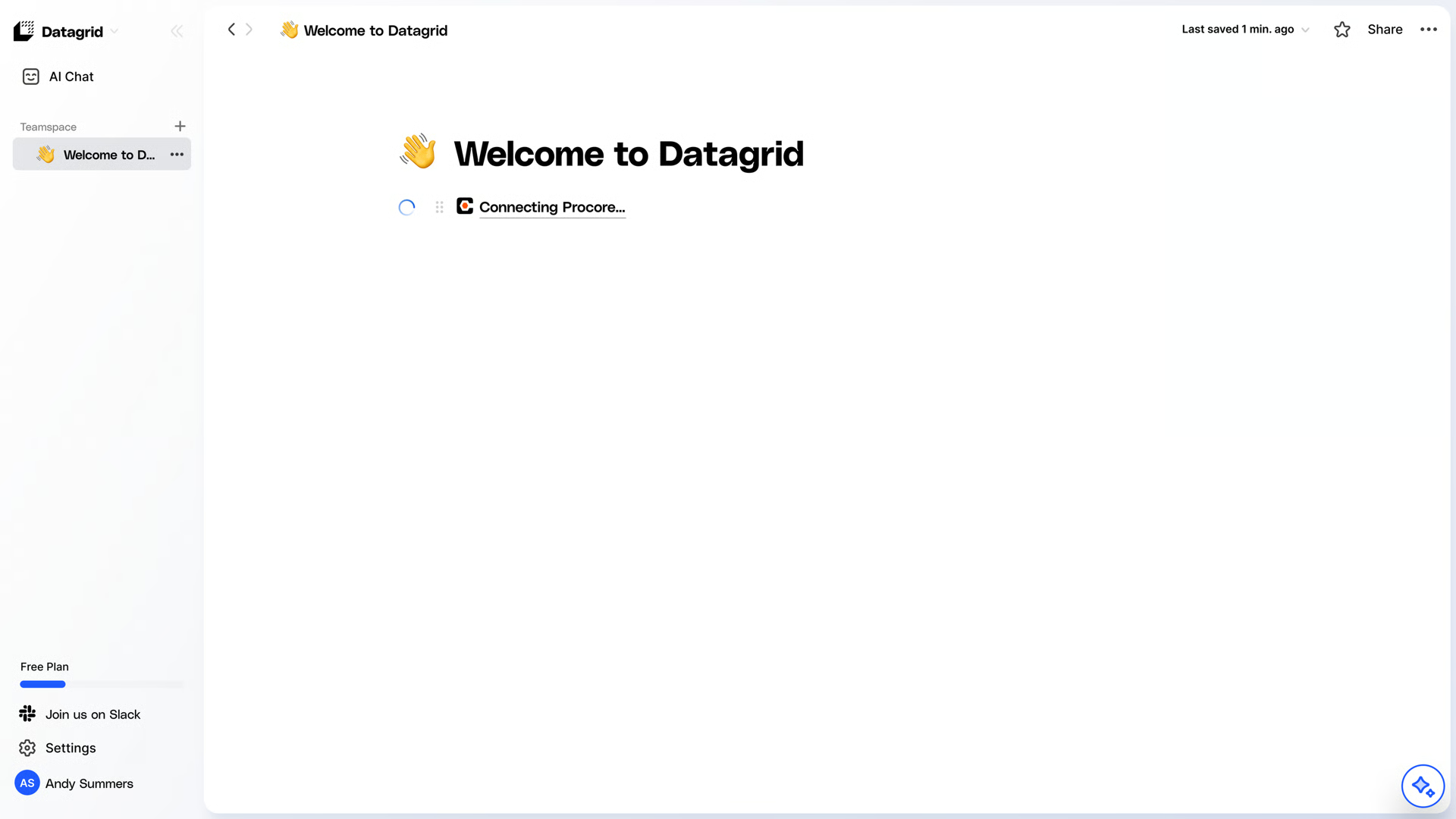
Step 2: Configure your Procore Integration
Ensure you select Service Account
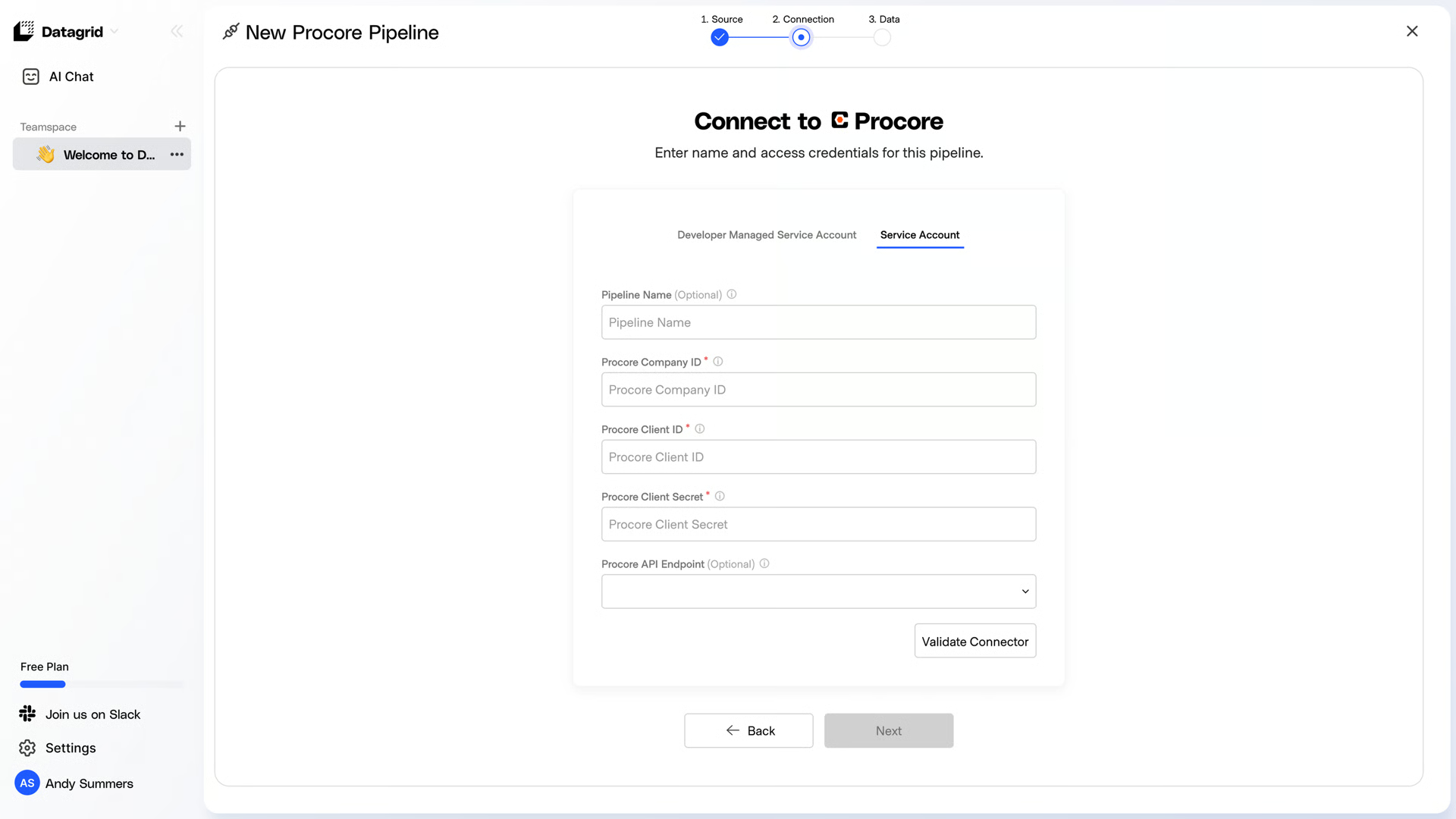
Paste your Company ID from step 4 from Setup a Procore Service Account.
Paste your Client ID from step 4 from Setup a Procore Service Account.
Paste your Client Secret from step 4 from Setup a Procore Service Account.
Paste Procore endpoint (Optional field). It can be used to pull data from a specific URL. For example, you may want to test in a Procore sandbox or a developer environment. In this case, paste your URL into the text field labeled Salesforce URL Login Endpoint.
Click on Validate Connector to finalize the creation of your Procore Integration.
Step 3:Pick your Data to Import
Select the data you’d like to export and click Start First Import to begin bringing data into Datagrid
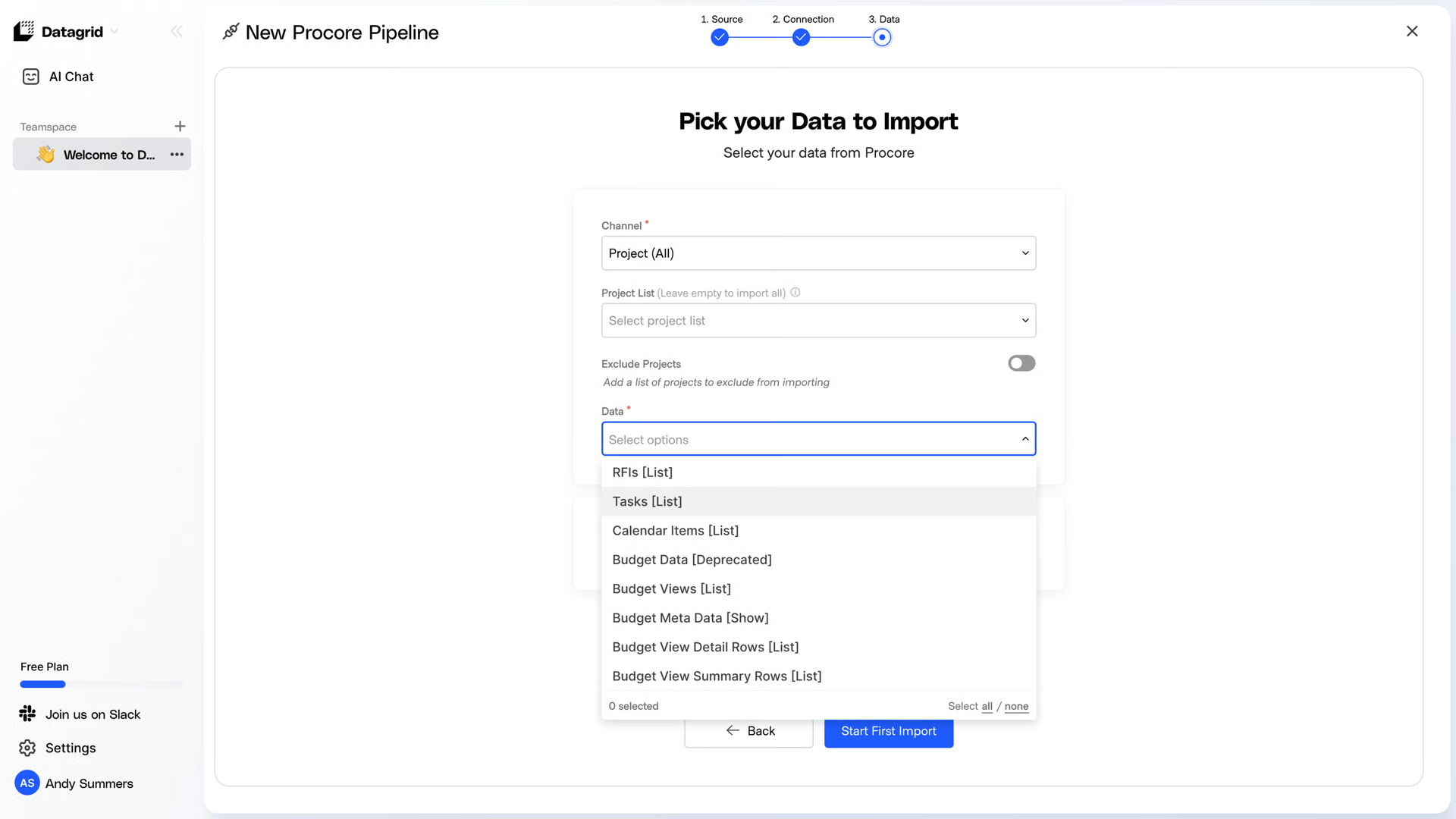
Datagrid supports over 200+ data points from Procore. You can pick from several Procore modules such as Project Level Resources, Company Level Resources, Core data and Quality and Safety items.
Configure a Procore Service Account
To connect Procore to Datagrid, you will need to create a Service Account in Procore. Here is how to get started:
Create a Service Account
Log in to Procore as an Administrator. Click to open the Apps dropdown (top right) and select the App Management option.
Under Company Settings, click on the Service Account option, then click +New (top right).
Enter the following in the provided fields:
App Type: click the Custom option
Description: Datagrid unlocks your data’s potential by creating personalized AI Agents with your data, analyzing from multiple sources and enhancing your data effortlessly.
Company/Developer Name: Datagrid
Company/Developer Email: Enter an Administrator email from your company (i.e., admin@yourcompany.com)
Name: Datagrid App
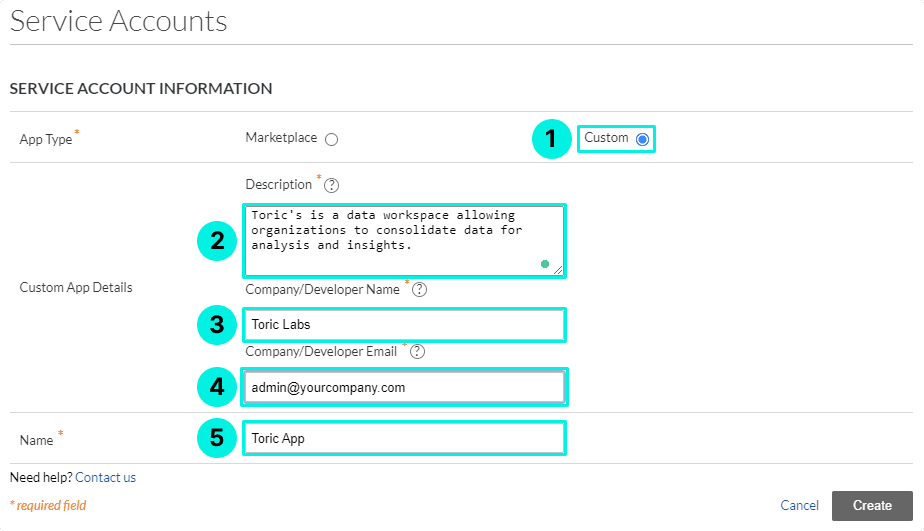
Note: Creating a Service Account will create a new User in your company.
The new user's name will have the format ServiceAccountName-YourCompanyName (i.e., toric-app-toric-demo-company-us02).
In our example, our app is Toric App, and our company name is Toric Demo Company US02.
2. Assign Permission Templates
Datagrid’s access to information depends on the permission template you assign to a Service Account. If you already have an Admin permission template that gives full access to Company and Project Data, you could jump directly to Step 2.3.
If you need to create a new permission template, click the Company Tools dropdown and select Permissions. Then follow Steps 2.1-2.3 below to create new templates.
2.1 Company permission template.
Click on the Company Permissions Templates.
Click on +Create Company Permission Template (top right).
Enter the name Service Account Template (Company) and click confirm.
In the "Permissions Tool" row, click the radio button under Admin, then click Save.
2.2 Project permission template.
Click on the Project Permissions Template.
Click on +Create Project Permission Template (top right) and select the Project (Global) option.
Enter the name Service Account Template (Project) and click confirm.
In the "Permissions Tool" row, click the radio button under Admin, then click Save.
2.3 Assign permission template.
Navigate back to the User Permissions tab and use the search box to enter the name of the Service Account you created in Step 1.
Note: The username for the service account is formatted as the service account name followed by your company name (e.g., toric-app-YourCompanyName).
In our example:
Use the Actions dropdown to the left of your service account and select the option Assign Company Permissions.
Assign the Service Account Template (Company).
Navigate back to User Permissions and repeat Step 2.3, this time selecting Assign Default Project Permissions.
Assign the Service Account Template (Project).
Note: You can assign any existing template in your Procore Account, as long as it has Admin permissions.
3. Edit Service Account User Settings.
Open the Company Tools dropdown and select Directory, then search for the Service Account you created in Step 1. Click Edit and make sure the following options are applied:
3.1 User messaging.
Use the dropdown to select the option Not at all. This will avoid unnecessary email notifications.
3.2 Company permission settings.
Ensure that the selected template matches the option you chose in Step 2.3. We use the created Service Account Template (Company).

3.3 Project permission settings.
Make sure to check both boxes in the New Project Settings. This will ensure that your Datagrid App (Service Account) has access to new Procore projects as they are created.

In the Current Project Settings, make sure the Datagrid App (Service Account) has access to all projects. If not, click the Add All button in the Does Not Belong To section. The Add All button will add the Test and Toric Resort project in the example below. Click Save (bottom right) to apply your changes.
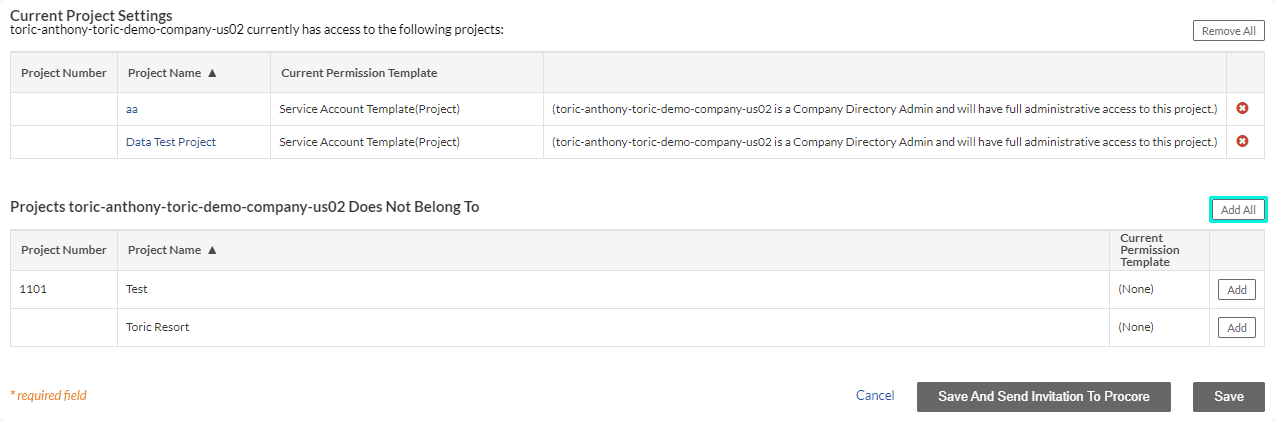
Note: Inactive projects will not show. If you wish to retrieve data for all projects, please ensure all your projects are Active.
4. Information Required for Datagrid Setup.
You will need the following information found in your Procore Account.
Client ID
Client Secret
Company ID

Note: The Client Secret is only visible when a Service Account is created. If you lose this, you will need to Reset Secret and update all Procore configurations in Toric. We recommend saving your service account info in a password manager or anywhere safe.
Please review Configure Procore in Datagrid to see how to set up data access.
Datagrid supports over 200+ data points from Procore. You can pick from several Procore modules such as Project Level Resources, Company Level Resources, Core data and Quality and Safety items.
Configure a Procore DMSA Account in Datagrid
Procore Developer Managed Service Account (DMSA) is a method that allows Procore Administrators to install third-party apps in order to access Procore data. For more on this topic, please read the following support article.
Log in to Datagrid and follow these steps to set up a Procore Integration:
Configuration Steps
Step 1: Log in to Datagrid
Log in to your DataGrid account
Search for the Procore integration
Step 2: Connect to your Procore Account
Ensure you select Developer Managed Service Account
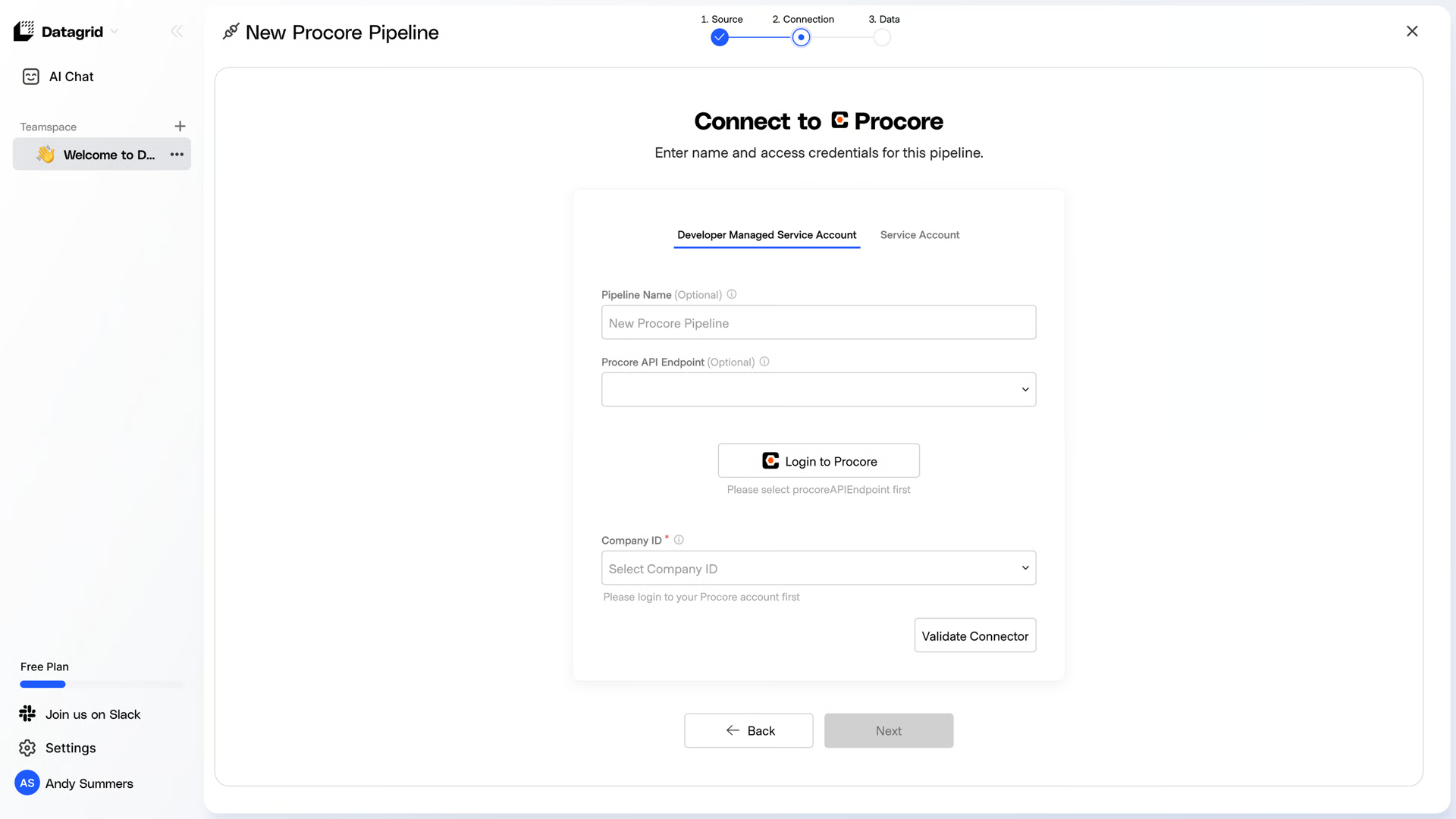
Log in to Procore
Step 3: Set up your Pipeline
Type a unique name for your Procore DMSA Integration.
Select a Procore API Endpoint. This will allow you to extract data from a specific environment of your choice:
sandbox.procore.com
api-monthly.procore.com
api.procore.com
Note: To test your new integration, you can use the sandbox URL. When you are ready to ingest actual company data, update the configuration and select api.procore.com. Select a Company ID.
This ensures that you do not have to create a configuration for each company account, but instead have one configuration in Datagrid to access data from multiple company accounts.
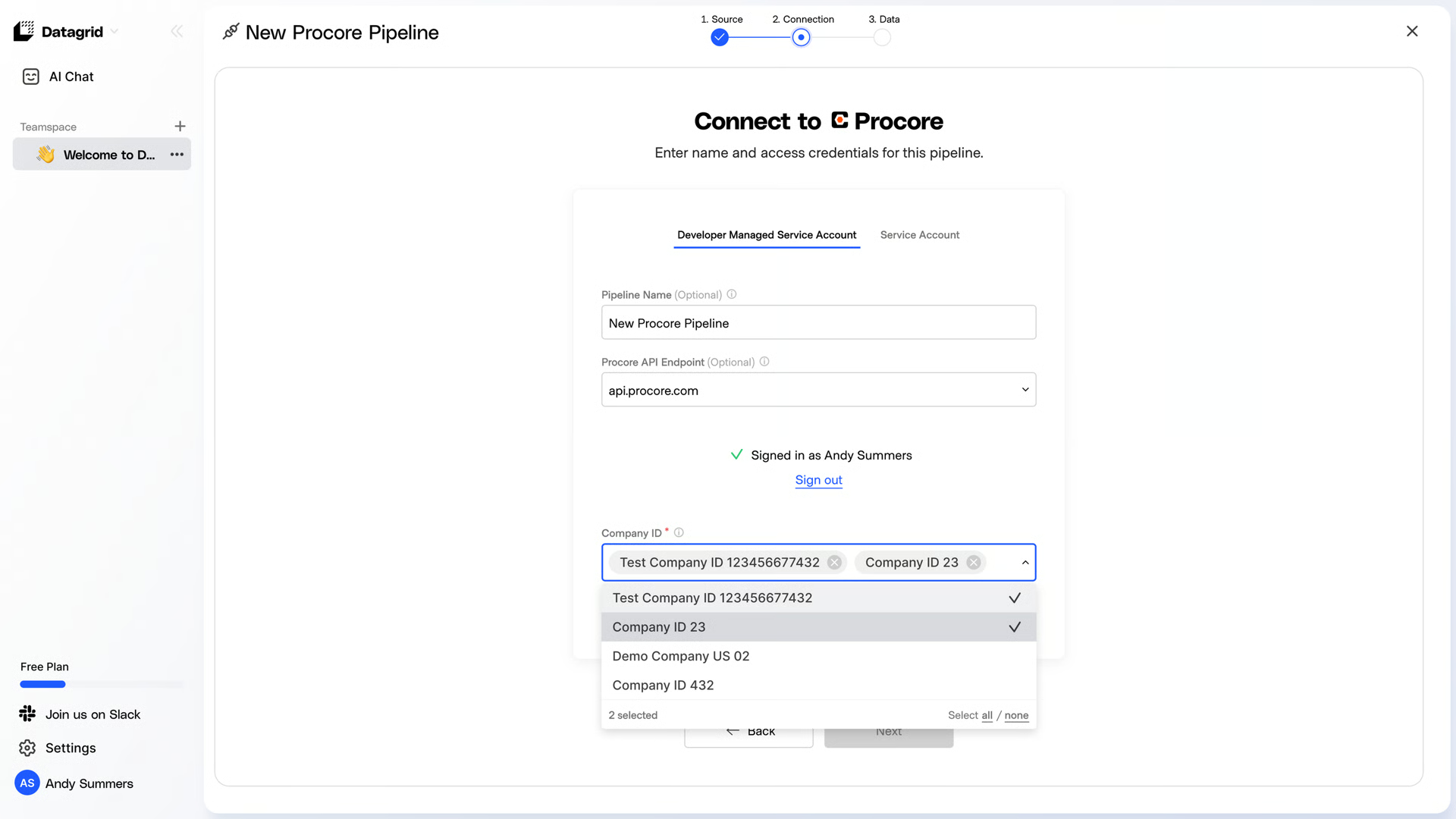
Note: If your administrator account has access to multiple companies, each will appear in the list, and you can select all populated Company IDs.Now that you have all Configuration details filled in, click on Validate Connector.
Step 4: Pick your Data to Import
Select the data you’d like to export and click Start First Import to begin bringing data into Datagrid.
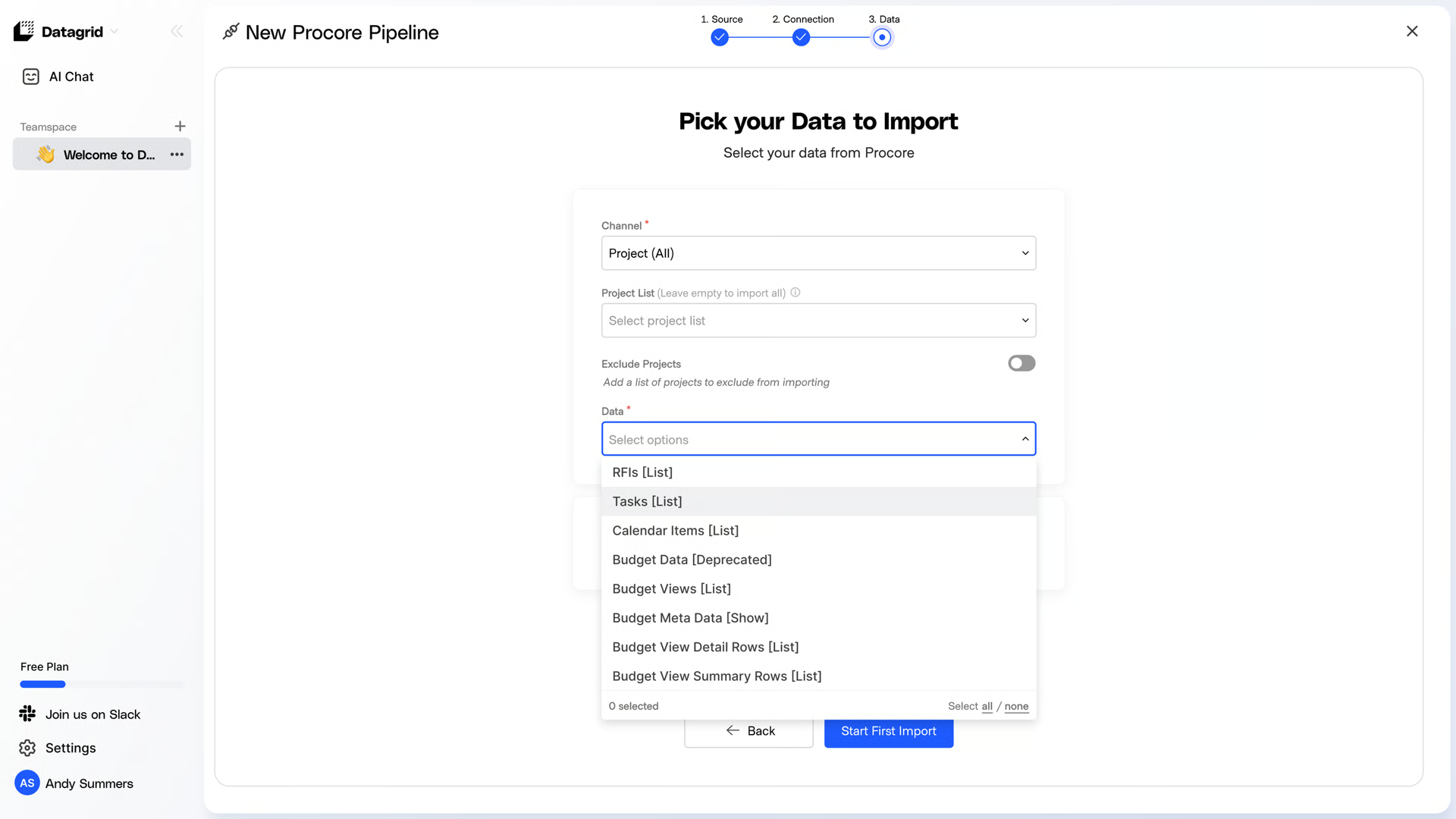
Datagrid supports over 200+ data points from Procore. You can pick from several Procore modules such as Project Level Resources, Company Level Resources, Core data and Quality and Safety items.
Set Up a Schedule
Edit Pipeline:
Open the overflow menu “...” and select “edit ”
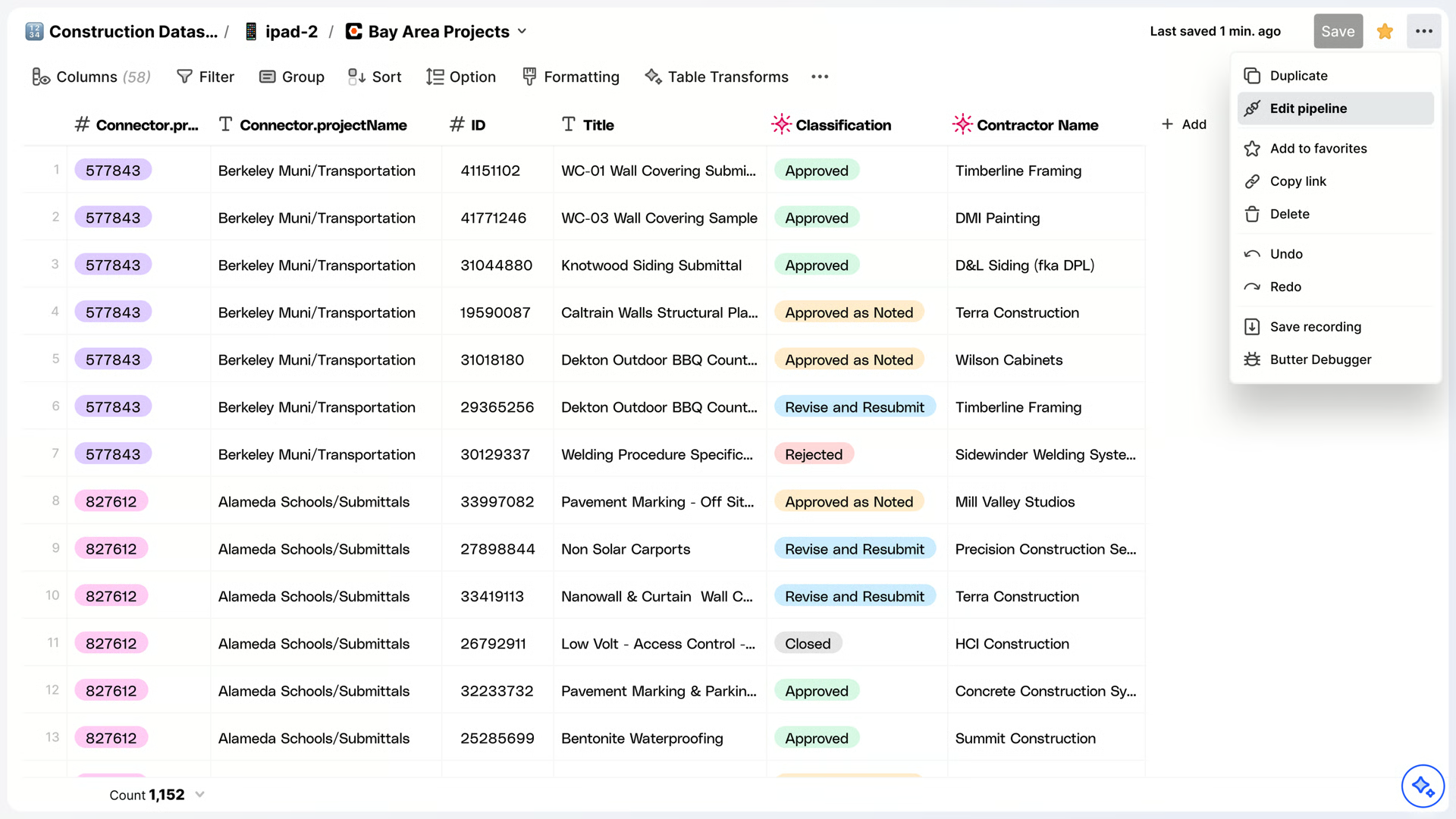
Schedule Pipeline:
Step 1: Hover the "Schedule" box and select “Schedule”.
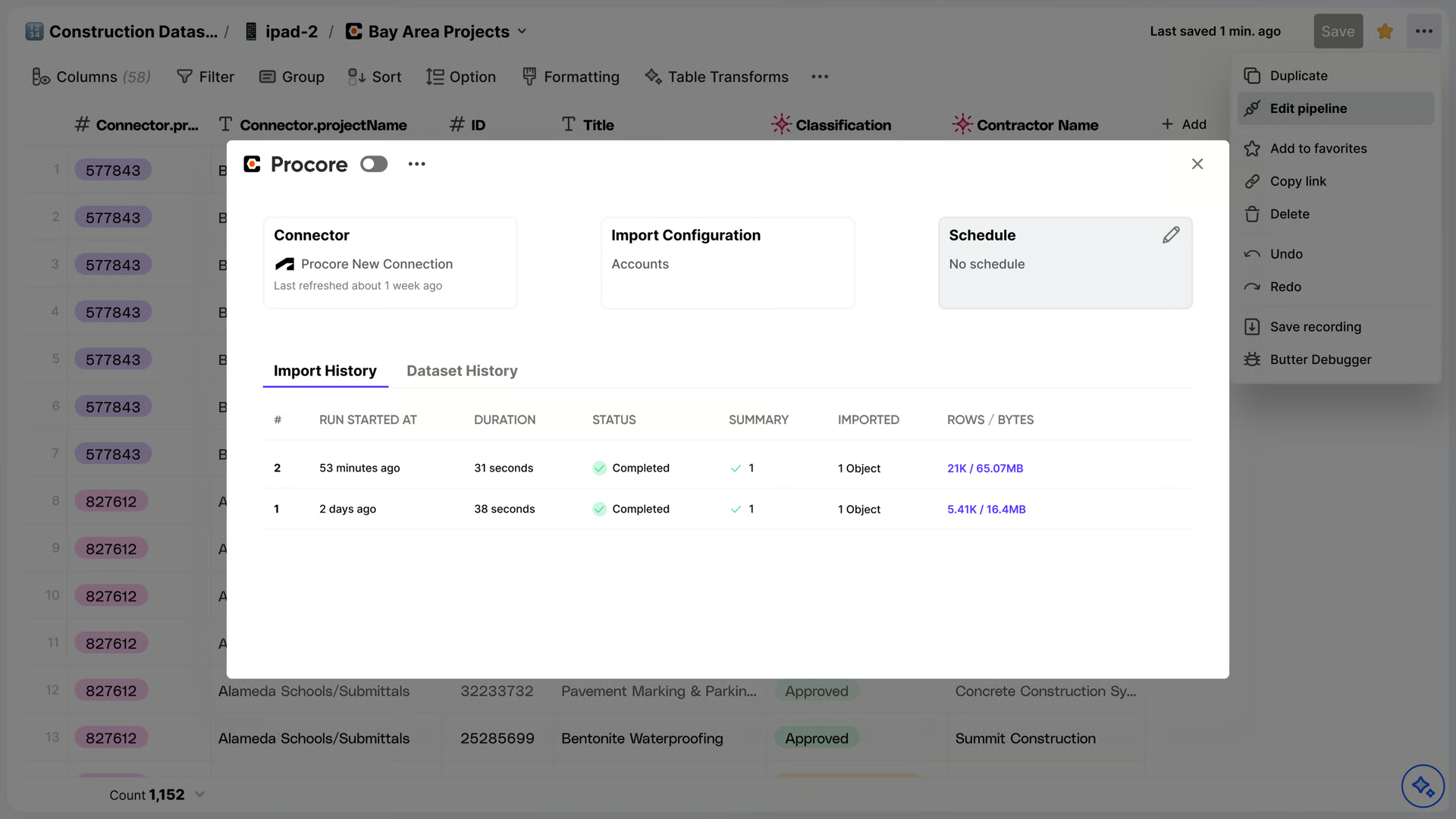
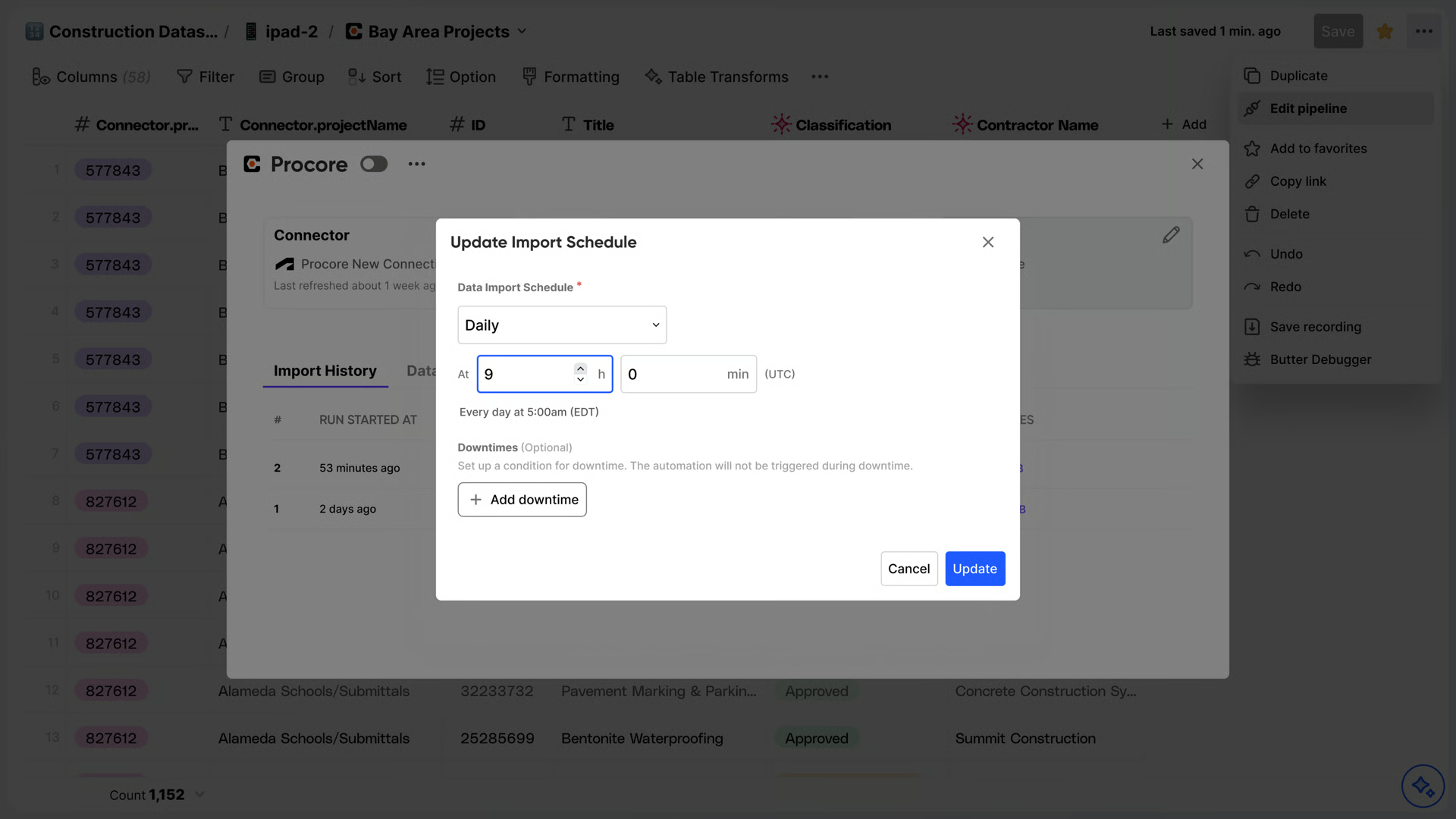
Step 2: Configure the schedule to your preference.
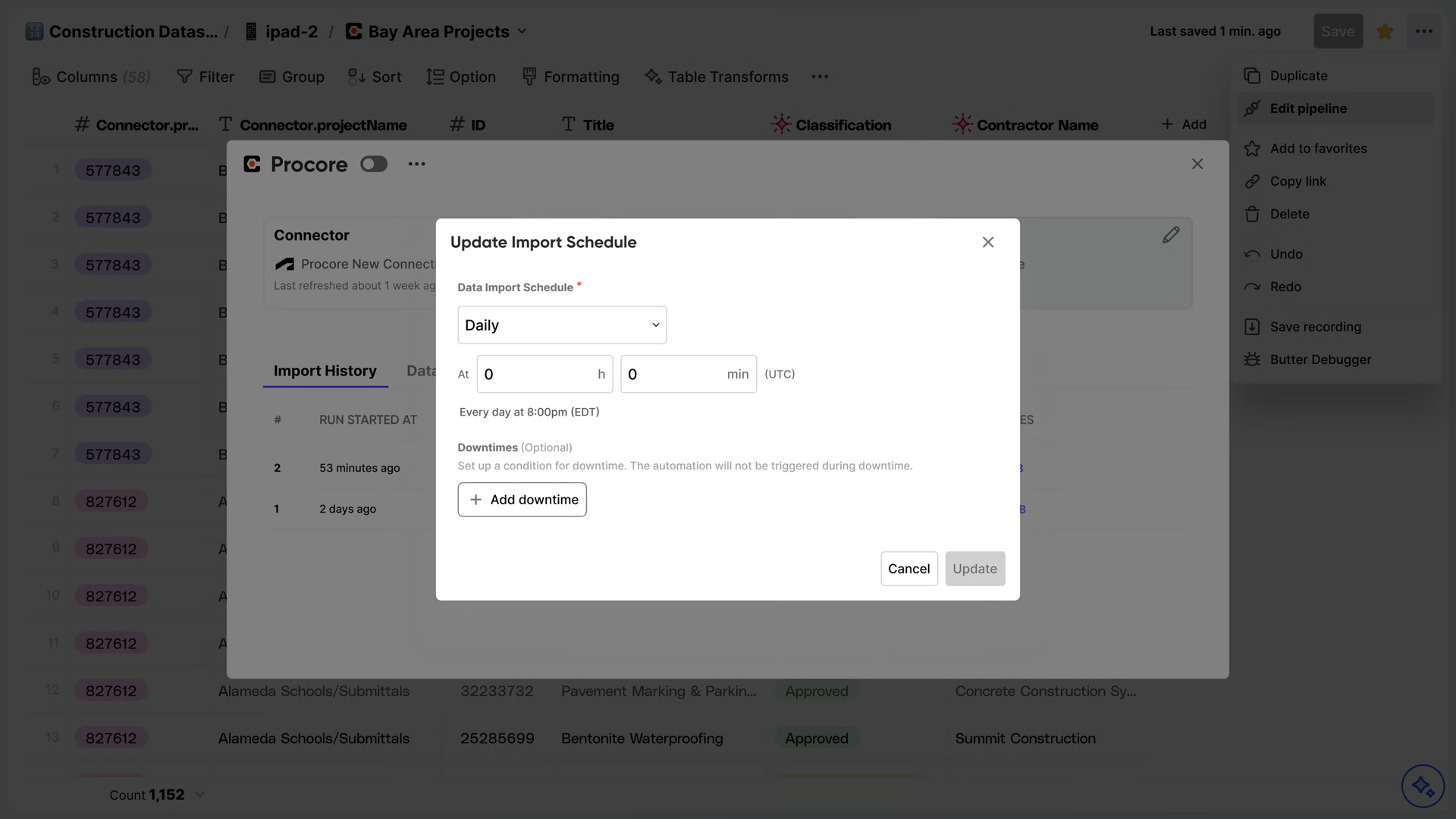
Step 3: Press “Update” whenever you are done setting up your schedule.
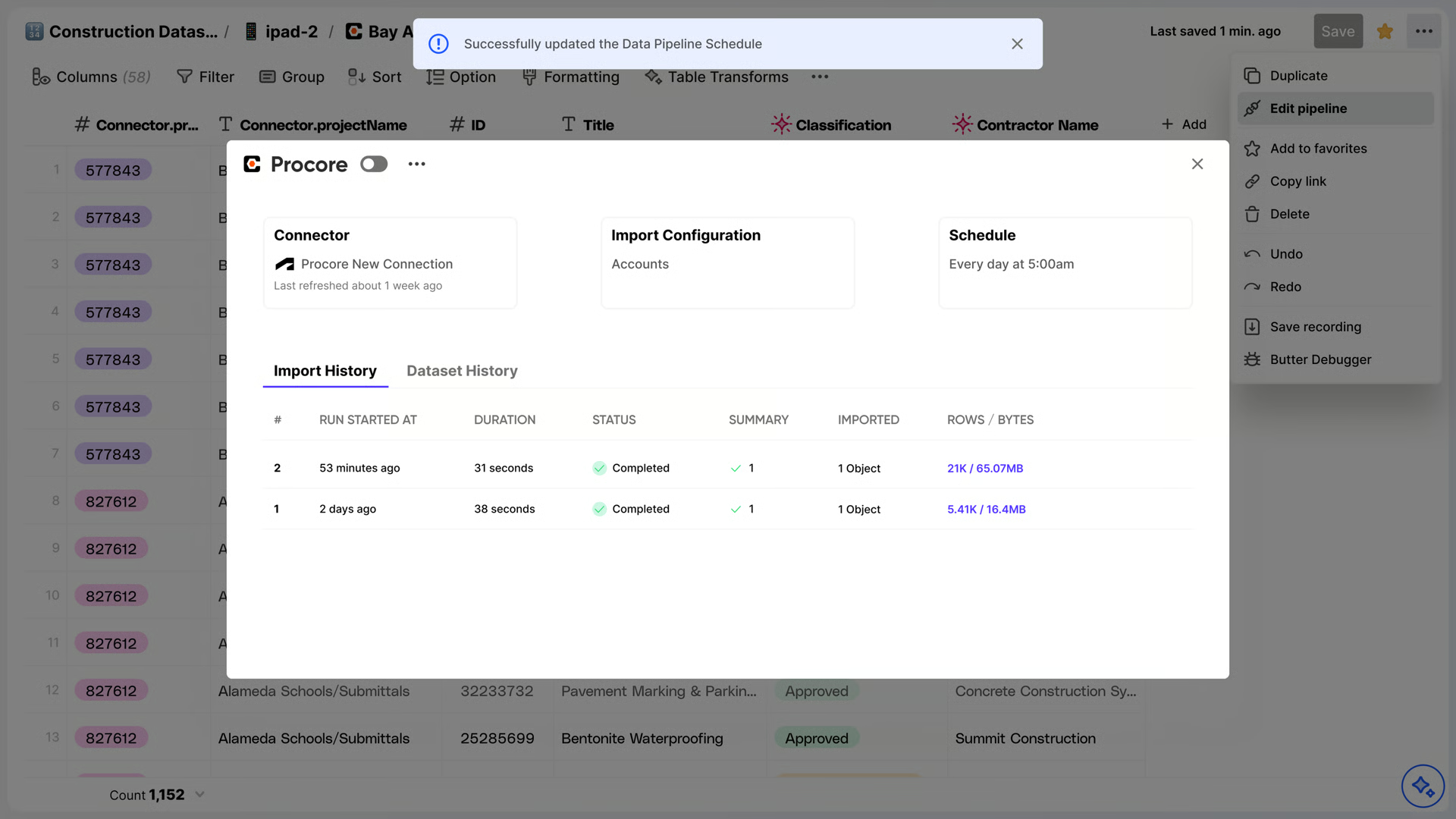
The schedule setup is complete.
Create a Dataset
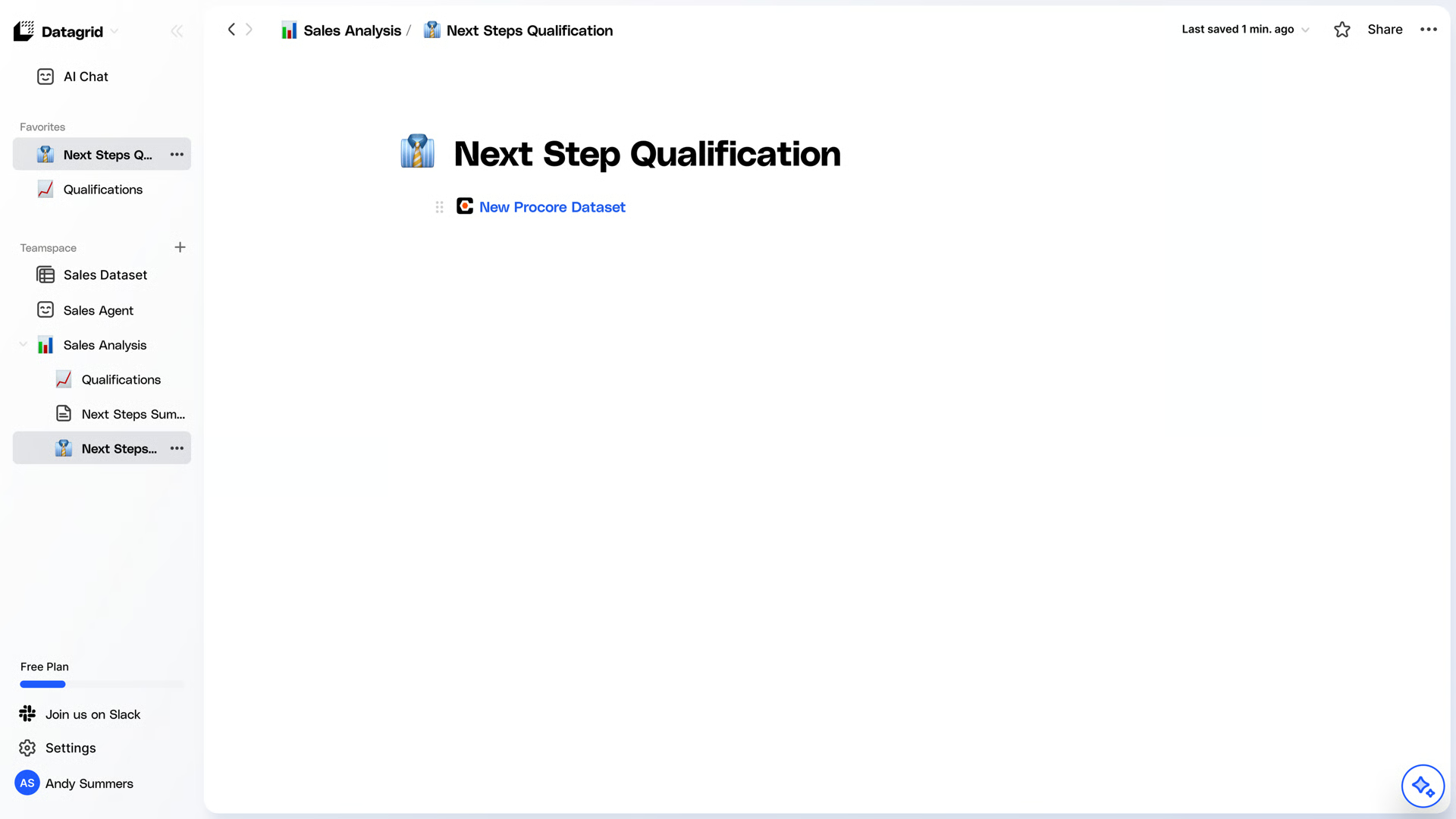
How to Create a Dataset from an Existing Pipeline:
Step 1: Log in to your DataGrid account.
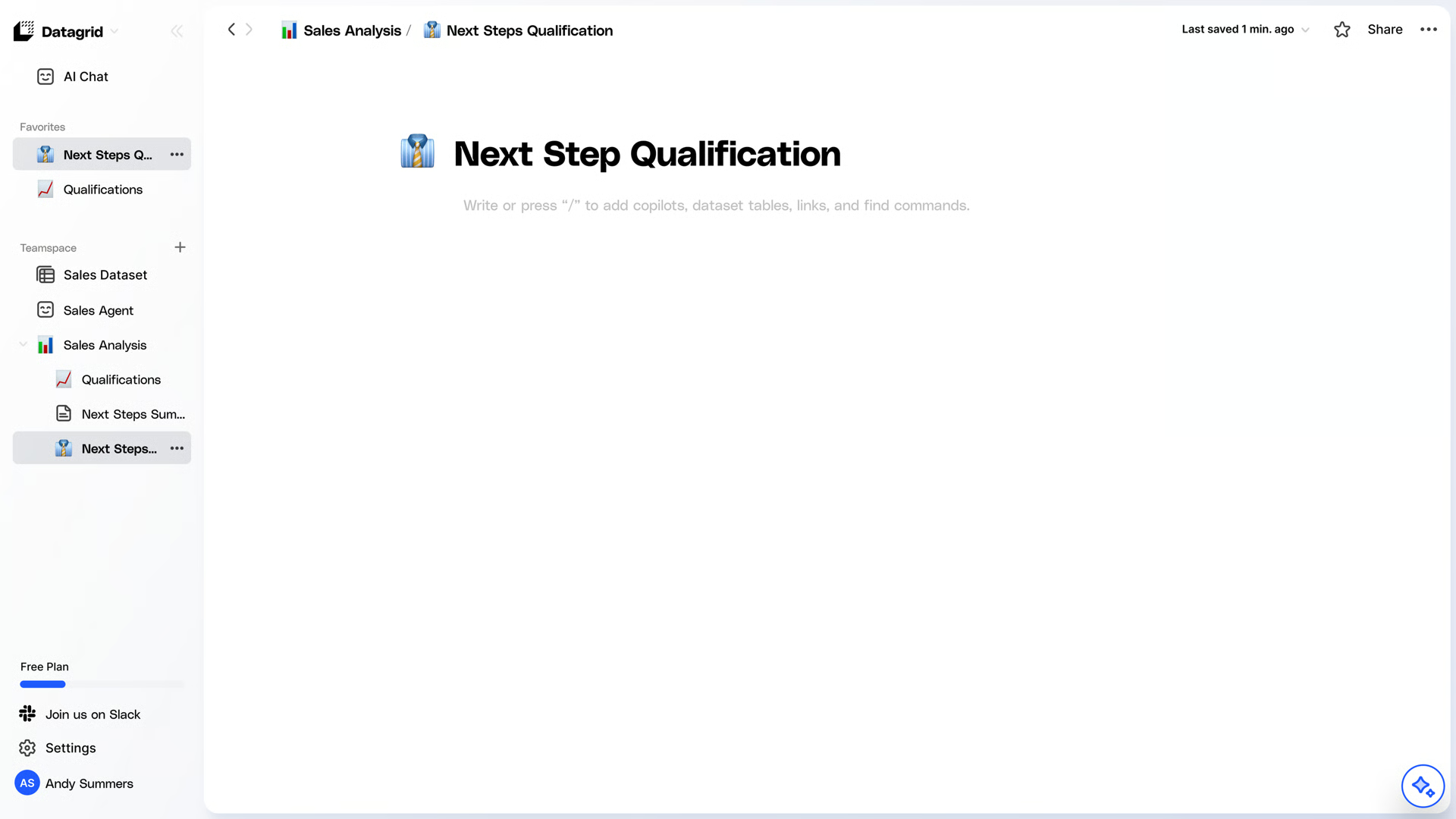
Step 2: Search for the Procore integration.
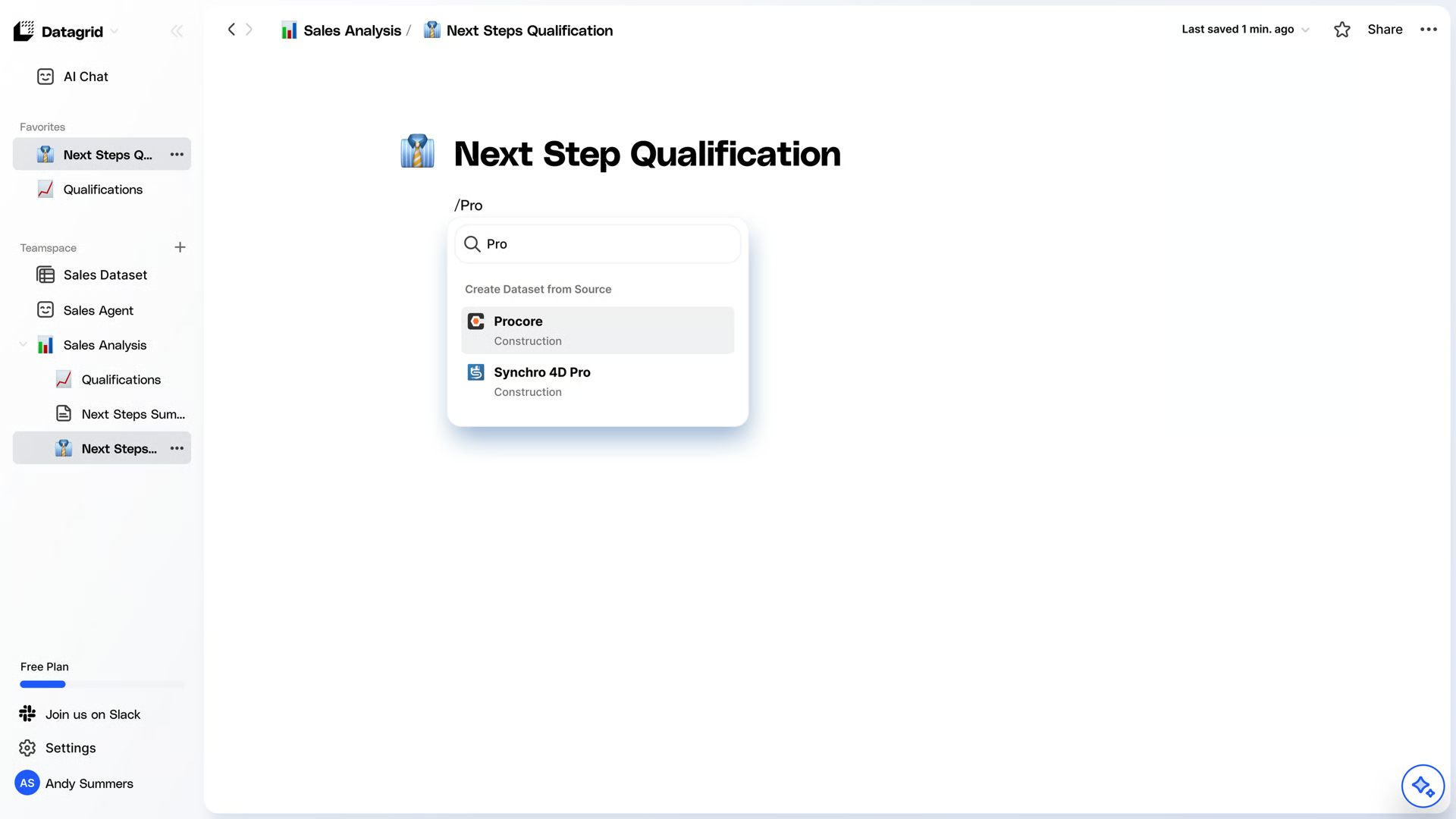
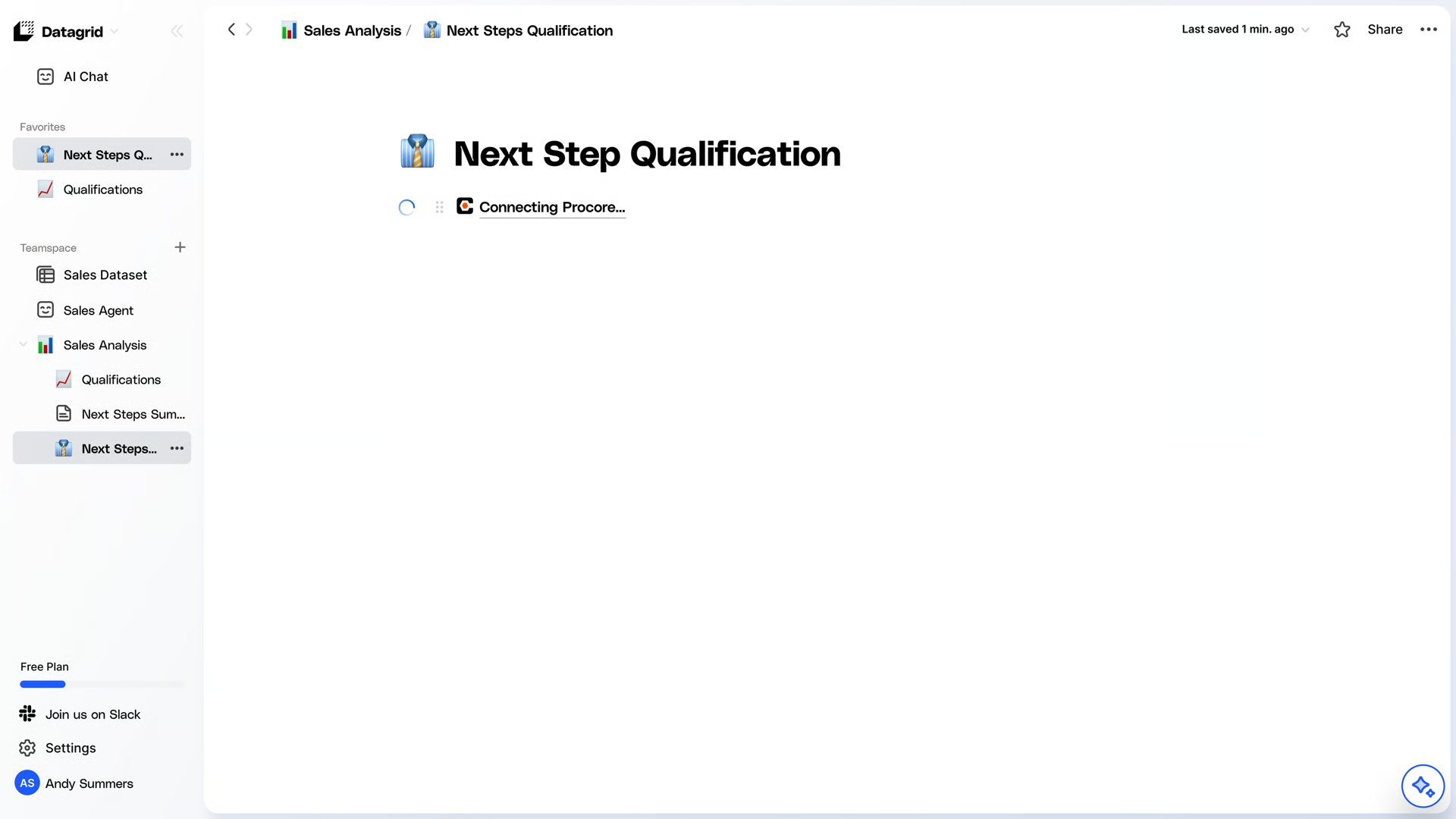
Step 3: Choose an existing pipeline.
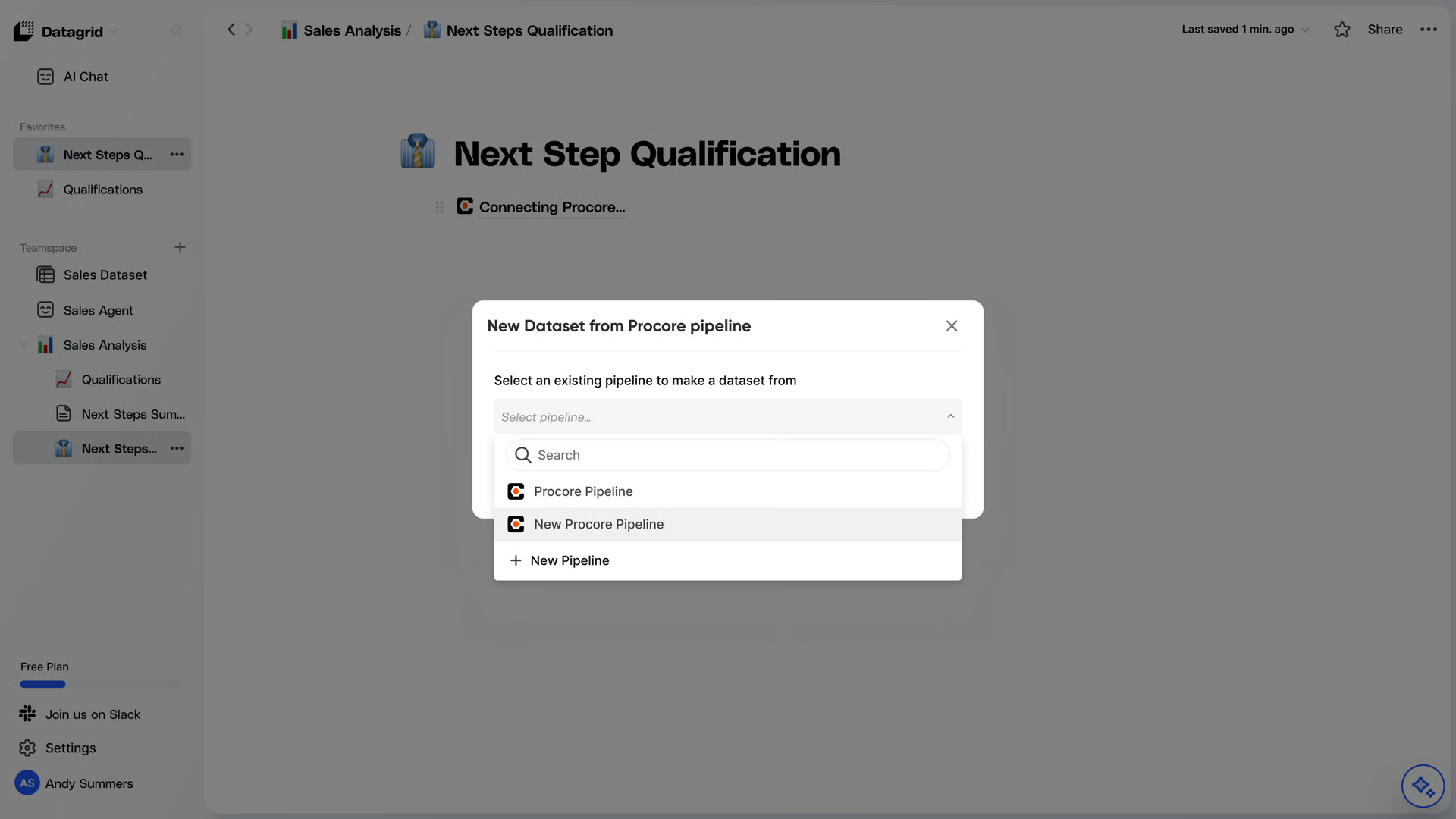
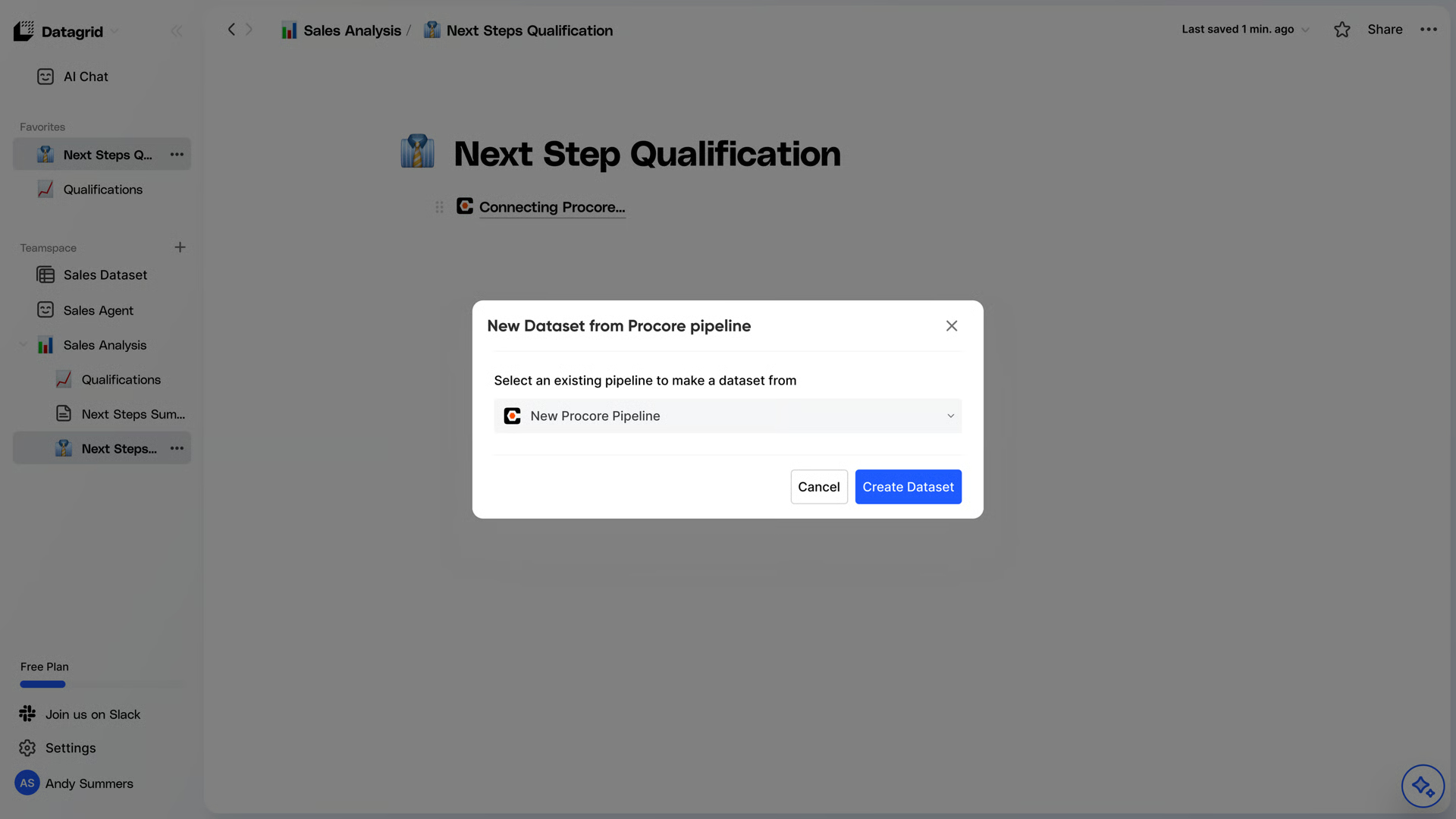
Data Access
Datagrid can access the following data points listed below. They’re listed alphabetically by Channel / Endpoint.
Endpoint | Category | Level | List | Show | Incremental Ingestion | Read |
Billing Periods | Construction Financials | Project | List | Available | Available |
Budget Changes | Construction Financials | Project | List | Available | Available |
Budget Views | Construction Financials | Project | List | Available | Available |
Budget View Detail Rows | Construction Financials | Project | List | Available | Available |
Budget View Snapshots | Construction Financials | Project | List | Available | Available |
Budget View Snapshots Detail Rows | Construction Financials | Project | List | Available | Available |
Budget View Summary Rows | Construction Financials | Project | List | Not Available | Available |
Change Events | Construction Financials | Project | List | Available | Available |
Change Events v1.1 | Construction Financials | Project | List | Available | Available |
Change Order Change Reasons | Construction Financials | Company | List | Available | Available |
Change Order Requests | Construction Financials | Project | List | Available | Available |
Contract Payments | Construction Financials | Project | List | Available | Available |
Direct Costs | Construction Financials | Project | List | Available | Available |
Line Item Types | Construction Financials | Project | List | Available | Available |
Budget Modifications | Construction Financials | Project | List, Show | Available | Available |
Change Order Packages | Construction Financials | Project | List, Show | Available | Available |
Potential Change Orders | Construction Financials | Project | List, Show | Available | Available |
Purchase Order Contracts | Construction Financials | Project | List, Show | Available | Available |
Work Order Contracts | Construction Financials | Project | List, Show | Available | Available |
Manual Forecast Line Items | Construction Financials | Project | List | Available | Available |
Monitoring Resources | Construction Financials | Project | List | Available | Available |
Prime Contracts | Construction Financials | Project | List, Show | Available | Available |
Requisitions (Subcontractor Invoices) for Project | Construction Financials | Project | List | Available | Available |
RFQs | Construction Financials | Project | List | Available | |
Project WBS Segments | Construction Financials | Project | List | Available | Available |
Project Segment Items | Construction Financials | Project | List | Available | Available |
Budget Meta Data | Construction Financials | Project | List | Not Available | Available |
Budget Line Item | Construction Financials | Project | List | Available | Available |
WBS Codes | Construction Financials | Project | List | Available | Available |
Work Order Contract Detail Line Items | Construction Financials | Project | List | Available | Available |
Work Order Contract Line Items | Construction Financials | Project | List | Available | Available |
Company Custom Field Sets | Core Tools | List | Available | ||
Documents | Core Tools | Company | List | Available | Available |
Inactive Users | Core Tools | Company | List | Available | Available |
Inactive Vendors | Core Tools | Company | List | Available | Available |
Company Offices | Core Tools | Company | List | Available | Available |
Programs | Core Tools | Company | List, Show | Available | Available |
Trades | Core Tools | Company | List | Available | Available |
Users | Core Tools | Company | List, Show | Available | Available |
Vendors | Core Tools | Company | List | Available | Available |
Cost Codes | Core Tools | Project | List | Available | Available |
Custom fields | Core Tools | List | Available | ||
Documents | Core Tools | Project | List | Available | Available |
Admin Equipment | Core Tools | Project | List | Available | Available |
Line Item Types | Core Tools | Project | List | Available | Available |
Locations | Core Tools | Project | List | Available | Available |
Permission Manifest | Core Tools | Project | List | Available | |
Permission Manifest | Core Tools | Company | List | Available | |
Projects | Core Tools | Company | List, Show | Available | Available |
Project Dates | Core Tools | Project | List | Available | |
Project Inactive Users | Core Tools | Project | List | Available | |
Project Memberships | Core Tools | Project | List | Available | |
Project Permission Templates | Core Tools | Project | List | Available | |
Project Roles | Core Tools | Project | List | Available | |
Tools | Core Tools | Project | List | Available | Available |
Users | Core Tools | Project | List, Show | Available | Available |
Vendors | Core Tools | Project | List, Show | Available | Available |
Vendor Insurances | Core Tools | Project | List | Available | Available |
Sub Jobs | Core Tools | Project | List | Available | Available |
Submittal Statuses | Core Tools | Company | List | Available | |
Submittal Types | Core Tools | Company | List | Available | |
Tasks | Core Tools | Project | List, Show | Available | Available |
Workflow Activity Histories | Core Tools | Company | List | Available | Available |
Workflow Instances | Core Tools | Company | List | Available | Available |
Equipment Maintenance Log | Field Productivity | Project | List | Available | |
Managed Equipment | Field Productivity | List | Available | Available | |
Accident Logs | Project Management | Project | List | Available | Available |
Equipment Logs | Project Management | Project | List | Available | |
Bids | Project Management | Company | List, Show | Available | Available |
Bid Contacts | Project Management | Project | List | Available | Available |
BIM Models | Project Management | Project | List | Available | Available |
BIM Plans | Project Management | Project | List | Available | |
Calendar Items | Project Management | Project | List, Show | Available | Available |
Call Logs | Project Management | Project | List | Available | Available |
Coordination Issues | Project Management | Project | List | Available | Available |
Coordination Issue Activities | Project Management | Project | List | Available | Available |
Coordination Issue Activity Feed Items | Project Management | Project | List | Available | |
Construction Report Logs | Project Management | Project | List | Available | Available |
Delivery Logs | Project Management | Project | List | Available | Available |
Inspection Logs | Project Management | Project | List | Available | Available |
Daily Log Count | Project Management | Project | List | Available | |
Manpower Logs | Project Management | Project | List | Available | Available |
Delay Logs | Project Management | Project | List | Available | Available |
Drawings | Project Management | Project | List | Available | Available |
Drawing Areas | Project Management | Project | List | Available | Available |
Dumpster Logs | Project Management | Project | List | Available | Available |
Forms | Project Management | Project | List | Available | Available |
Images | Project Management | Project | List | Available | Available |
Image Categories | Project Management | Project | List | Available | |
Inspection Types | Project Management | Company | List | Available | Available |
Inspection Users | Project Management | Project | List | Available | Available |
Instructions | Project Management | Project | List | Available | Available |
Lookaheads | Project Management | Project | List, Show | Available | |
Meetings | Project Management | Project | List, Show | Available | Available |
Potential Assignees | Project Management | Project | List | Available | |
Potential RFI Managers | Project Management | Project | List | Available | |
RFIs | Project Management | Project | List, Show | Available | Available |
Schedule Resource Assignments | Project Management | Project | List, Show | Available | |
Submittals | Project Management | Project | List, Show | Available | Available |
Submittal Responses | Project Management | Project | List | Available | |
RFI Replies | Project Management | Project | List | Available | Available |
Responses | Project Management | Company | List | Available | Available |
Safety Violation Logs | Project Management | Project | List | Available | Available |
Schedule Metadata | Project Management | Project | List | Available | |
Schedule Resources | Project Management | Project | List, Show | Available | |
Submittal Approvers | Project Management | List | Available | ||
Specification Sections | Project Management | Project | List | Available | Available |
Specification Section Divisions for a Project | Project Management | Project | List | Available | Available |
Specification Section Revisions | Project Management | Project | List | Available | Available |
Specification Sets | Project Management | Project | List | Available | Available |
Timecard Time Types | Project Management | Project | List, Show | Available | Available |
Visitor Logs | Project Management | Project | List | Available | Available |
Waste Logs | Project Management | Project | List | Available | Available |
Action Plans | Quality & Safety | Project | List | Available | Available |
Checklists | Quality & Safety | Project | List | Available | Available |
Checklist Items | Quality & Safety | Project | List | Available | Available |
Checklist (Inspection) Item Attachments | Quality & Safety | Project | List | Available | Available |
Checklist (Inspection) Comments | Quality & Safety | Project | List | Available | Available |
Checklist Default Distribution | Quality & Safety | List | Available | ||
Checklist (Inspections) Item Attachments | Quality & Safety | Project | List | Available | Available |
Checklist Items Observations | Quality & Safety | Project | List | Available | Available |
Checklist List Inspection Type Filter Options | Quality & Safety | Project | List | Not Available | Available |
Checklist (Inspections) Sections | Quality & Safety | Project | List | Available | Available |
Checklist Signature Requests | Quality & Safety | Project | List | Available | Available |
Checklist Templates | Quality & Safety | Project | List | Available | Available |
Checklist Item Types | Quality & Safety | Project | List | Available | |
Checklist Templates | Quality & Safety | Project | List | Available | Available |
Company Checklist Sections | Quality & Safety | List | Available | ||
Company Checklist Templates | Quality & Safety | Company | List | Available | Available |
Company Checklist Template Sections | Quality & Safety | Company | List | Available | Available |
Deleted Punch Items | Quality & Safety | Company | List | Available | |
Environmentals | Quality & Safety | Project | List | Available | Available |
Forms | Quality & Safety | Project | List | Available | Available |
Incidents | Quality & Safety | Project | List, Show | Available | Available |
Injuries | Quality & Safety | Project | List | Available | Available |
Inspection Types | Quality & Safety | Company | List | Available | Available |
Inspection Users | Quality & Safety | Project | List | Available | Available |
Near Misses | Quality & Safety | Project | List | Available | Available |
Observations | Quality & Safety | Project | List, Show | Available | Available |
Observation Assignee options | Quality & Safety | Project | List | Available | |
Observation Types | Quality & Safety | Company | List | Available | Available |
Project Punch Item Templates | Quality & Safety | Project | List | Available | |
Property Damages | Quality & Safety | Project | List | Available | Available |
Punch Items | Quality & Safety | Project | List, Show | Available | Available |
Punch List Manager options | Quality & Safety | Project | List | Available | |
Punch Item Types | Quality & Safety | Project | List, Show | Available | |
Responses | Quality & Safety | Company | List | Available | Available |
Webhooks Hooks | Utilities | Company, Project | List | Available | Available |
Timecard Entries | Field Productivity | Projects | Show | Available | |
Triggers | Utilities | List | Available |
Why use Procore with Datagrid
Project teams use this integration to turn live Procore records and project files into automated workflows inside Datagrid:
Automated submittal cross-checking: Datagrid AI agents parse submittal files against project specification sections and route reviewed submittals to the right reviewer based on trade or spec section, without manual triage.
RFI drafting grounded in project files: Agents search drawings, specs, and project files to draft RFI content and responses tied directly to source documents, reducing manual research time.
Bidirectional financial sync: Budget line items, change orders, requisitions, and purchase order contracts sync between Procore and connected ERP systems, reducing double entry and keeping committed costs aligned.
Event-driven workflows: Procore webhooks fire on create, update, and delete events. Datagrid agents can respond immediately by flagging cost impact changes, routing new punch items, or updating downstream records.
Cross-platform project file search: Datagrid connects Procore project data with files stored in connected document platforms or cloud storage. Agents cross-reference across platforms without manual assembly.
Portfolio-level visibility: Teams can pull RFI, submittal, budget, and schedule data across connected Procore projects into a single Datagrid dataset for reporting and exception tracking.
What you can build with Procore and Datagrid
Connect Procore to Datagrid and put your live project data to work. Here are practical ways to use Datagrid's AI agents with your RFIs, submittals, financials, and field records:
Submittal review automation pipeline: Configure a Datagrid agent that monitors new submittals in Procore, extracts content from uploaded files, compares it against the relevant specification section, and routes the submittal to the correct approver.
RFI response accelerator across connected systems: Build a workflow where a new RFI created in Procore triggers a Datagrid agent to search project drawings, specifications, and prior RFI responses for relevant answers.
Cross-platform financial reconciliation: Set up agents that sync Procore budget line items, change orders, and subcontractor invoices with your accounting system or data warehouse.
Automated daily log and punch list reporting: Deploy an agent that reads Procore daily logs, punch items, and observation records across active projects.
Resources and documentation
Procore REST API overview - base URL, versioning, and request structure
Procore OAuth 2.0 introduction - authentication flow documentation
Procore OAuth client credentials (DMSA) guide - service account setup for server-to-server integrations
Procore webhooks documentation - event types, payload formats, and retry behavior
Procore platform introduction - API and integration documentation entry point
Procore financial tools integration tutorial - step-by-step ERP integration guide
Procore Work Breakdown Structure (WBS) tutorial - cost code and WBS configuration
For Datagrid support, contact support@datagrid.com
Website: https://www.datagrid.ai
Request an endpoint here: Don't see the endpoints you're looking for? We're always happy to make new endpoints available.
Frequently asked questions
How does Datagrid authenticate with Procore?
Datagrid connects to Procore through OAuth 2.0, the authentication protocol Procore supports. For automated, scheduled syncs, the recommended method is the Client Credentials flow using a Developer Managed Service Account (DMSA). The DMSA appears as a named user in your Procore Directory with defined permissions.
What Procore data objects can Datagrid access?
The integration covers many endpoints across company-level and project-level scopes. Core objects include projects, RFIs, submittals, budget line items, change orders, requisitions, purchase order contracts, punch items, observations, drawing sets, vendors, schedule files, and resource planning reports. Most objects allow bidirectional sync, while companies, users, WBS codes, and resource planning reports are read-only.
Does the integration support real-time sync or only scheduled pulls?
Both. Procore supports webhooks that fire HTTPS POST requests on create, update, and delete events. Budget line items and change orders have explicit webhook coverage. Datagrid can trigger agent workflows on these events. For objects without webhook coverage, scheduled syncs pull data at configured intervals.
What permissions does a Procore admin need to grant for the Datagrid integration?
The Procore administrator must approve the DMSA's requested permissions at the time of installation. The specific permissions depend on the data objects your workflows require. The DMSA serves as the integration's dedicated identity, and developers define the required permissions during setup. Administrator-level access to the Procore account is a prerequisite for installation.
Can I request new Procore endpoints in the Datagrid integration?
Yes. If your workflow requires a Procore endpoint that's not currently covered, contact support@datagrid.com to request an addition. The Procore REST API is actively evolving, and new fields and endpoints are added over time.
Similar integrations
Autodesk Construction Cloud: Connect project and BIM workflows alongside Procore data.
Fieldwire: Combine field execution data with Procore project workflows.
Oracle Aconex: Connect document control and project correspondence workflows.
Oracle Primavera Cloud: Add schedule context to Procore-driven automations.
Trimble Connect: Connect model and coordination data with project records.
Viewpoint Vista: Support financial reconciliation and ERP-connected reporting.
Browse by category
Project Management
Construction and BIM platforms