
Overview
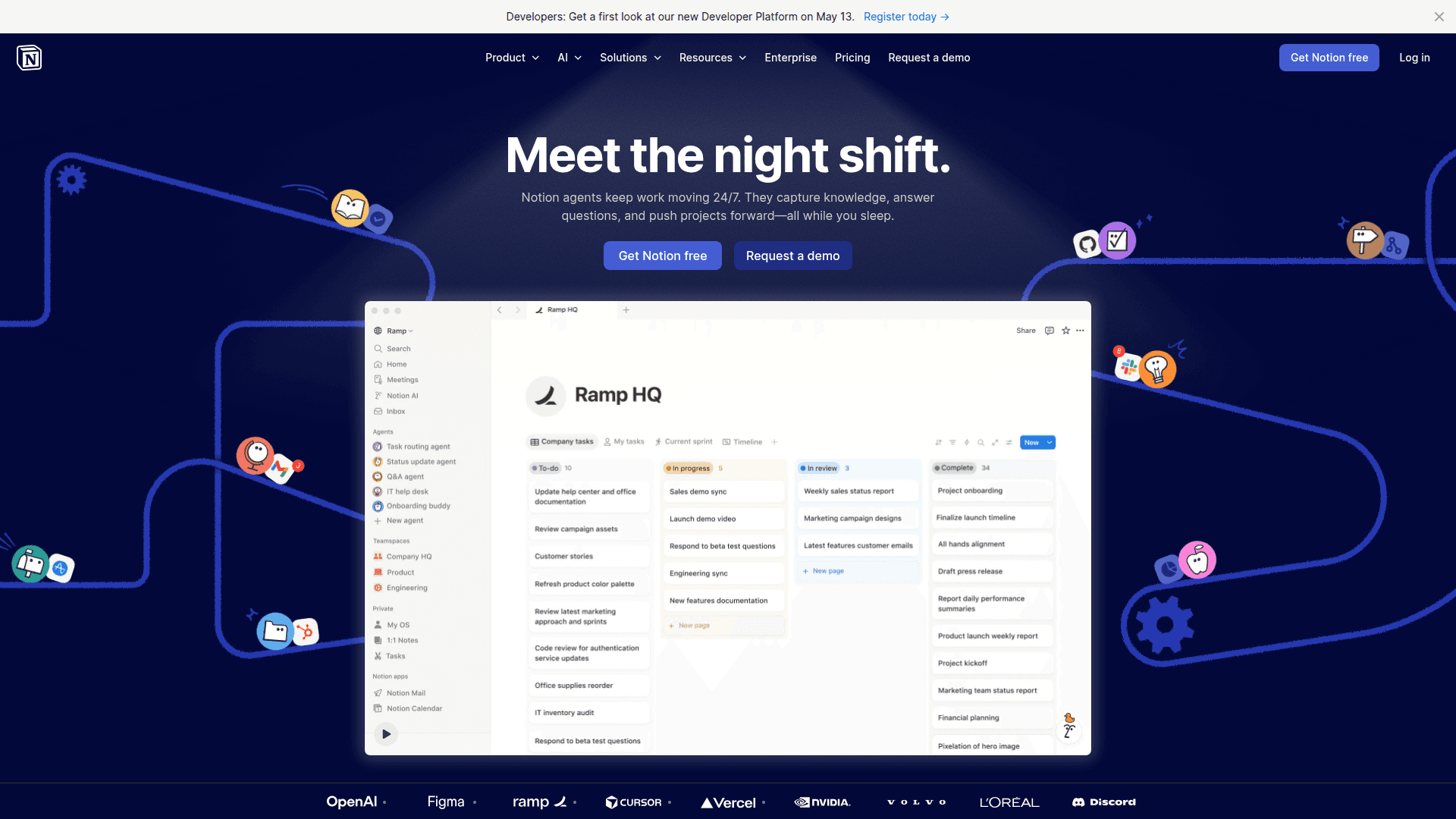
What is Notion: Notion is an all-in-one workspace built around a block-based editor, structured databases, wikis, and project management tools. Project teams use it to organize tasks, maintain internal knowledge bases, capture meeting notes, and manage work through custom properties, views, and nested page content.
How to integrate Notion with Datagrid
This integration gives Datagrid's agentic AI agents read and write access to your workspace's databases, pages, blocks, users, comments, and files. Complete the connection, authenticate the integration, and review the sync details to control what Datagrid reads and how often it runs.
Create the connection
Click + Create in the top left of the Datagrid interface.
Select Connect Apps.
Search for the Notion integration.
Enter your Notion API key (Internal Integration Token). Grant permissions if prompted.
Click Next.
Select the Notion data to include: Databases, Pages, or Blocks.
Click Start First Import.
Before connecting, make sure the target pages and databases in Notion are shared with your integration. Open the page in Notion, click the three-dot menu in the top right, select Add connections, and choose your integration.
Authenticate the integration
Datagrid uses a Notion Internal Integration Token (static bearer token). Create one in your workspace settings at notion.so/my-integrations. The token scopes access to only the pages and databases explicitly shared with the integration. For details on creating and managing tokens, see the Notion auth guide.
Review sync details
Synced objects: Database, Page, Block, User, Comment, File, Emoji
Sync direction: Datagrid reads from Notion, and agents can also write back to pages and content in supported workflows
Schedule options: daily, weekly, or monthly
Pagination: cursor-based, 100 items per request, handled automatically by Datagrid
Why use Notion with Datagrid
Notion stores operational context in pages, databases, and nested blocks. Datagrid turns that content into workflows that execute on schedule and write results back where project teams already work.
Structured data extraction from unstructured pages: Meeting notes, briefs, and documentation sit in Notion as free-form blocks that are difficult to query or act on. Project teams get queryable, actionable data without manual reformatting.
Cross-platform data routing: Moving data out of Notion into downstream systems often requires manual exports or copy-paste.
Scheduled, autonomous data pulls: Stale data creates downstream errors. Datagrid agents pull from Notion on a recurring schedule, so each workflow runs on current information without a manual trigger.
Bidirectional write-back: Processing results from other connected systems often need to land back in Notion.
Intelligent property handling: Notion databases use many property types, including relations, rollups, multi-selects, and formulas.
Agentic workflow chaining: A scheduled Notion workflow can kick off a multi-step agent workflow.
What you can build with Notion and Datagrid
Notion works well as a source of record for pages, tasks, documentation, and internal reporting. When Datagrid connects to that content, project teams can turn stored context into recurring workflows that read, interpret, and write back results.
The examples below show how project teams can use this integration in day-to-day operations:
Automated meeting-notes-to-tasks pipeline: When meeting notes land in a Notion page, typed or transcribed, a Datagrid agent extracts action items, assignees, and deadlines from the block content.
Cross-database reporting agent: Multiple Notion databases hold project status, KPIs, sprint progress, and content calendars.
Content brief-to-draft generator: A Notion database serves as a content calendar, with each entry holding a topic, target audience, keywords, and format.
Self-updating knowledge base monitor: A Datagrid agent monitors support queries from external channels, checks existing Notion knowledge base articles for coverage gaps, and either updates outdated pages or creates new entries with suggested content.
Resources and documentation
Notion developer quickstart: Review the basic developer setup for working with Notion.
Notion API changelog: Track API changes that may affect schemas, queries, or behavior.
Notion developer FAQ: Check common implementation questions and edge cases.
Frequently asked questions
What authentication method does Datagrid use to connect to Notion?
Datagrid uses a Notion Internal Integration Token, a static bearer token created in your workspace settings. This token authenticates API requests to your workspace. Pages and databases must be explicitly shared with the integration before Datagrid can access them.
What Notion data objects does the Datagrid integration sync?
The integration syncs seven object types: Database, Page, Block, User, Comment, File, and Emoji. In newer Notion API versions, data source behavior may also be involved in how database schemas and queries are handled.
Why does my integration return "object not found" for a Notion database?
Two common causes are that the integration has not been connected to the database, using the three-dot menu on the page and Add connections, or that you're referencing a linked database instance instead of the source database. The Notion developer FAQ covers related API behavior in detail.
Does Notion support real-time updates via webhooks?
Notion offers automation webhooks in the product UI and API webhooks for programmatic integrations. For this integration, the sync behavior described on this page uses scheduled pulls at daily, weekly, or monthly intervals rather than webhook-based real-time sync.
How does Datagrid handle Notion's pagination and nested block structure?
Notion's API returns content in cursor-based pages of 100 items, and page bodies are nested block trees. Datagrid traverses those structures automatically, so agents receive complete page content without custom retrieval logic.
Similar integrations
Slack: Send Notion page updates, meeting summaries, and knowledge-base alerts into Slack channels for real-time communication and action.
Google Drive: Sync Google Drive documents and attachments with Notion pages for unified document access and versioned file references.
Google Calendar: Sync meetings and events to Notion to auto-create meeting notes, populate agendas, and surface calendar-driven reminders.
Google Sheets: Import and export spreadsheet data between Notion and Google Sheets for analysis, reporting, and cross-system automations.
Asana: Keep tasks synchronized between Notion and Asana so action items, assignees, and due dates stay consistent across project teams.
Jira: Link Notion documentation and knowledge base pages to Jira issues to provide rich context and simplify triage for engineering teams.