
Overview
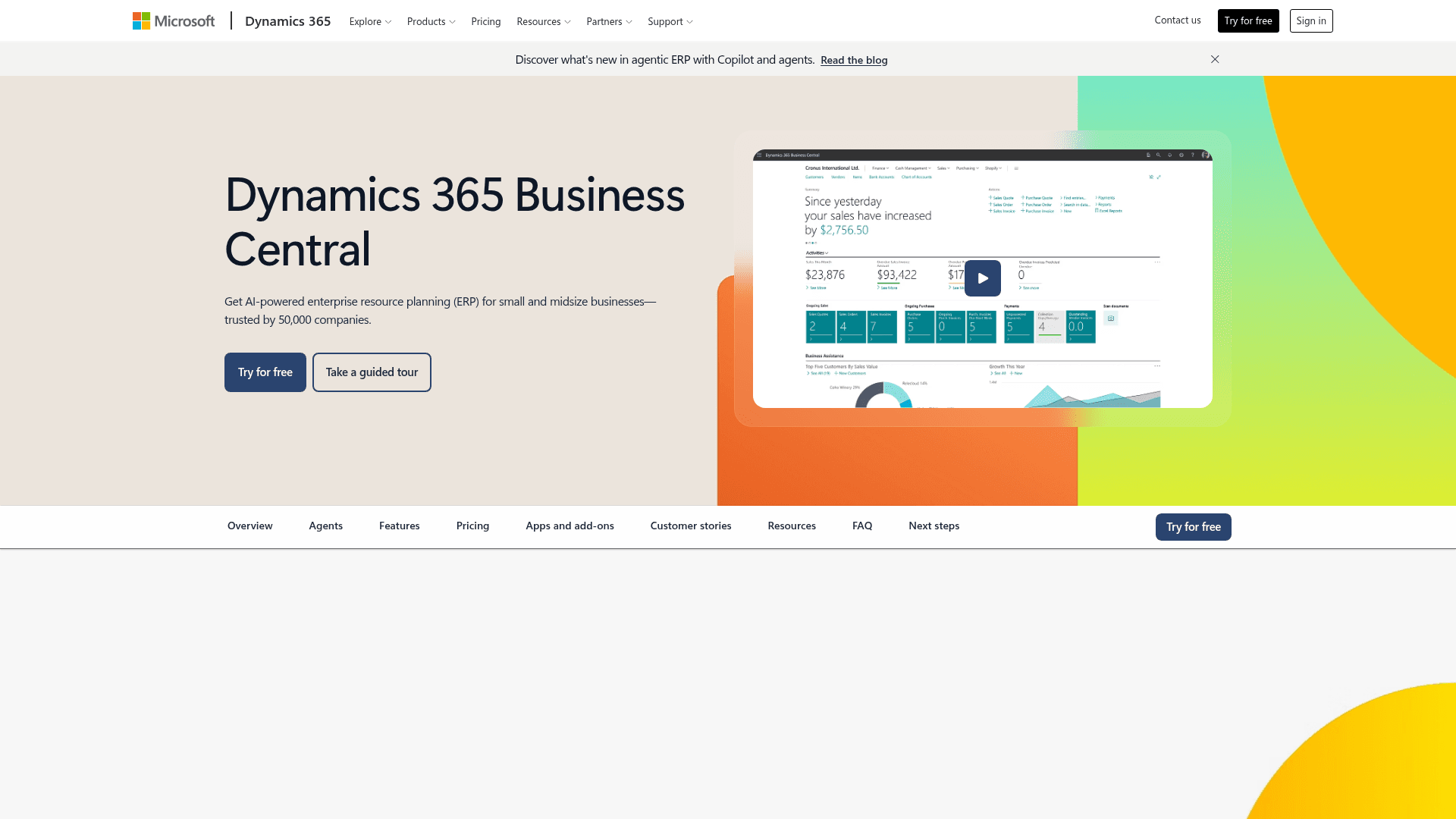
What is MS Dynamics 365 NAV: Microsoft Dynamics 365 Business Central, formerly Dynamics NAV, is an ERP for small and mid-sized organizations. It covers finance, sales, purchasing, inventory, manufacturing, and warehouse management. Project finance leaders and operations teams use Business Central for AP, inventory, and period-end close.
How to integrate MS Dynamics 365 NAV with Datagrid
This integration covers Business Central and does not document a separate legacy NAV connection. Datagrid connects to Business Central through the OData API, and data flows one way, from Business Central into Datagrid; the integration does not post transactions back to the ERP. Once records land, Datagrid's AI agents query and cross-check them so controllers and AP teams can focus on exceptions. Follow this setup order: configure the connection, authenticate the Microsoft account, then schedule the data sync.
Configure the connection
You need an active MS Dynamics 365 NAV account with permission to read the data you want imported.
In Datagrid, go to Settings > Connectors > Add New.
Select MS Dynamics 365 NAV from the connector list.
Authorize the connection to an account that has read permissions on the data you want to import.
Authenticate with Microsoft Entra ID
Business Central online requires OAuth 2.0 through Microsoft Entra ID, as described in Microsoft's OAuth authentication documentation. The Microsoft account used during authorization must have read access to the selected Business Central records.
Schedule the data sync
Set the import schedule to daily, weekly, or monthly. The selected cadence determines when agents receive updated Business Central records.
Objects: The integration imports Business Central financial and sales data, as well as inventory records. Underlying entities include customer, vendor, item, salesOrder, purchaseOrder, and journal.
Direction: Data moves one way, from Business Central into Datagrid, and the integration does not post transactions back to the ERP.
Frequency: Scheduled imports follow the cadence selected during setup.
The following configuration summarizes a daily import:
objects:
  - financial
  - sales
  - inventory
direction: Business Central to Datagrid
frequency: daily
Replace "daily" with "weekly" or "monthly" to match the required reporting cadence. Once the schedule is active, agents can query each imported dataset and produce reports after cross-referencing its records.
Why use MS Dynamics 365 NAV with Datagrid
The integration gives project finance leaders and operations teams an execution layer for recurring checks, reconciliations, and reporting workflows.
Automated anomaly detection: Agents flag irregularities in Business Central financial records, allowing controllers to focus their reviews on exceptions.
Period-end report assembly: Agents assemble period-end reports from general ledger entries.
Reconciliation against imported ledgers: Teams import a second accounting or ERP dataset into Datagrid, and an agent compares the Business Central figures against it.
Hands-off scheduling: Scheduled imports keep agent workspaces up to date without manual exports from Business Central, so recurring workflows use up-to-date records.
What you can build with MS Dynamics 365 NAV Datagrid integration
Business Central records can drive focused workflows for AP and close, along with inventory planning and migration review. Each workflow gives agents defined checks to execute and routes the resulting exceptions or reports to the appropriate operator.
An accounts payable exception monitor: Import purchase order and vendor invoice data. An agent cross-references each invoice against its purchase order, and any mismatched amounts and unknown vendors are routed to your AP lead. Microsoft's Payables Agent FAQ covers inbox-based invoice intake in Business Central, and Datagrid runs the matching across the systems you connect to.
A month-end close package generator: Pull general ledger entries into Datagrid. An agent runs variance checks against prior periods and delivers a draft close package to project finance. Controllers review the agent-built package and its exceptions.
An inventory health dashboard feed: Import item and inventory data. An agent compares stock levels to sales activity, flags items that are running below recent demand, and writes a summary for planners and operations teams.
A migration reconciliation workspace: Built-world project teams moving off another accounting system can land both datasets in Datagrid, and the same applies when consolidating a second ledger alongside Business Central. An agent compares customer balances, open orders, and ledger totals, providing operators with a discrepancy report for review before cutover.
Resources and documentation
OData web services: Explains how Business Central exposes OData endpoints.
Business Central authentication: Explains the authentication methods used with Business Central web services.
API v2.0 reference: Documents entities that include customer, vendor, item, salesOrder, purchaseOrder, and journal.
Incremental data extraction: Microsoft's guidance on incremental extraction using lastModifiedDateTime.
Frequently asked questions
Does the integration work with legacy Dynamics NAV?
This page covers Dynamics 365 Business Central, the renamed current product, under Datagrid's MS Dynamics 365 NAV label. It does not document a separate legacy NAV connection. Microsoft documents upgrade paths from NAV 2015 through 2018 to Business Central in its NAV migration guide.
What authentication does Business Central API access require?
Business Central online mandates OAuth 2.0 through Microsoft Entra ID. The authorizing account also needs read permission for the records selected during setup.
Which Business Central records can Datagrid import?
Datagrid imports financial and sales data, as well as inventory records. The underlying Business Central entities can include customers, vendors, items, sales orders, purchase orders, and journals.
How often does Datagrid pull data from Business Central?
Select a daily, weekly, or monthly cadence during setup. More frequent imports fit AP monitoring and reconciliation, while less frequent imports fit close and reporting workflows.
Similar integrations
Oracle NetSuite: ERP alternative that provides data for cross-platform financial consolidation and order-to-cash comparisons with Business Central.
Sage Intacct: Cloud financial system used alongside Business Central for accounts-payable automation and multi-entity consolidation comparisons.
Acumatica: ERP peer for manufacturing and construction project teams, useful for migration planning and cross-system inventory and job-cost reconciliations.
QuickBooks: Source system for Business Central migrations and a target for invoice and payroll data plus cash flow normalization.
Sage 300 Cloud: Mid-market ERP that pairs with Business Central for finance migration, comparative reporting, and invoice reconciliation.