
Overview
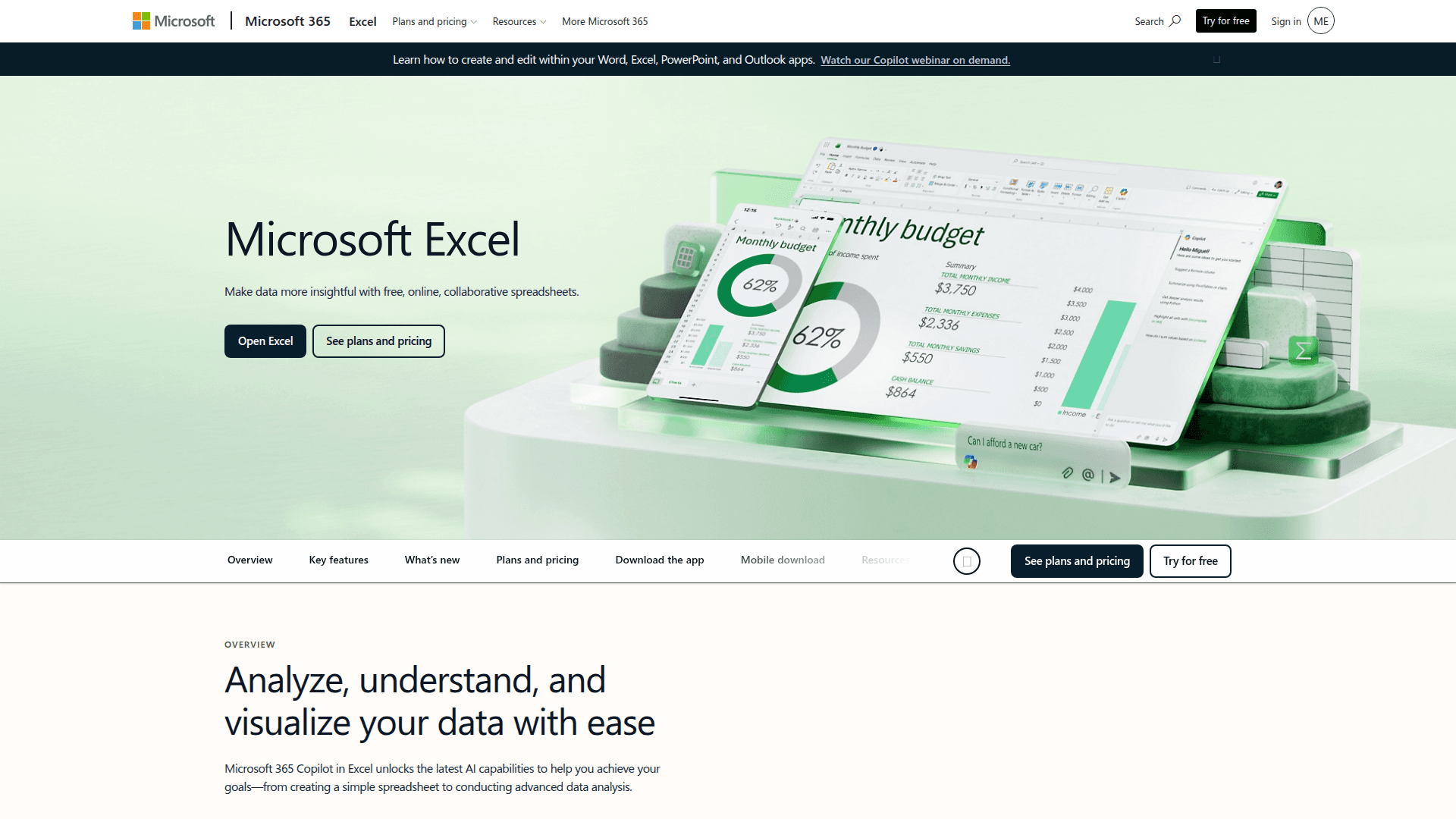
What is Microsoft Excel: Microsoft Excel is a spreadsheet application for organizing and analyzing data, with tools for visualization. It ships as part of the Microsoft 365 productivity suite with apps such as Word and PowerPoint. Teams use it for data entry, financial modeling, business intelligence work, and collaborative reporting. Formulas and PivotTables support analysis, and charts make Excel a common reporting tool for operators across finance, insurance, and the built world.
How to integrate Microsoft Excel with Datagrid
Datagrid connects to Excel through Microsoft Graph so AI agents can read and write workbook data in organizational Microsoft storage.
Connect Microsoft Excel in Datagrid
Set up the connection from the Datagrid integration settings.
Open Settings > Integrations> Add New
Select Microsoft Excel
Click Authorize and sign in with a work or school account
Select your OneDrive for Business or SharePoint location
Choose the workbook and worksheets to sync
Configure your sync schedule and data mapping
Click Save
Authenticate with delegated Microsoft access
The Microsoft Excel Datagrid integration uses OAuth 2.0 via the Microsoft identity platform with delegated permissions. Application-only permissions are not supported. The minimum scope is Files.ReadWrite for read and write, or Files.Read for read-only access. Microsoft Graph does not use API keys.
Configure data sync details
The integration syncs worksheets, tables, ranges, named items, and charts. Access is Excel API operations: agents read workbook objects via GET and write via POST, PATCH, and DELETE. Change detection runs at the workbook-file level, with delta query polling available for incremental change tracking.
Why use Microsoft Excel with Datagrid
Connect Excel with Datagrid when spreadsheet work needs to move across project files and downstream business systems without manual copy-paste. Here's why you need to use the Microsoft Excel integration with Datagrid:
Automated document-to-spreadsheet extraction: Datagrid's AI agents ingest invoices and PDFs, including scanned documents, then populate structured Excel workbooks. Teams no longer need to enter data manually across variable formats.
AI-agent data cleaning and enrichment: Agents ingest Excel data for cleaning and transformation, then push structured outputs back into workbooks or route them downstream.
Excel stays the working surface: Project teams keep working in the spreadsheet they know while Datagrid executes the repetitive processing around it.
Financial modeling automation: Agents generate and update complex models, run scenario analyses, and provide forecasting insights for faster decisions.
What you can build with Microsoft Excel Datagrid integration
Datagrid's AI agents turn Excel workbooks into an execution layer for document extraction, data cleanup, comparison, reporting, and downstream routing. Here are examples of some workflows:
Insurance policy comparison tables: Document control managers receive carrier PDFs with coverage limits, exclusions, and premium details buried across pages. AI agents extract these data points, normalize them, and write comparison tables directly into Excel. The workflow replaces the manual PDF-to-spreadsheet bottleneck in policy review cycles.
Spreadsheet-to-warehouse pipelines: Build agents that read Excel datasets, clean and enrich the records, then route structured output to Snowflake or Bigquery for analytics. Agents handle schema mapping and adapt when column structures shift.
Finance data extraction workflows: Agents ingest invoices and financial documents, populate workbooks, and enrich datasets automatically. This removes manual research and data entry across finance reporting cycles.
Board-ready financial reporting: Agents generate and update financial models, run scenario analyses, and autonomously write management discussion sections and board reports, including earnings summaries, by synthesizing key trends in plain language.
Resources and documentation
Excel API overview explains CRUD operations for workbook resources.
Write workbook tutorial provides a step-by-step write guide.
Session handling guide describes session handling best practices.
Frequently asked questions
Which Excel file formats and storage locations does the integration support?
Use organizational Microsoft storage and Office Open XML workbooks. Other storage audiences and legacy workbook formats fall outside the integration scope. These limits reflect Microsoft Graph Excel API behavior.
What authentication method does the Excel integration use?
The integration uses OAuth 2.0 through the Microsoft identity platform with delegated permissions. Application-only permissions are not supported. The minimum scope is Files.ReadWrite for read and write access, or Files.Read for read-only. The user auth docs describe the delegated flow.
Can the integration detect row-level or cell-level changes in real time?
No. Microsoft Graph provides no event API to fetch the latest changes at the row, table, or worksheet level. Treat change detection as a workbook-file notification first, then use delta polling to inspect incremental changes after the file-level notification.
Does the integration write data back to Excel, or only read it?
The integration supports bidirectional access. Agents read worksheet and table data via GET, and write processed results back via POST, PATCH, and DELETE. They can also run bidirectional sync with CRM systems, databases, and cloud storage.
Why does Datagrid require a work or school account instead of a personal Microsoft account?
The integration uses Microsoft Graph Excel API access for organizational accounts. A delegated token from a personal Microsoft account returns a 403 Forbidden error when calling APIs that require organizational accounts. The auth errors guide explains this audience claim mismatch.
Similar integrations
Google Sheets syncs or migrates spreadsheet data between Excel and Google Sheets for cross-platform collaboration and automated data workflows.
OneDrive stores and syncs Excel workbooks in OneDrive for Business to enable Microsoft Graph API access and connected file-based workflows.
SharePoint hosts Excel workbooks in SharePoint libraries for team collaboration, file-level change notifications, and enterprise file management in integrations.
Snowflake routes cleaned Excel data into Snowflake for scalable analytics, scheduling, and warehouse-driven reporting from spreadsheet sources.
BigQuery loads processed Excel datasets into BigQuery for fast analytics, BI dashboards, and cross-platform joins with spreadsheet-sourced data.
MS SQL Server keeps Excel data synchronized with MS SQL Server for transactional reporting, enrichment, and bidirectional database-spreadsheet workflows.