
Overview
What is Dropbox: Dropbox is a cloud-based file storage, synchronization, and collaboration platform with cross-device file access, version history, shared folders, file previews, and business controls for team deployments.
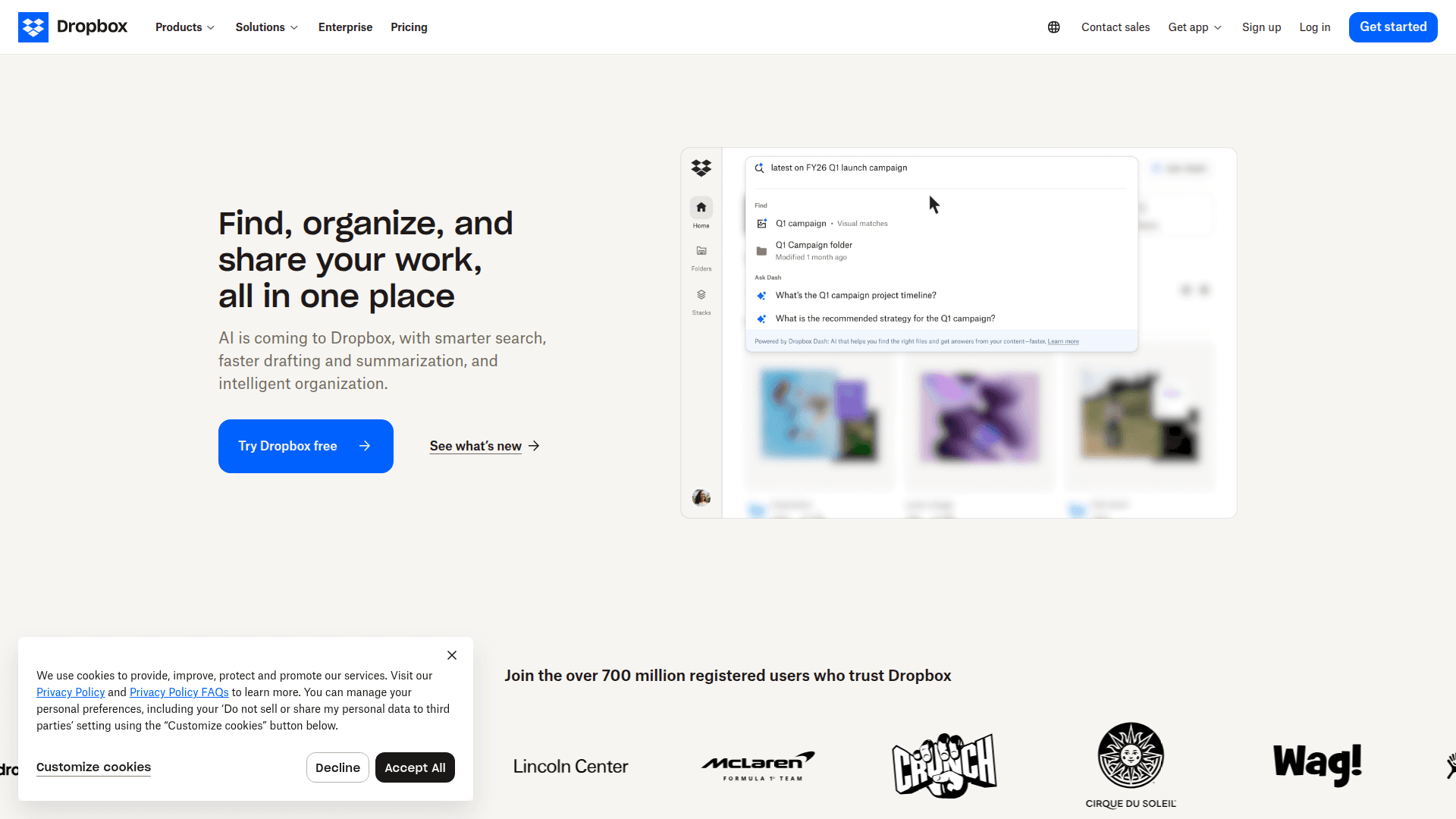
How to integrate Dropbox with Datagrid
Project teams ingesting vendor spreadsheets and shared CSV files from Dropbox follow three steps: authorize the Dropbox account, configure which folders Datagrid should process, and review the sync behavior that governs how file changes flow into the workspace.
Authorize Dropbox
Open the Datagrid workspace and go to Settings > Connectors > Add New.
Select Dropbox from the connector list.
Click Authorize to start the OAuth 2.0 flow. Datagrid requests offline access so it can use a refresh token for persistent background syncing; access tokens themselves are short-lived. For details on Dropbox's OAuth implementation, see the Dropbox OAuth guide.
Sign in with the Dropbox account you want to connect. If you are installing a Dropbox Business team app or connecting a team-managed workspace, Dropbox may require admin approval.
Grant the requested scopes, such as files.content.read and files.metadata.read.
Configure file access
Select which folders or file paths Datagrid should process after Dropbox change notifications are received.
Configure the sync schedule or choose event-based triggers for real-time ingestion.
Save the connector configuration and run a test sync.
Review sync behavior
Datagrid imports file content and metadata from Dropbox through scheduled syncs or source change events.
Supported file types: Datagrid currently ingests CSV and XLSX files from Dropbox.
Sync direction: Files import from Dropbox into Datagrid in a one-way flow.
Trigger options: Sync runs on scheduled intervals, source change events, or webhook notifications.
Data objects: Datagrid captures file content and file metadata, including name, path, size, revision, and timestamps.
Version tracking: Datagrid accesses Dropbox file revision history for version comparison across project updates.
When Dropbox sends a webhook notification, Datagrid calls the Dropbox Files API to retrieve updated data and applies its configured folder or file-path filtering logic.
Why use Dropbox with Datagrid
The integration turns Dropbox from a passive file store into an active ingestion point for spreadsheet-driven workflows.
Automated file ingestion: Datagrid agents detect new files in Dropbox folders and ingest supported CSV and XLSX files automatically. This removes the manual download-upload cycle between file receipt and data processing.
Cross-source data blending: Operators combine Dropbox-stored spreadsheets and CSVs with data from other connected platforms in a single workspace.
Version-aware processing: Agents access Dropbox file revision history to compare file versions and flag discrepancies across project updates.
Event-driven workflows: Dropbox webhook notifications trigger Datagrid workflows as account changes occur, so data flows run without waiting for a fixed schedule.
Reusable data flows: Project teams build a data transformation once and reuse it across new file versions and projects. The same extraction logic applies to every incoming supported file.
No-code workspace: Project teams connect Dropbox and configure ingestion rules without writing API calls or managing OAuth tokens manually.
What you can build with the Dropbox Datagrid integration
Project and operations teams turn shared file storage into active workflows with Dropbox and Datagrid. These four examples show how teams put the connector to work day-to-day:
Automated data extraction from incoming spreadsheets: When a vendor drops a new pricing CSV into a shared Dropbox folder, a Datagrid agent ingests the file, extracts line items and unit costs, and pushes structured pricing data into your ERP or project estimation tool.
Cross-platform file comparison: Project teams store CSV and XLSX revisions in Dropbox, and Datagrid agents compare each incoming version against the prior revision to flag changed line items for review.
Scheduled reporting pipelines from file drops: Operations teams configure a Datagrid workflow that monitors a Dropbox reporting folder on a daily schedule, extracts data from each new file, and routes the results into a project dashboard.
Inbound spreadsheet triage and routing: Project teams use a shared Dropbox folder as an intake point for CSV exports and vendor spreadsheets, and Datagrid agents classify each file and route the contents to the right downstream system.
Resources and documentation
Datagrid log-in and workspace setup: access point for configuring connectors inside your Datagrid workspace.
Dropbox HTTP API v2 reference: complete endpoint documentation for Dropbox APIs.
Dropbox OAuth 2.0 guide: authentication flows, refresh tokens, and scope configuration.
Dropbox webhooks reference: webhook setup and verification details, including HMAC-SHA256 security.
Dropbox developer getting started guide: app creation and permission setup.
Dropbox file access guide: file metadata fields and folder traversal, including non-downloadable file handling.
Frequently asked questions
What authentication method does the Dropbox connector use?
Datagrid connects to Dropbox using OAuth 2.0 with offline access, which issues a refresh token for persistent background syncing. Datagrid uses short-lived access tokens for automation that runs on a schedule or after source changes. Full details on token types and flows are in the Dropbox OAuth guide.
What file types can Datagrid ingest from Dropbox?
The Datagrid Dropbox connector currently ingests CSV and XLSX files. Datagrid imports these files into the workspace for AI agent processing, transformation, and blending with other data sources.
Can Datagrid detect new files in Dropbox automatically?
Yes. Dropbox webhooks notify Datagrid when linked accounts change, and Datagrid calls the Dropbox Files API to retrieve updated data and process configured folders or file paths.
Similar integrations
Amazon AWS S3: Pairs with Dropbox when archiving or tiering files to object storage for large-scale backup, long-term retention, or AI training data pipelines.
Azure Blob Storage: Teams use Azure Blob Storage alongside Dropbox to offload large datasets and run hybrid cloud storage workflows with AI-driven processing and archival policies.
Google Drive: Teams compare or pair Google Drive with Dropbox for cross-platform collaboration and document synchronization across ecosystems in automated AI workflows.
OneDrive: Integrates in Microsoft-centric environments to bridge Dropbox file storage with Office 365 workflows, synchronization, and AI extraction.
Box: Teams use Box alongside Dropbox for governance, advanced permissioning, and cross-system document processing with AI.
SharePoint: Pairs with Dropbox when organizations need deeper document management, intranet storage, and bi-directional syncing into Microsoft ecosystems.