
Overview
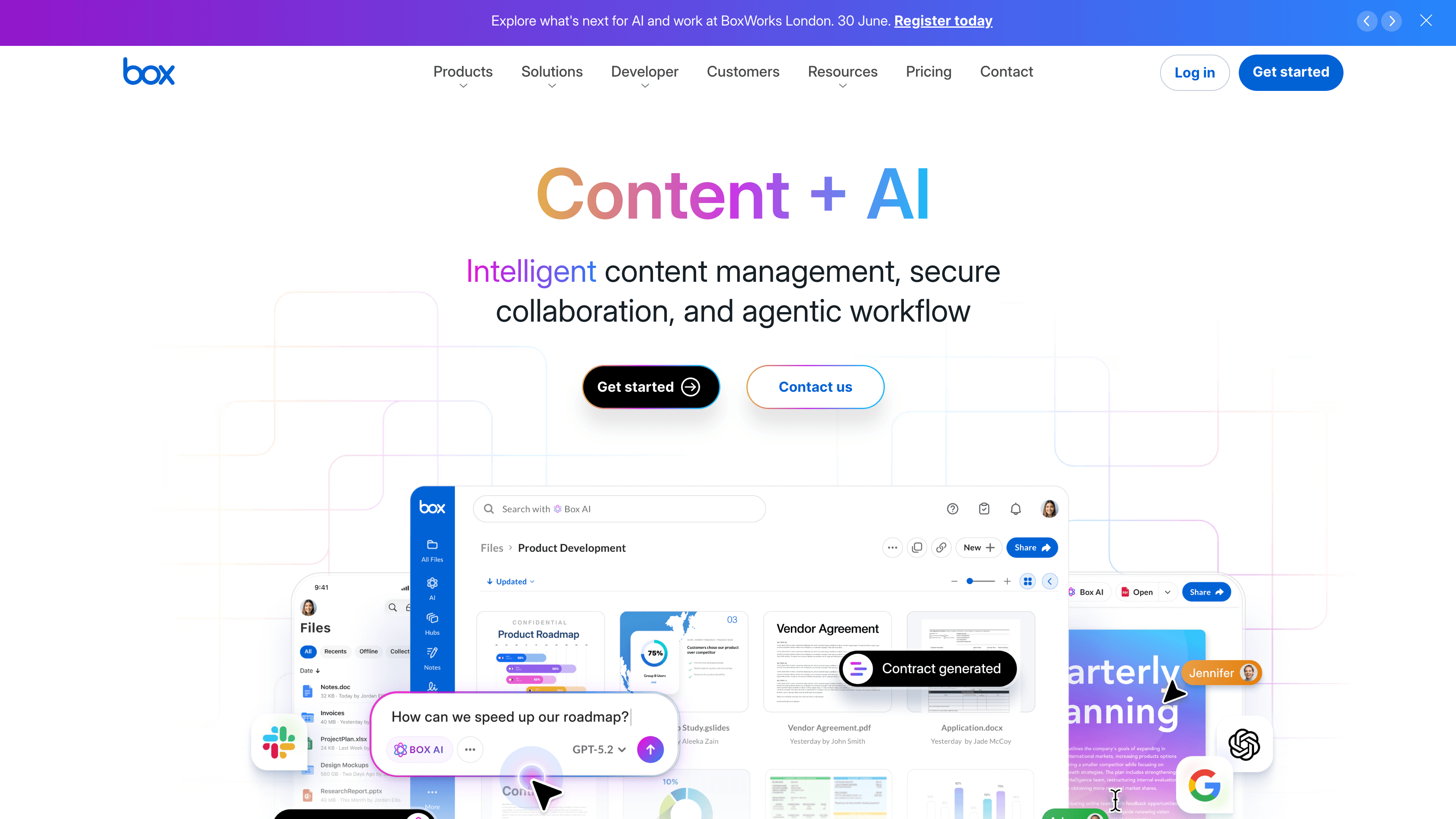
What is Box: Box is a cloud content management platform that enterprise teams use to store, manage, share, and secure project files, contracts, drawings, and regulated documents across distributed organizations.
How to integrate Box with Datagrid
Enterprise teams that store project files, contracts, specs, and regulated content in Box use this integration to bring that content into Datagrid workflows, where agentic AI agents analyze files, extract data, and route results to connected platforms such as CRMs, databases, and team messaging systems. Once Box is connected, agents can read file contents, apply metadata, create tasks, and write processed outputs back into Box without manual exports or coordination across disconnected tools.
The Datagrid integration gives read and write access to your Box content: files, folders, metadata, and collaboration structures. It syncs content for AI agent processing and writes extracted data back to Box as structured metadata.
Here are the steps for the integration:
Create the connection
Sign in to your Datagrid account and click Integrations in the left side panel of your Workflow.
Find the File Storage header and click Setup Integration under Box.
Click Create a Connection.
Enter your credentials. For app-based server-side authentication, provide a Connector Name and your Box API Key. For OAuth Login, provide a Connector Name and log in with your Box credentials.
Click Validate Configuration. Valid fields display in green. Invalid fields display in red.
Click Add Configuration to finalize the connection.
Authenticate access
Datagrid supports two authentication methods for Box:
App-based server-side authentication: Best for server-to-server integrations where no user interaction is needed. In Datagrid, this uses a Box API Key field. Depending on your Box app configuration, Box uses JWT and Client Credentials Grant for this pattern.
OAuth 2.0: Best for integrations that act on behalf of a specific Box user. Redirects to Box for login and authorization.
Box app-based server-side authentication requires Box Admin approval before accessing enterprise content.
Configure data sync
Datagrid connects to Box APIs to sync the following data objects:
Files: Read file content, metadata, versions, and thumbnails.
Folders: List folder structures and items.
Metadata instances: Read and write structured metadata on files and folders.
Collaborations: Access permission and sharing structures.
Tasks and comments: Read task assignments and file-level comments.
Events: Monitor file uploads, edits, deletions, and collaboration changes.
Datagrid syncs data from Box on a configurable schedule or in response to webhook-triggered events. Additionally, Datagrid reads content from Box for AI agent processing. Datagrid writes structured outputs, including extracted fields, classifications, and metadata, back to Box.
Why use Box with Datagrid
Teams that manage high-volume project files and regulated content use Box with Datagrid to execute document workflows without pushing work into disconnected tools. Here’s why you need to use Box with Datagrid:
Automated document extraction: Datagrid AI agents use files stored in Box as inputs for workflows that extract structured data from contracts, specs, and invoices, then route results into downstream workflow steps without manual CSV exports.
Metadata-driven routing: Box metadata templates drive classification, tagging, and folder organization workflows based on information extracted from file content.
Event-driven workflows: Box webhooks and event streams trigger near real-time workflows when files are uploaded, modified, or moved, so agents can act on new content as it arrives.
Enterprise compliance support: Box's granular access controls, retention policies, and encryption keep workflows within existing governance boundaries, with Datagrid agents operating within the authenticated account's permission boundaries.
Cross-platform orchestration: Combine Box with a CRM connector or a team messaging connector to build multi-system workflows in which Box content feeds record updates, project documentation, or team notifications.
What you can build with Box Datagrid integration
Connect Box to Datagrid and put your project files to work. Here’s what you can build with the integration:
Contract data extraction pipeline: Datagrid AI agents monitor a Box folder for new PDF uploads, extract key clauses, obligation dates, and party names, then write structured metadata back to the file in Box. The extracted data routes to a connected CRM connector to update deal records and eliminate the manual review cycle.
Project file classification and tagging: When project teams upload drawings, specs, and submittals to Box without consistent naming or metadata, Datagrid agents read each file, identify the document type and project number, apply the appropriate Box metadata template, and move the file to the correct folder.
Compliance document monitoring: Datagrid agents use Box enterprise event streams to flag files that lack required retention policies or metadata fields. When a gap is detected, agents create a Box task for the responsible team member and log the finding in a connected database connector.
Cross-system report generation: Datagrid AI agents pull financial documents and project files from Box, extract line items and totals, cross-reference data against records in a connected data warehouse connector, and generate summary reports that upload back into a designated Box folder with metadata tags for fiscal period, project, and status.
Resources and documentation
Box OAuth 2.0 authentication guide - setup instructions for OAuth-based connections
Box JWT authentication guide - server-to-server authentication for autonomous agent workflows
Box webhooks guide - configuring V2 webhooks for event-driven triggers
Box metadata guide - creating templates and applying metadata instances to files
Box events guide - event stream types, history windows, and deduplication
Box API reference (v2025.0) - current API reference for files, folders, metadata, and events
Box rate limits guide - request ceilings, throttling behavior, and retry guidance
Box V2 webhooks limitations guide - webhook scope, trigger, and delivery constraints
Box SDKs and tools - official SDKs for .NET, Java, Python, Node.js, and iOS
For Datagrid support, contact support@datagrid.com
Request an endpoint here: Don't see the endpoints you're looking for? Datagrid's team is always happy to make new endpoints available.
Frequently asked questions
Which authentication method should I use for the Box Datagrid connector?
Datagrid supports OAuth Login and Service Account authentication. Choose OAuth Login for setups where individual users authorize access interactively. Choose Service Account for autonomous, server-to-server workflows where AI agents run without user interaction. If your enterprise uses SSO, confirm your API key is activated for your account before validating the configuration in Datagrid.
What file types and data objects can Datagrid sync from Box?
Datagrid's setup guide confirms core file and metadata access via the connector. At the Box platform level, the API exposes files, folders, metadata templates, metadata instances, tasks, comments, collaborations, event streams, and more.
Is data sync between Box and Datagrid bidirectional?
For most objects, including files, folders, metadata, tasks, comments, and collaborations, the Box platform APIs support both read and write operations. The Events stream is read-only. Confirm the specific sync behavior for your workflow using the Datagrid setup guide and Box documentation.
Can Datagrid agents react to new files uploaded to Box in near real time?
Box V2 webhooks support more than 30 event triggers, including FILE.UPLOADED, and deliver payloads over HTTPS with HMAC signature verification and up to 10 retries on failure. Datagrid workflows can be designed around these Box platform capabilities for near real-time file processing.
How does Box handle folder permissions in the integration?
Box uses a waterfall permission model. Permissions assigned to a folder propagate downward to all subfolders automatically, and there is no native way to exclude a specific subfolder from a collaboration via the API. Datagrid agents operate within the permission boundaries of the authenticated account. The Box collaborator permission levels documentation details available roles and access scopes.
Similar integrations
Dropbox: Direct competitor and common migration/source target for content migrations, cross-repo sync, and comparative content management workflows.
Google Drive: Widely used enterprise file storage that often integrates with Box for co-editing, migration projects, and multi-cloud collaboration workflows.
OneDrive: Microsoft-integrated file storage frequently paired with Box in hybrid deployments and Office 365 collaboration workflows.
SharePoint: An enterprise document management system often coexisting with Box in Microsoft-centric shops for content migration, permissions mapping, and workflow integration.
Egnyte: Hybrid content management alternative used alongside Box for on-premises needs, regulated data governance, and AEC-focused file control.
Amazon AWS S3: Object storage commonly used with Box for long-term archival, large file ingestion pipelines, and cloud-native data lake workflows.
Browse categories
Storage
Documents