
Overview
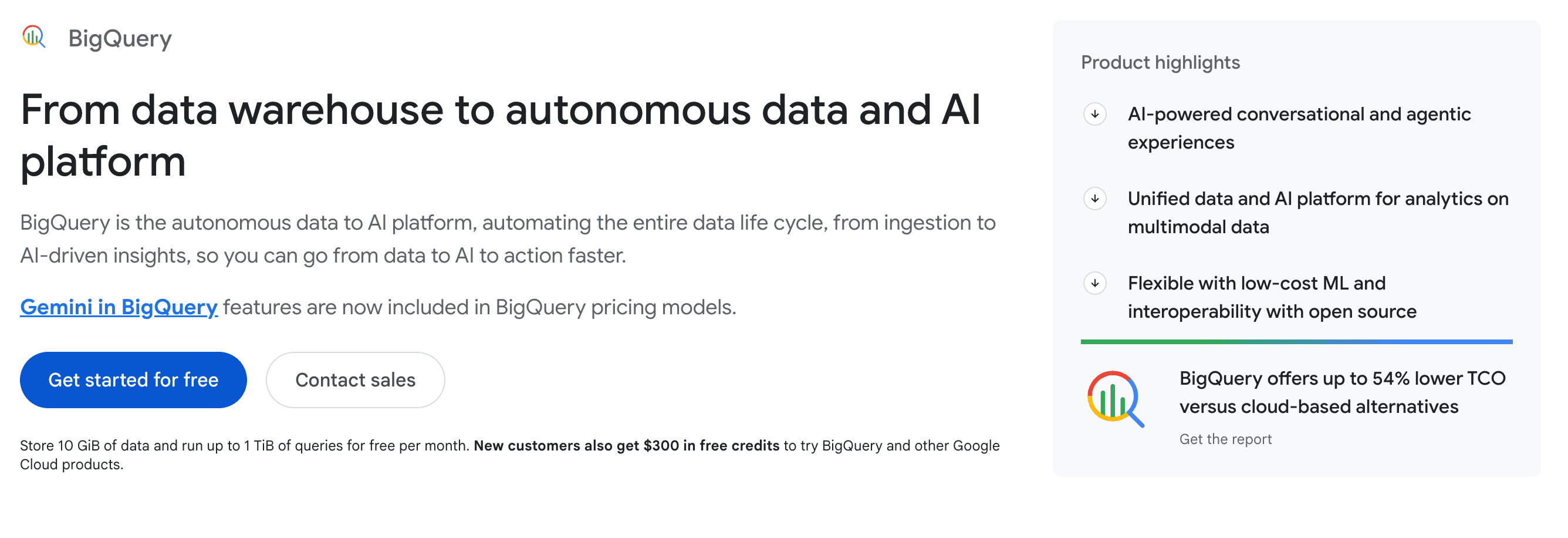
What is BigQuery: BigQuery is a fully managed data warehouse and analytics platform provided by Google Cloud designed to handle and analyze large-scale datasets.
How to integrate BigQuery with Datagrid
Google BigQuery stores your organization's most critical structured data, from project records and financial history to operational metrics. Connecting it to Datagrid gives AI agents direct access to that warehouse to query, transform, enrich, and route data across your connected systems automatically, without manual exports or pipeline maintenance.
Setting up the integration involves connecting BigQuery in Datagrid, authenticating with a Google Cloud service account, and reviewing how data sync works between the two platforms.
Connect the integration
Follow these steps to create the connection in Datagrid:
Open Datagrid and go to Settings > Integrations > Add New
Select BigQuery from the integration list
Upload your Google Cloud service account JSON key file
Select the BigQuery project and dataset you want to connect
Choose the specific tables to sync
Configure sync direction (source, destination, or both)
Save the connection and test it
Note: A Pro or Enterprise Datagrid subscription is required.
Authenticate with Google Cloud
BigQuery uses Google Cloud service account authentication for platform integrations. During setup, you create a service account, generate a JSON key file, and provide that file to Datagrid. The service account then needs IAM role bindings in the BigQuery project or dataset you want Datagrid to access.
The service account requires two IAM roles:
BigQuery Data Editor grants read and write access to datasets and tables.
BigQuery Job User grants permission to run query and load jobs.
Authentication and authorization are separate in Google Cloud. A valid service account without the correct IAM role bindings will still be denied data access.
Review data sync details
The integration moves structured data between BigQuery and Datagrid workflows. Sync configuration details for this integration:
Supported operations: Read, Write
Sync direction: Bidirectional (source, destination, or storage)
Primary data objects: Tables, views, datasets
Data formats: CSV, JSON (Newline Delimited), Avro, Parquet, ORC (import only)
Sync modes: Batch loads and write-back workflows
API method: BigQuery REST API v2
Batch loads suit hourly, daily, or ad hoc syncs. BigQuery also provides streaming capabilities for workflows that need faster data availability.
Why use BigQuery with Datagrid
Datagrid gives operators running mission-critical programs a direct path from warehouse data to cross-system action. Datagrid AI agents execute data movement and analysis so project teams can focus on decisions, exceptions, and next steps. Here's why you need to use BigQuery with Datagrid:
Bidirectional warehouse access: Datagrid agents read from and write to BigQuery tables, creating closed-loop workflows where warehouse data and operational tools stay synchronized.
Agent-driven data transformation: Agents clean, deduplicate, normalize, and enrich BigQuery data automatically, reducing routine manual pipeline work.
Cross-platform data routing: Agents push BigQuery analytics outputs to CRM, project management, or communication tools through Datagrid's integrations.
Structured extraction from unstructured data: Datagrid agents process project files, emails, and other records, then write structured results directly into BigQuery tables for centralized analytics.
Large-scale query execution: BigQuery's serverless compute handles queries across massive datasets while Datagrid agents orchestrate the workflows around those queries.
Google ecosystem continuity: Pairs naturally with Datagrid integrations for Google Cloud Storage, Google Drive, and Google Sheets for end-to-end Google Cloud workflows.
What you can build with BigQuery Datagrid integration
Connect BigQuery to Datagrid and put your warehouse data to work. Here's what you can build:
Automated project cost reporting: Datagrid agents query project cost tables in BigQuery, cross-reference data against budget thresholds, generate summary reports, and push flagged overruns to Procore or Slack, replacing manual export-and-compare cycles.
Enrichment pipelines for incoming data: When new records land in BigQuery (e.g., RFI logs, submittal entries, or transaction records), Datagrid agents detect the additions, run classification or enrichment, append enriched fields back to the table, and notify relevant teams through connected tools.
Cross-platform reverse ETL for sales teams: Datagrid agents pull behavioral and product usage data from BigQuery, match it against account records, score engagement, and write enriched profiles into customer systems, giving sales teams data-backed context without touching a SQL editor.
Document-to-warehouse extraction: Datagrid agents process unstructured project files (e.g., specs, contracts, and inspection reports), extract structured fields like dates, quantities, and compliance status, and write the results into BigQuery tables so teams can run analytics across thousands of files without manual data entry.
Resources and documentation
BigQuery IAM and access control - roles, permissions, and service account configuration
BigQuery client libraries overview - available SDKs for C#, Go, Java, Node.js, PHP, Python, and Ruby
BigQuery Storage Write API guide - streaming and batch write operations
Google Cloud service account authentication - JSON key generation and OAuth flows
For Datagrid support, contact support@datagrid.com
Request an endpoint here: Don't see the endpoints you're looking for? We're always happy to make new endpoints available.
Frequently asked questions
How does Datagrid authenticate to access BigQuery data?
Datagrid connects to BigQuery using a Google Cloud service account. Create the service account, generate a JSON key file, and upload it during setup in Datagrid. The account needs the BigQuery Data Editor and BigQuery Job User IAM roles. Authentication and authorization are separate in Google Cloud, so a valid service account without the right role bindings will still be denied access.
What is the difference between using BigQuery as a source versus a destination?
As a source, Datagrid queries BigQuery tables and extracts data for processing, transformation, or AI agent workflows. As a destination, Datagrid writes processed or enriched data back into BigQuery tables. BigQuery can also serve as a storage layer for Datagrid-managed databases.
What data formats does BigQuery support for import and export?
BigQuery accepts Avro, CSV, JSON (Newline Delimited), ORC, and Parquet for data loading. For exports, BigQuery supports CSV, JSON, Avro, and Parquet, but not ORC.
Can Datagrid use BigQuery for faster data workflows?
Yes. BigQuery provides streaming capabilities for workflows that need faster data availability. Datagrid can use BigQuery data in workflows that benefit from faster data movement and automated downstream actions when new records are logged.
What security controls apply when Datagrid reads BigQuery data?
BigQuery enforces security at multiple layers, including project, dataset, table, column (through policy tags), and row (through row access policies). These controls remain active when Datagrid accesses BigQuery. The service account used for the integration can only access data it is explicitly granted permission to read or write through IAM bindings.
Similar integrations
Google Cloud Storage - Object storage that pairs natively with BigQuery for staging data loads, storing exports, and managing file-based workflows.
Google Drive - Useful for moving spreadsheet and document-based inputs into workflows that ultimately land in BigQuery.
Google Sheets - Lightweight tabular source for teams that need to move operational data into BigQuery-backed workflows.
Procore - Project and construction data source that can feed warehouse reporting and downstream automation powered by BigQuery.
Slack - Notification and action layer for alerts, summaries, and workflow updates triggered from BigQuery data.
Browse by category
Data Warehouse
Database
Analytics