
Overview
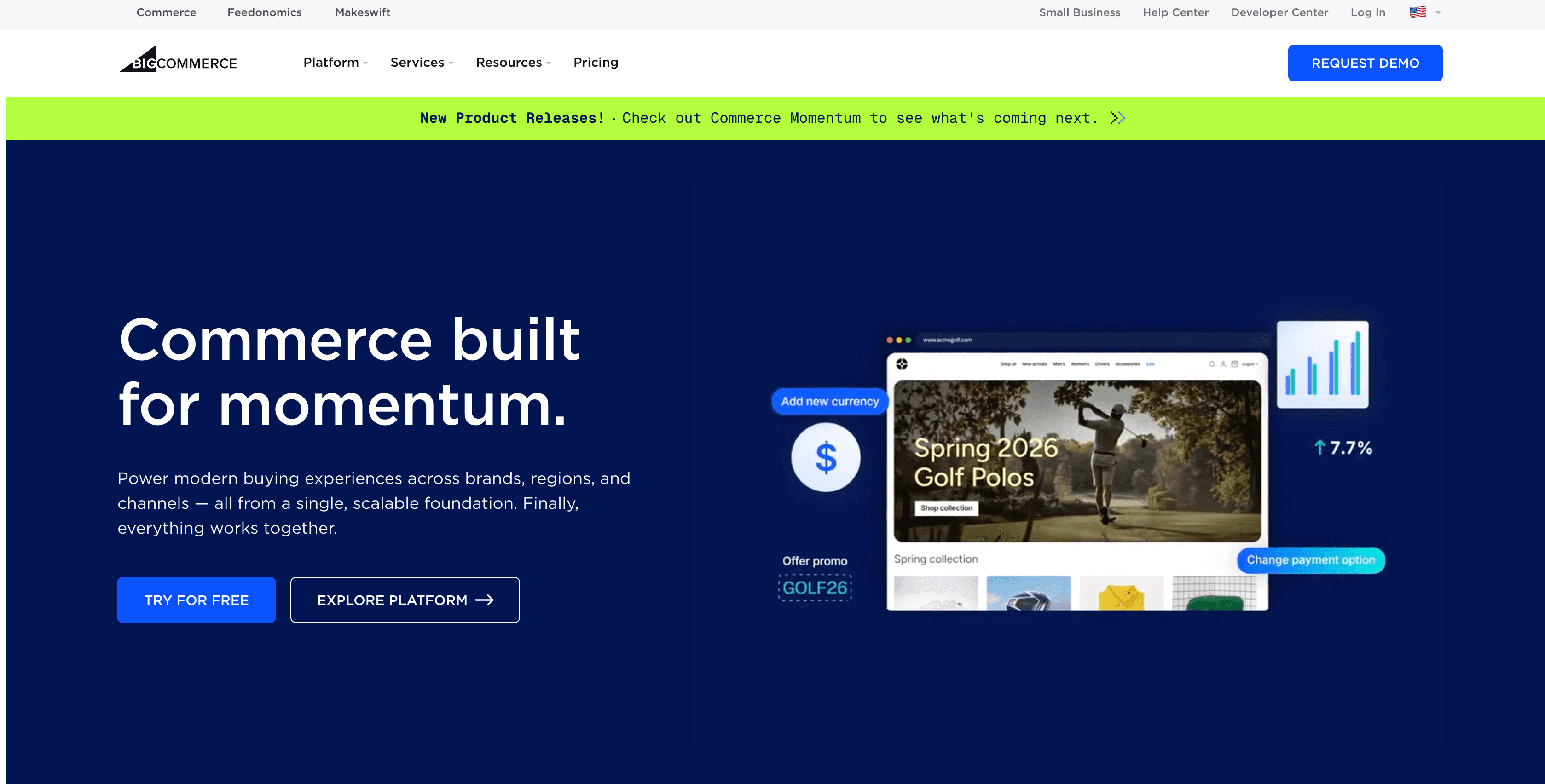
What is BigCommerce: BigCommerce is an e-commerce platform that provides businesses with tools to build, manage, and scale online stores. It supports product catalog management, order processing, customer records, payment handling, and multi-channel selling across web and marketplace environments.
How to integrate BigCommerce with Datagrid
Setting up the BigCommerce integration requires API credentials from your BigCommerce store, which you then use to authorize the connection in Datagrid. After connecting, you configure a recurring sync schedule to keep your storefront data up to date without manual exports.
Here are the steps to integrate BigCommerce with Datagrid:
1. Prerequisites
To configure the BigCommerce integration, follow these steps:
An active BigCommerce account with the necessary permissions to access the projects and data you want to import into Datagrid.
Navigate to your store’s control panel (Advanced Settings > API Accounts > Create API Account)
Create an API account.
Select the resources you want to allow access to. Airbyte only needs read-level access. Note: The UI will show all possible data sources and will show errors when syncing if it doesn't have permissions to access a resource.
The generated Access Token is what you'll use as the access_token for the integration.
You're ready to set up BigCommerce in Airbyte!
Select the data you want to import into Datagrid
2. Connect
Creating a dataset from the BigCommerce integration involves selecting the specific data you want to import:
Connect BigCommerce App:
Click on the "+ Create” Button on the top left of the screen.
Select the "Connect Apps" item.
Search for the BigCommerce integration from the list.
Login with your BigCommerce account. BigCommerce may prompt you to authorize Datagrid's access to your data. Grant the necessary permissions to proceed.
Click on the “Next” button.
Pick your Data:
Pick the BigCommerce data you want to include in your dataset (e.g., Customers, Orders, Products).
Click on the “Start First Import” Button to start syncing your BigCommerce dataset.
3. Set Up a Schedule
Scheduling regular data pulls ensures your Datagrid datasets remain up-to-date with the latest information from BigCommerce:
Navigate to BigCommerce Dataset:
Go to the left side panel and locate and click on the BigCommerce dataset you created.
Schedule Settings:
Click on the “...” on the top right of the dataset.
Click on “Edit Pipeline” to edit your integration's name.
Click the “Schedule” button on the right, beside the “Import Configuration” button.
Configure Schedule:
Set the desired frequency for data pulls (e.g., daily, weekly, monthly).
Specify the time of day for the data pull to occur.
Specify downtime if needed – when the sync should not happen.
Click the “Update” button to update the new configuration.
Data Access
Object* * *
Customers
Orders
Transactions
Pages
Products
Channels
Store
OrderProducts
Brands
Categories
Why use BigCommerce with Datagrid
Datagrid gives operators and project teams a direct path from their BigCommerce storefront into broader reporting and execution workflows, without manual exports or custom extraction code. Here’s why you need to use BigCommerce with Datagrid:
Automated product data analysis: AI agents process your BigCommerce catalog (titles, descriptions, categories, and pricing), then cross-reference it with other imported data to identify gaps, inconsistencies, or improvement opportunities.
Order intelligence without manual exports: Datagrid agents analyze order patterns, transaction records, and line-item data directly from BigCommerce, eliminating spreadsheet-based reviews.
Customer data unification: Combine BigCommerce customer records with data from CRM and marketing platform integrations so agents can build buyer profiles across systems.
Inventory visibility across sources: Agents compare BigCommerce product and inventory data with warehouse or ERP records imported via other Datagrid integrations and automatically flag stock discrepancies.
Scheduled, hands-off data ingestion: Configure daily, weekly, or monthly syncs with specific time windows. Datagrid imports your BigCommerce data on schedule without manual intervention.
10 data objects in a single integration: One connection imports Customers, Orders, Products, Transactions, Brands, Categories, Channels, Pages, Store info, and OrderProducts, so teams do not need separate extractions for each resource.
What you can build with BigCommerce and Datagrid
Once BigCommerce data is in Datagrid, AI agents can act on storefront records alongside data from CRM, marketing, ERP, and warehouse systems. Here’s what you can build:
E-commerce Analytics: Import BigCommerce data into Datagrid to analyze sales trends, customer behavior, and product performance.
Marketing Automation: Integrate BigCommerce data with marketing automation tools in Datagrid to personalize campaigns and improve customer engagement.
Inventory Management: Track inventory levels and optimize stock management by importing BigCommerce product data into Datagrid.
Customer Relationship Management (CRM): Combine BigCommerce customer data with CRM data in Datagrid to gain a holistic view of your customers and improve customer service.
Resources and documentation
BigCommerce API documentation: Official API reference for BigCommerce REST endpoints and authentication.
BigCommerce Help Center: Official BigCommerce support resources for store administration and API account setup.
Datagrid support: Contact Datagrid's support team for integration questions or to request additional endpoints.
Frequently asked questions
What data objects does the Datagrid BigCommerce integration support?
The integration imports 10 data objects: Customers, Orders, Transactions, Pages, Products, Channels, Store, OrderProducts, Brands, and Categories. The sync requires only read-level BigCommerce API access.
Can I sync data from BigCommerce to Datagrid in real time?
Datagrid supports scheduled imports at daily, weekly, or monthly intervals. Real-time webhook-based sync is not available through this integration.
Does the integration write data back to BigCommerce?
No. The integration is read-only. Write-back requires a direct BigCommerce API integration rather than this integration.
What if I need data objects not currently supported by the integration?
Contact Datagrid support at support@datagrid.com to request additional BigCommerce data objects.
How long does the initial BigCommerce data import take?
Import time depends on the volume of records in your BigCommerce store and the number of data objects selected. Most initial imports complete within minutes for small-to-mid-size stores.
Similar integrations
HubSpot: Connect CRM records with BigCommerce customer and order data to build buyer profiles and segment outreach.
Klaviyo: Combine marketing platform data with BigCommerce purchase behavior for campaign analysis and audience workflows.
Salesforce: Join enterprise CRM data with storefront activity when revenue teams need account context alongside order history.
Google Analytics: Pair web analytics data with BigCommerce order records for traffic-to-revenue attribution reporting.
Stripe: Cross-reference payment transaction records from Stripe against BigCommerce order data to reconcile revenue and flag discrepancies.
Browse by category
E-commerce
Analytics and marketing
CRM
Work management and productivity