
Overview
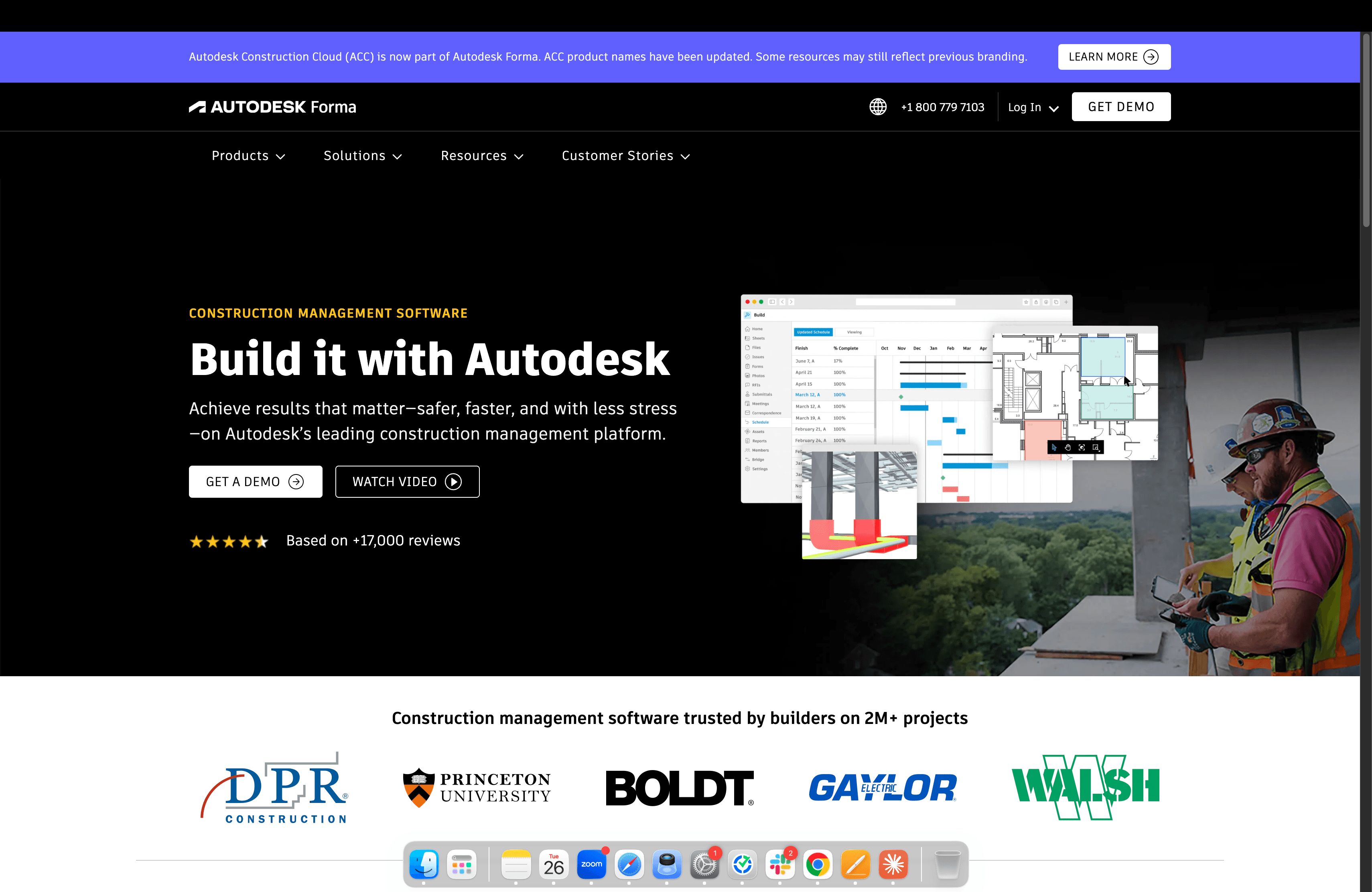
What is Autodesk Construction Cloud (ACC): Autodesk Construction Cloud is a comprehensive platform that unifies construction management tools across the project lifecycle. It connects teams, workflows, and data from design through operations, offering solutions for document, project, and bid management, and more.
It streamlines processes, reduces risk, and enhances collaboration for builders, contractors, and owners. Datagrid allows you to connect to Autodesk Construction Cloud to extract your data and leverage AI-powered tools and Agents to generate insights.
How to integrate Autodesk Construction Cloud (ACC) with Datagrid
Pre-Requisites
For a smooth setup of your Autodesk Construction Connector, please make sure you have the following ready:
Access to an Autodesk Construction Cloud account with Administrator or Project Admin permissions.
Ensure you installed the Datagrid App from the Autodesk App store to your Account.
Supported Data Objects
Data Access | Endpoint | Channel | Incremental Updates |
Takeoff Settings | Project |
|
|
Takeoff Classification Systems | Project |
|
|
Takeoff Content Views | Project |
|
|
Takeoff Packages | Project |
|
|
Packages Takeoff Types | Project |
|
|
Packages Takeoff Items | Project |
|
|
Folders | Project |
|
|
Folder Contents | Project |
|
|
Issues | Project |
|
|
Issues Comments | Project |
|
|
RFIs | Project |
|
|
RFIs Comments | Project |
|
|
Change Order Types | Project |
|
|
Cost Items | Project |
| Available |
Project Users | Project |
|
|
Assets | Project |
| Available |
Asset Categories | Project |
| Available |
Asset Status Sets | Project |
| Available |
Asset Statuses | Project |
| Available |
Asset Custom Attributes | Project |
| Available |
Forms | Project |
|
|
Sheets | Project |
|
|
Budgets | Project |
| Available |
Contracts | Project |
| Available |
Change Orders | Data Connector |
|
|
Submittals | Data Connector |
|
|
Issue Attribute Definitions |
|
| Available |
Issue Attribute Mappings |
|
| Available |
Issue Root Cause Categories |
|
| Available |
Requests |
|
| Available |
Activities | Data Connector |
|
|
Admin | Data Connector |
|
|
Assets | Data Connector |
|
|
Checklists | Data Connector |
|
|
Cost | Data Connector |
|
|
Dailylogs | Data Connector |
|
|
Forms | Data Connector |
|
|
Issues | Data Connector |
|
|
Locations | Data Connector |
|
|
Markups | Data Connector |
|
|
Meeting Minutes | Data Connector |
|
|
Photos | Data Connector |
|
|
Relationships | Data Connector |
|
|
Reviews | Data Connector |
|
|
RFIs | Data Connector |
|
|
Schedule | Data Connector |
|
|
Sheets | Data Connector |
|
|
Transmittals | Data Connector |
|
|
Limitations
There are some considerations to bear in mind when connecting Autodesk Construction Cloud to Datagrid:
We do not support 2-way syncing between Datagrid and Autodesk Construction Cloud at the moment, but it is on our roadmap to support in the future.
Configure
Connecting to Autodesk Construction Cloud requires a couple of steps to get you started.
1. Install Datagrid from Account Administration
Log in to your Autodesk Construction Cloud and go to Account Administration.
Click on Apps and scroll until you find Datagrid.
Click Authorize & Install to add the app to your Account.
Selecting Open will redirect you to app.datagrid.com, where you can either log in or create an account with Datagrid.
2. Create a Datagrid Account
Visit Datagrid.com to sign up for an account, or log in using the following link.
Search for the Autodesk Construction Cloud integration.
3. Configure Your Autodesk Construction Cloud Connector
Log in to Autodesk Construction Cloud and validate the integration.
4. Select Your Data & Import into Datagrid
Pick your data to import.
Note: You can access data from different Autodesk Construction Cloud modules, such as Documents, Cost Management, Takeoff, Build, Admin, and Forms. Please reference our Data Access Table for more information.
Create a Dataset
How to Create a Dataset from an Existing Pipeline
Step 1: Log in to your Datagrid account.
Step 2: Search for the Autodesk Construction Cloud integration.
Step 3: Choose an existing pipeline.
1. Edit Pipeline
Open the overflow menu "..." and select "Edit".
2. Schedule Pipeline
Hover over the "Schedule" box and select "Schedule".
Configure the schedule to your preference.
Press "Update" when you are done setting up your schedule.
Now you know how to set up a schedule!
Why use Autodesk Construction Cloud (ACC) with Datagrid
Connecting ACC to Datagrid gives project teams a way to execute repetitive built-world workflows directly against live project data. Here’s why use ACC with Datagrid:
AI agents that read your project files: Datagrid's AI agents ingest spec books, drawing sets, and submittal packages from ACC, then extract material requirements, compliance checkpoints, and key attributes automatically.
Cross-module intelligence: Agents correlate data across RFIs, submittals, issues, and cost records to detect patterns that manual review misses, such as recurring RFI topics that signal design coordination gaps.
Event-driven cost monitoring: ACC's cost management webhook events trigger Datagrid agents when budgets, change orders, or contracts change, so variance alerts fire in real time instead of at month-end.
Bulk portfolio extraction: The Data Connector API feeds Datagrid with data from every module across your project portfolio, giving agents the full picture for cross-project analytics and reporting.
What you can build with Autodesk Construction Cloud (ACC) and Datagrid
Datagrid's AI agents execute against live ACC data in built-world workflows that project teams already run every day. The examples below show how Datagrid pulls source records, applies rules, and routes output to the next system or reviewer:
Automated submittal compliance review: A Datagrid agent retrieves submitted product data sheets from ACC's Submittals module, pulls the linked specification sections from ACC document management, and compares submitted materials against spec requirements.
RFI response drafting with spec cross-referencing: When new RFIs arrive in ACC, a Datagrid agent reads the question text, retrieves the referenced drawing sheets and specification sections, and drafts a suggested response with precise spec and drawing callouts.
Real-time cost variance alerts with ERP sync: Datagrid agents monitor ACC cost management data, including budgets, potential change orders (PCOs), owner change orders (OCOs), and contracts.
Cross-project portfolio reporting: A Datagrid agent uses the ACC Data Connector API to pull bulk data from RFIs, submittals, issues, cost, schedule, and daily reports across projects.
Resources and documentation
Frequently asked questions
What authentication method does the Datagrid ACC integration use?
The integration uses OAuth 2.0 through Autodesk Platform Services (APS). You authorize Datagrid directly from ACC's Account Administration > Apps panel. APS issues tokens via the three-legged authorization code flow. Datagrid handles token refresh automatically. No static API keys are involved.
What ACC data objects can Datagrid access?
Datagrid supports 20+ data object types across two module groups. Project module objects include Budgets, Contracts, Forms, Sheets, and more. Data Connector module objects include RFIs, Submittals, Issues, Cost, Assets, Dailylogs, Photos, Schedule, Meeting Minutes, Checklists, Locations, Reviews, Transmittals, Relationships, Markups, and more.
Can Datagrid write data back to ACC, or is it read-only?
Both patterns exist. The Data Connector API is read-only and used for bulk extraction. Separately, many ACC transactional APIs support create and update operations, depending on the module and endpoint. Issues, RFIs, Submittals, Cost Items, Contracts, Sheets, Assets, and Locations have write operations in the ACC API. Datagrid agents can create new issues, update submittal records, and modify cost items when configured to do so and where supported by the module and endpoint.
Do I need to configure anything in ACC's admin console before connecting?
Yes. The Datagrid app must be authorized from within Account Administration > Apps in ACC. In ACC environments, integration approval and admin configuration can affect whether project data is accessible after authentication.
Similar integrations
Procore: Commonly paired with ACC for cross-platform project management, enabling synced RFIs, submittals, budgets, and field data between systems.
BIM360 Docs: Syncing BIM360 Docs with ACC preserves document version history and centralizes project files for consistent CDE workflows.
PlanGrid: PlanGrid complements ACC by syncing sheet sets, field reports, and RFIs to automate sheet distribution and jobsite data capture.
Revit: Revit model integration brings BIM element properties and model data into ACC for coordination, quantity extraction, and AEC Data Model queries.
Navisworks: Navisworks export of clash detection and aggregated model data feeds ACC to automate coordination reporting and issue creation.
BuildingConnected: BuildingConnected links preconstruction bid and subcontractor qualification data into ACC, streamlining bid-to-project handoffs and risk-aware procurement.
Browse by category
Construction Data